 +91 981-810-8884, 0114-214-3250
| Technical Name | knk_frappe_inbox |
| License | OPL-1 |
| Technical Name | knk_frappe_inbox |
| License | OPL-1 |
Frappe Inbox
Modern Email Management for Frappe & ERPNext
Frappe Inbox provides a complete email management solution inside Frappe and ERPNext. Users can compose, send, receive, organize, search, and manage emails directly from the ERP system. With support for CC/BCC, document-linked conversations, tags, folders, snoozing, bulk actions, and advanced mailbox controls, teams can manage business communications efficiently from a single interface.
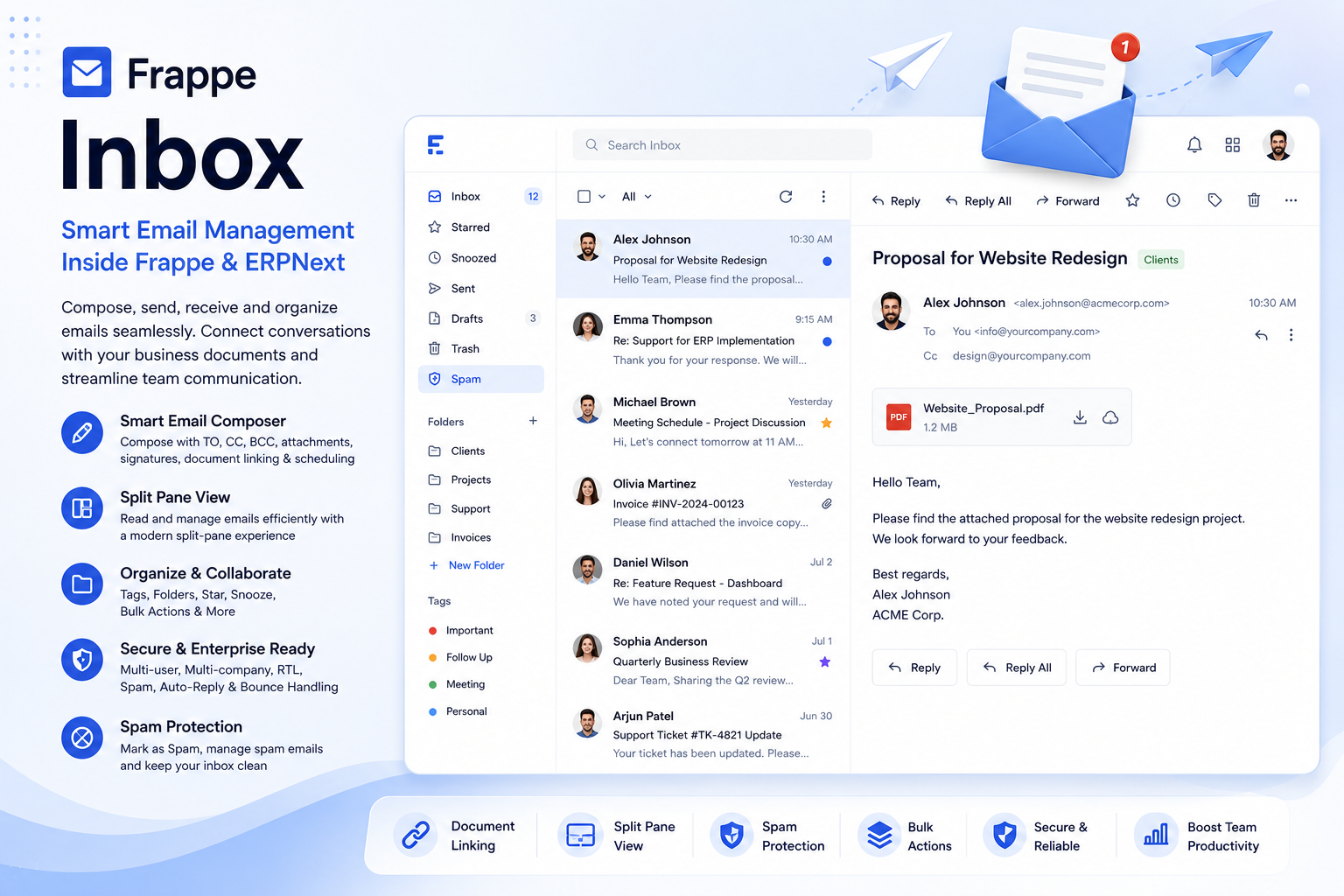
🎉 Key Features
Powerful email management capabilities built directly into Frappe & ERPNext.
Smart Email Composition
Compose emails with TO, CC, BCC support, attachments, AI-generated content, signatures, and scheduled sending.
Document Linking
Link emails directly to ERP documents such as Customers, Leads, Opportunities, and Sales Orders.
Advanced Inbox
Unified inbox with metadata, unread indicators, split-pane view, threaded conversations, and sender avatars.
Reply & Forward
Reply, Reply All, Forward messages, manage recipients, and maintain complete conversation history.
Productivity Tools
Star emails, snooze messages, create tags, organize folders, and improve team productivity.
Advanced Search
Quickly search messages by subject, sender, recipient, and keywords for faster access.
Trash & Recovery
Delete, restore, permanently remove messages, and recover emails when required.
Bulk Operations
Perform bulk actions such as delete, archive, snooze, mark unread, and star/unstar.
Enterprise Ready
RTL support, multilingual interface, high-performance mailbox loading, a nd secure access controls.
Advanced Email Features
Spam management, bounce handling, delivery tracking, auto-replies, and user signatures.
Native Frappe Integration
Fully integrated with Frappe and ERPNext workflows for seamless business communication.
Multi-Company Security
Ensure mailbox isolation and secure communication across multiple companies and users.
Modern UI Themes
Switch instantly between 16+ beautiful themes and customize the appearance of Frappe Inbox to match your branding and preferences.
Quick Account Switching
Access and switch between multiple connected email accounts instantly. Stay organized and manage all your inboxes efficiently from one centralized workspace.
How to Use Frappe Inbox
1. Compose and Send Emails :-
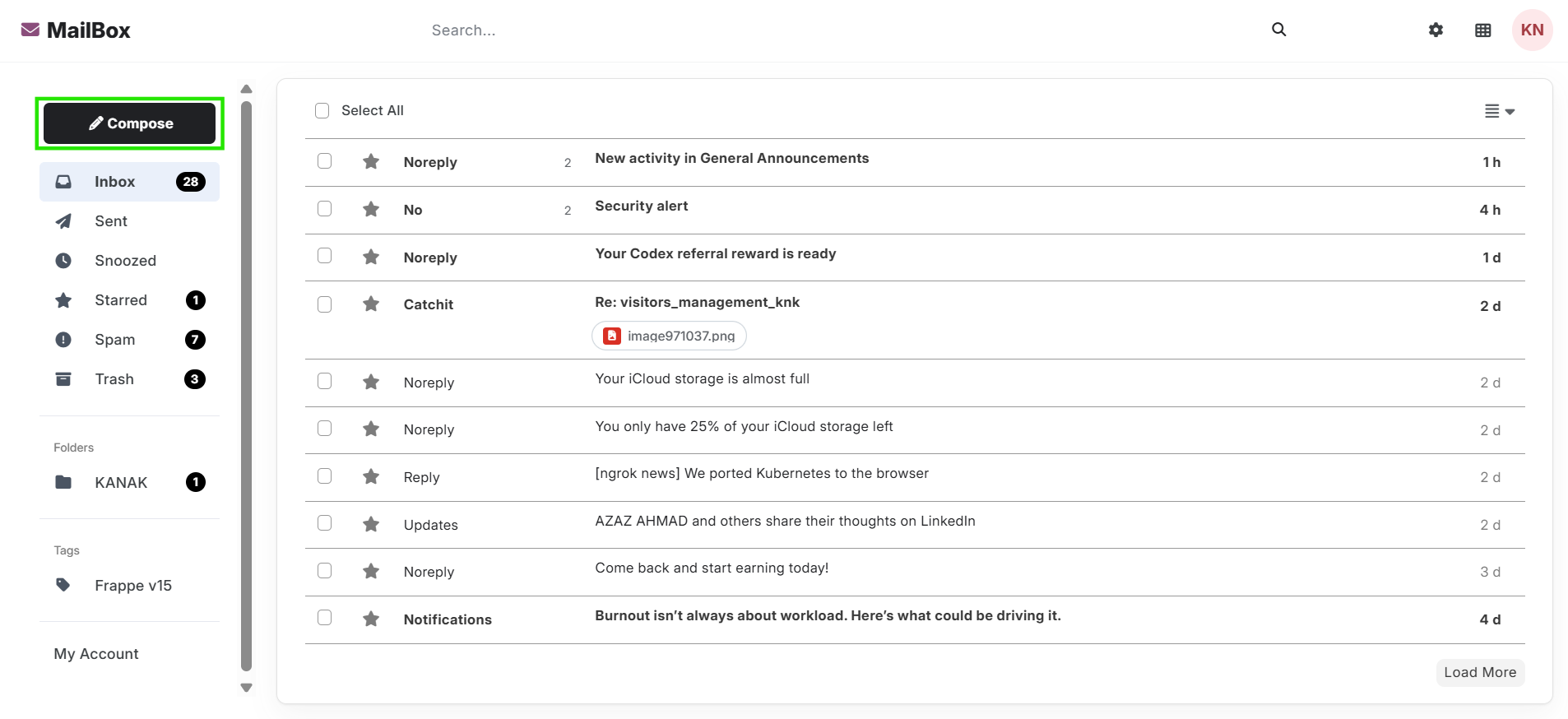
Open the Frappe Inbox module and click the Compose button.
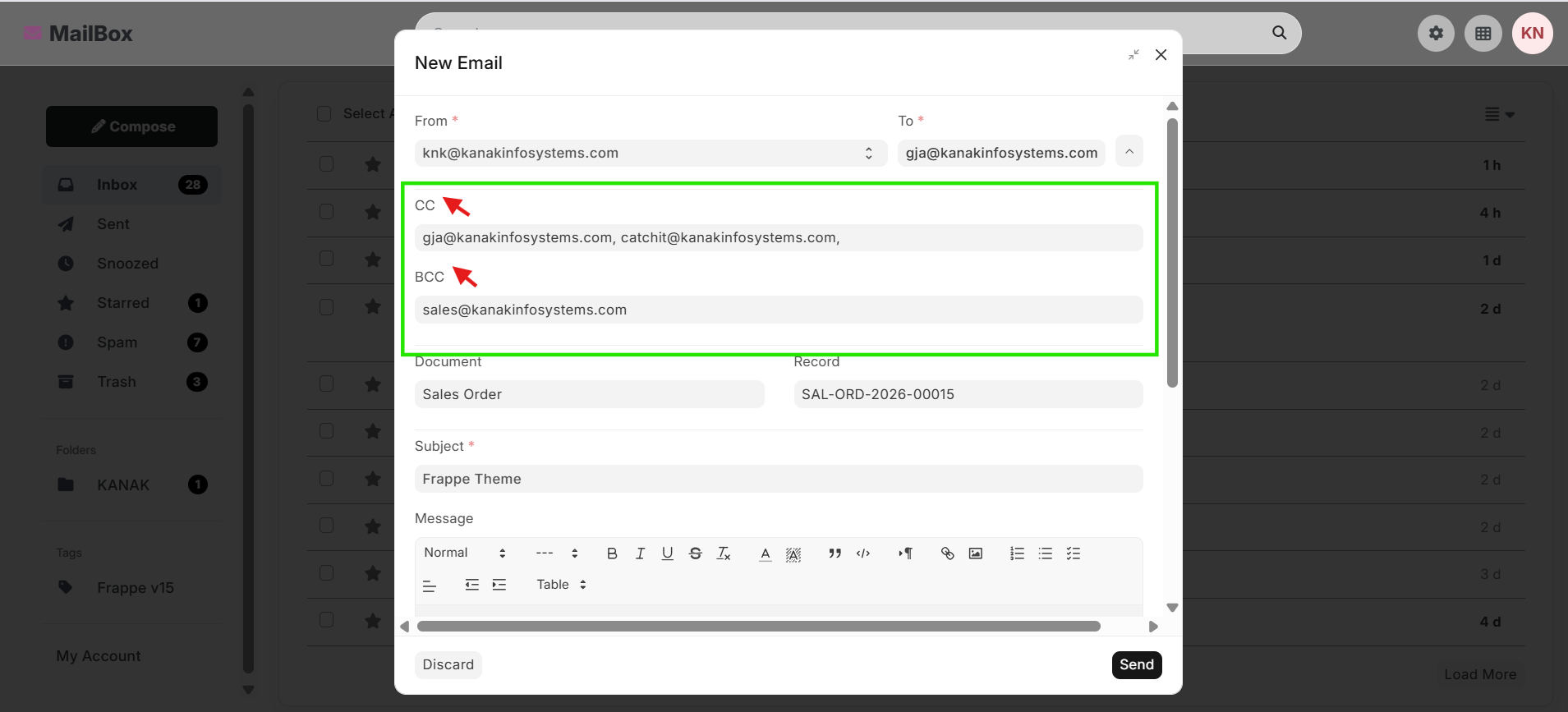
Enter the recipient's email address in the To field. If additional recipients need to receive a copy of the email, use the CC (Carbon Copy) field. For recipients who should receive the email privately without other recipients being aware, use the BCC (Blind Carbon Copy) field.
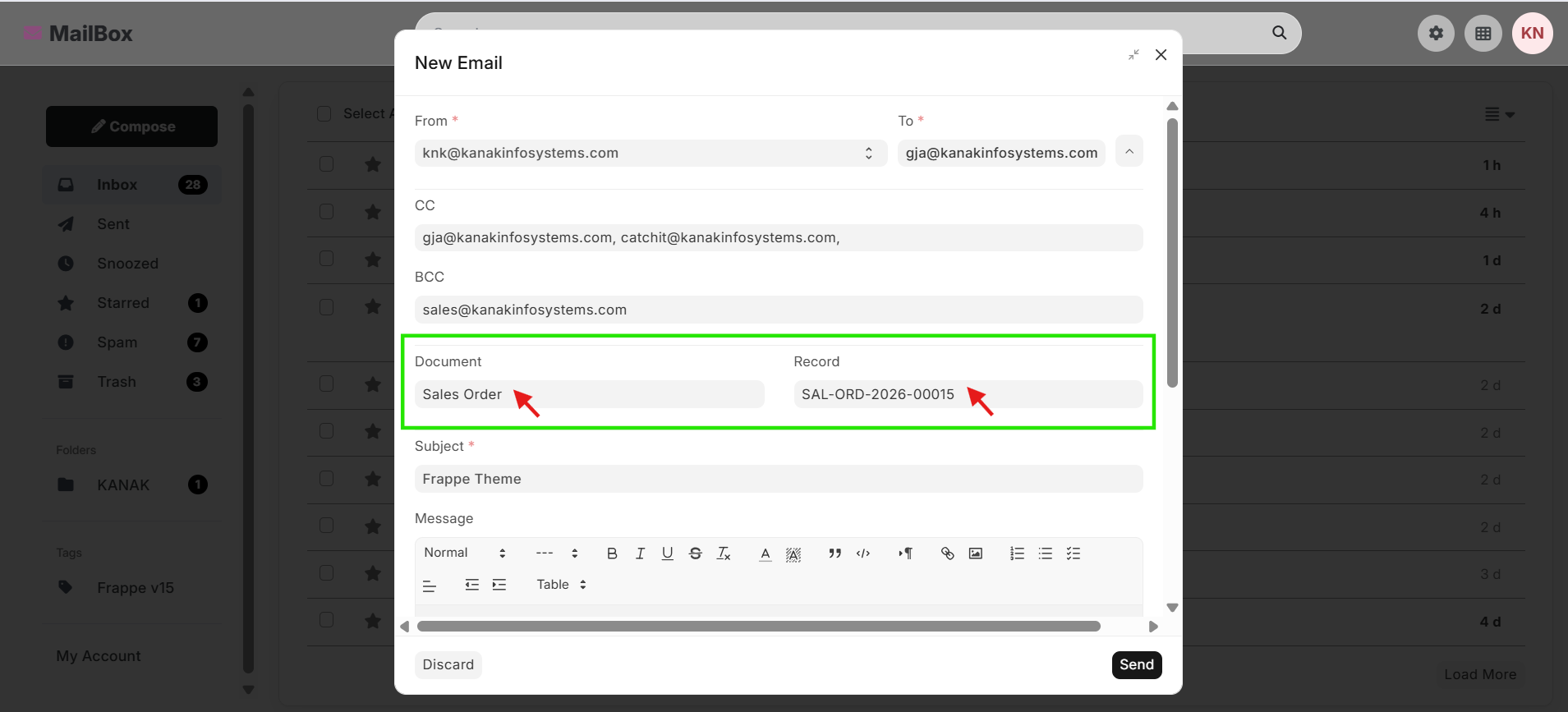
One of the key advantages of Frappe Inbox is the ability to connect email conversations directly with ERP records. Before sending the email, you can link it to relevant documents such as Leads, Customers, Opportunities, Quotations, Sales Orders, Support Tickets, and other ERPNext records. This helps maintain a complete communication history and improves collaboration across teams.
Add a meaningful Subject and compose your email message in the editor. The rich text editor allows you to format content, making your communication more professional and easier to read.
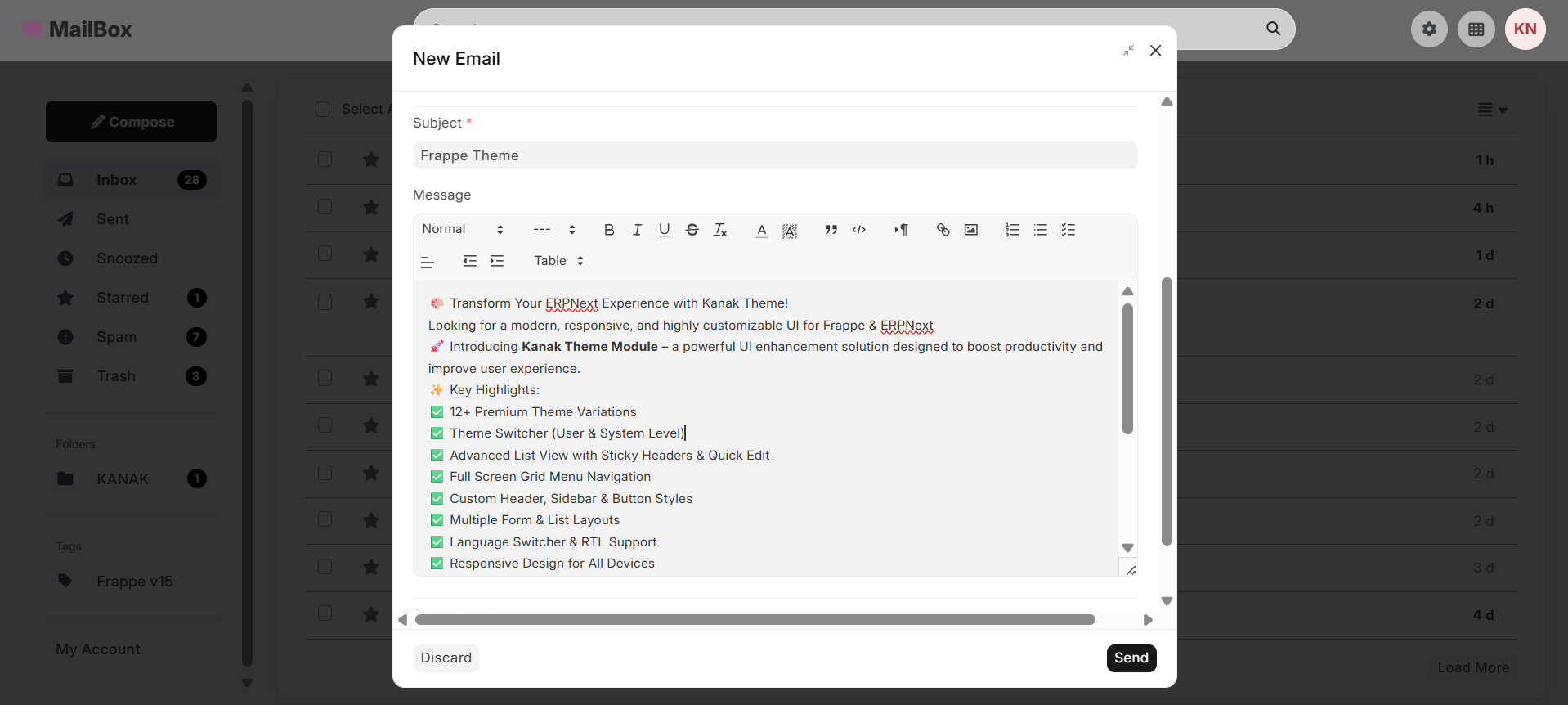
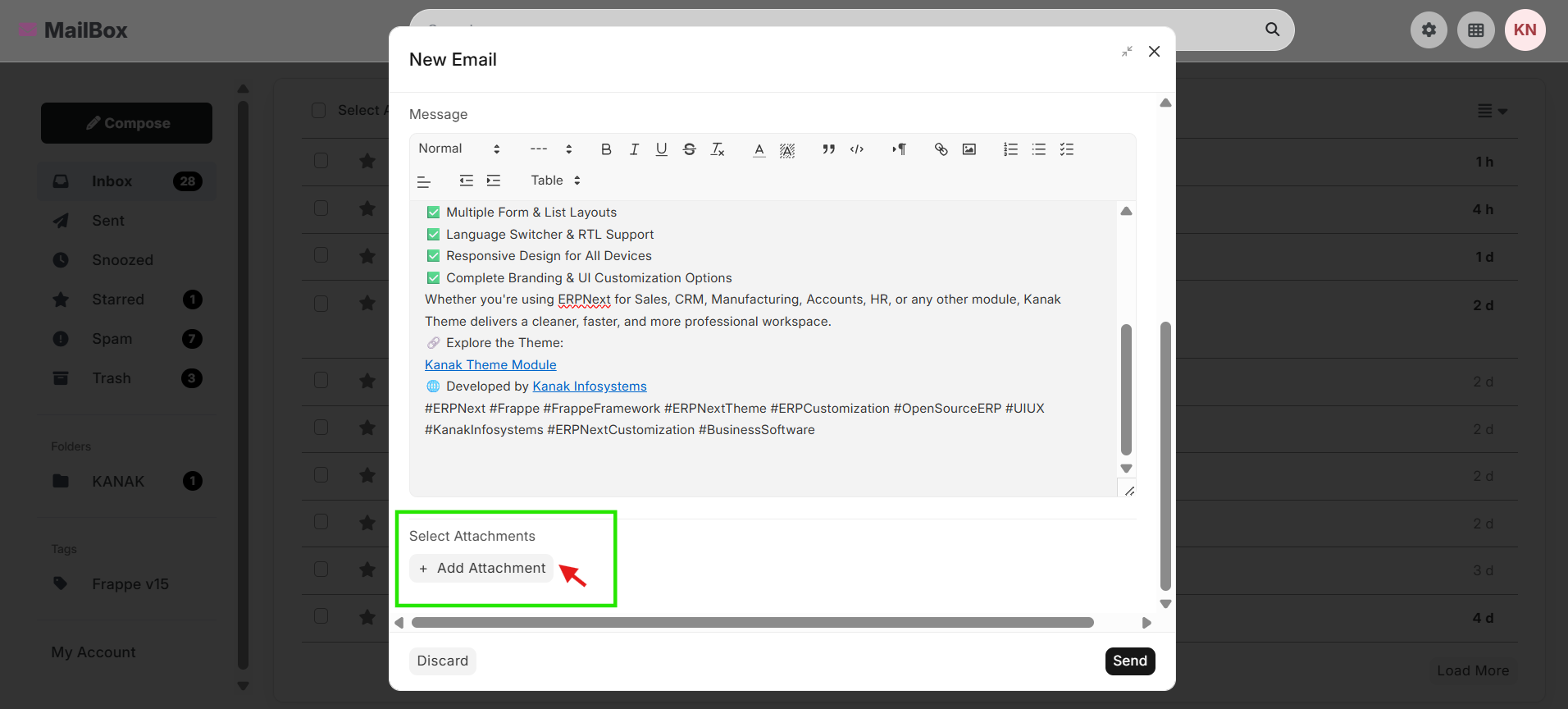
You can also attach files such as documents, images, PDFs, spreadsheets, quotations, contracts, and other business-related files directly from your local system or existing ERP attachments.
2. Manage Emails from the Inbox :-
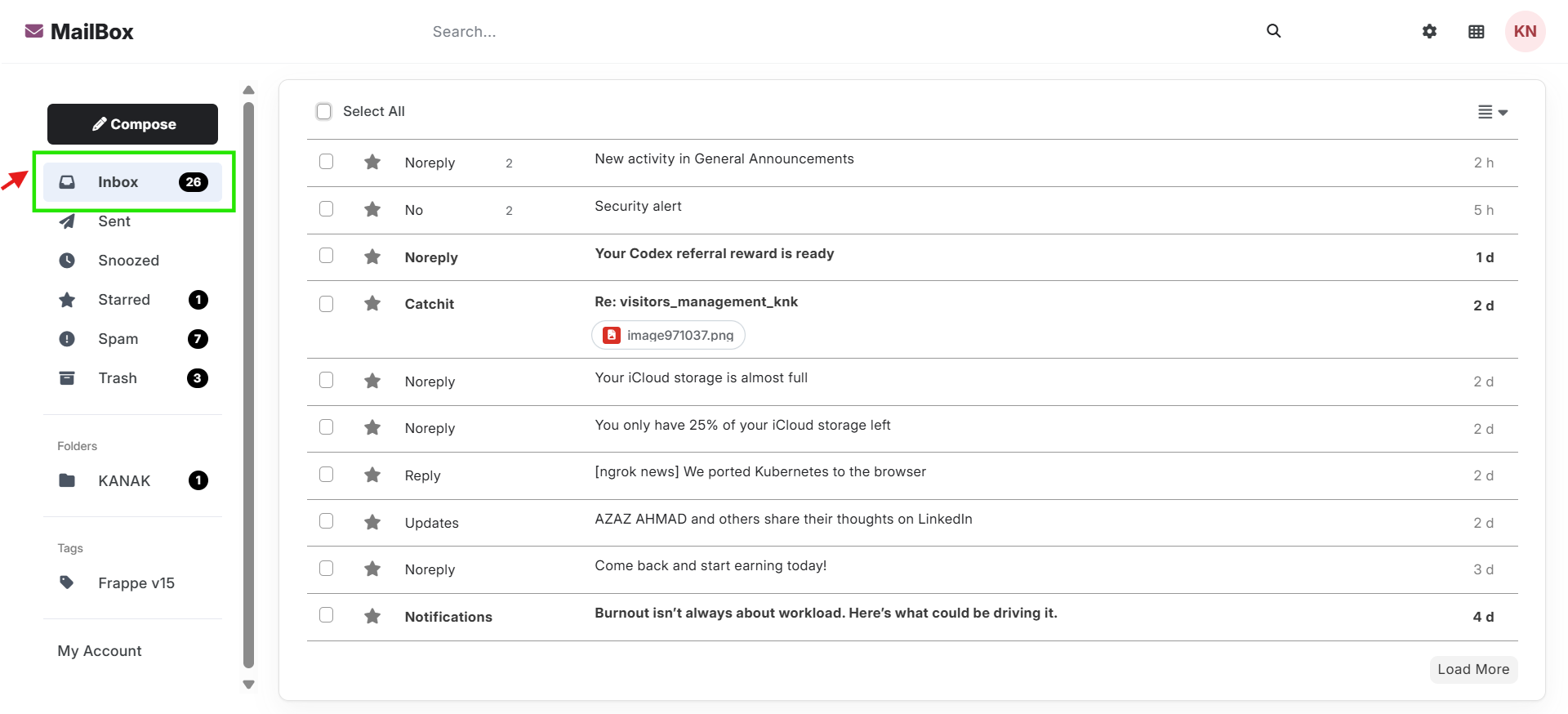
View all incoming and outgoing emails from a unified inbox interface. Read messages in detail, use the split-pane view for faster navigation, mark emails as read or unread, and keep track of conversations with threaded email support.
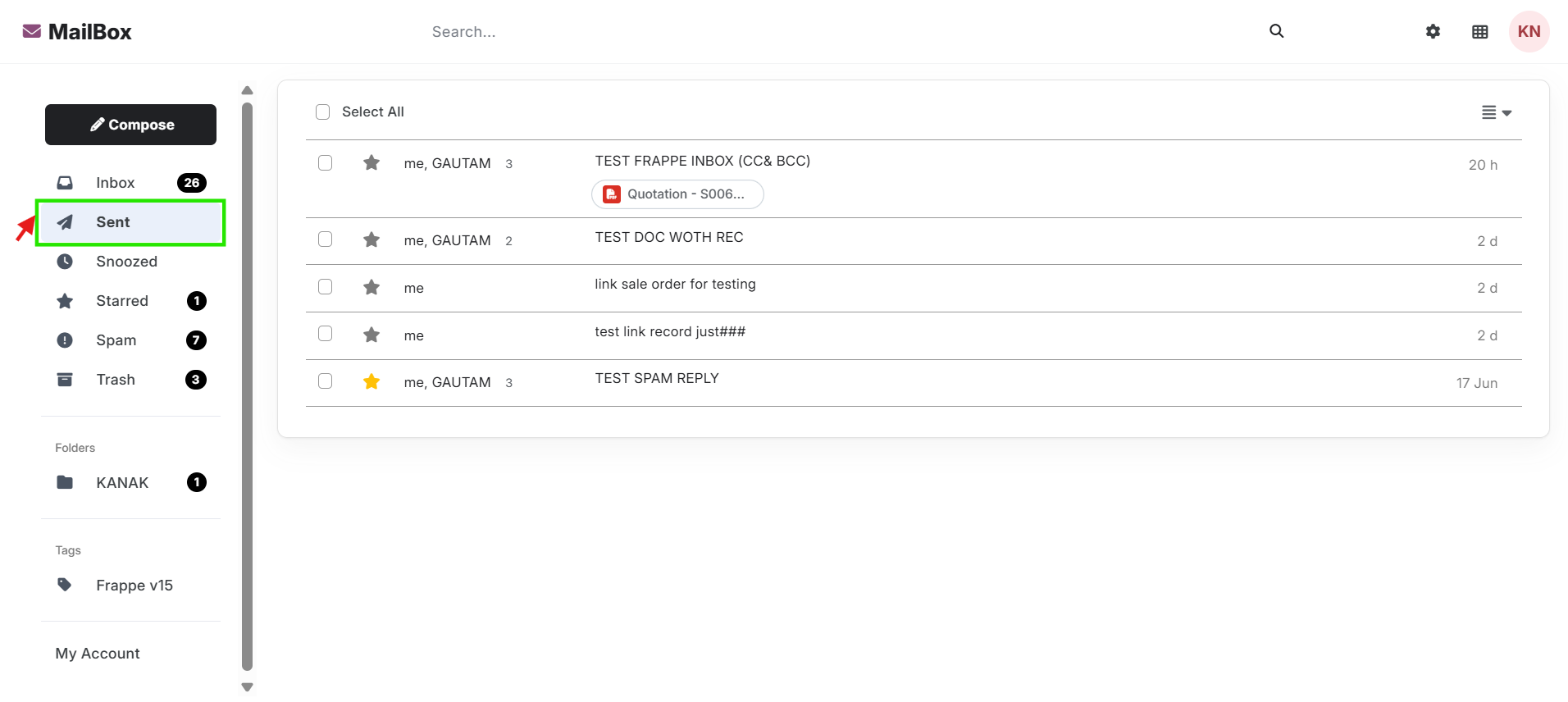
Click on the Sent folder to view all emails that have been successfully sent from the selected email account.
Click on a specific email message to open its detailed view, where you can review the complete conversation, attachments, recipients, and related information.
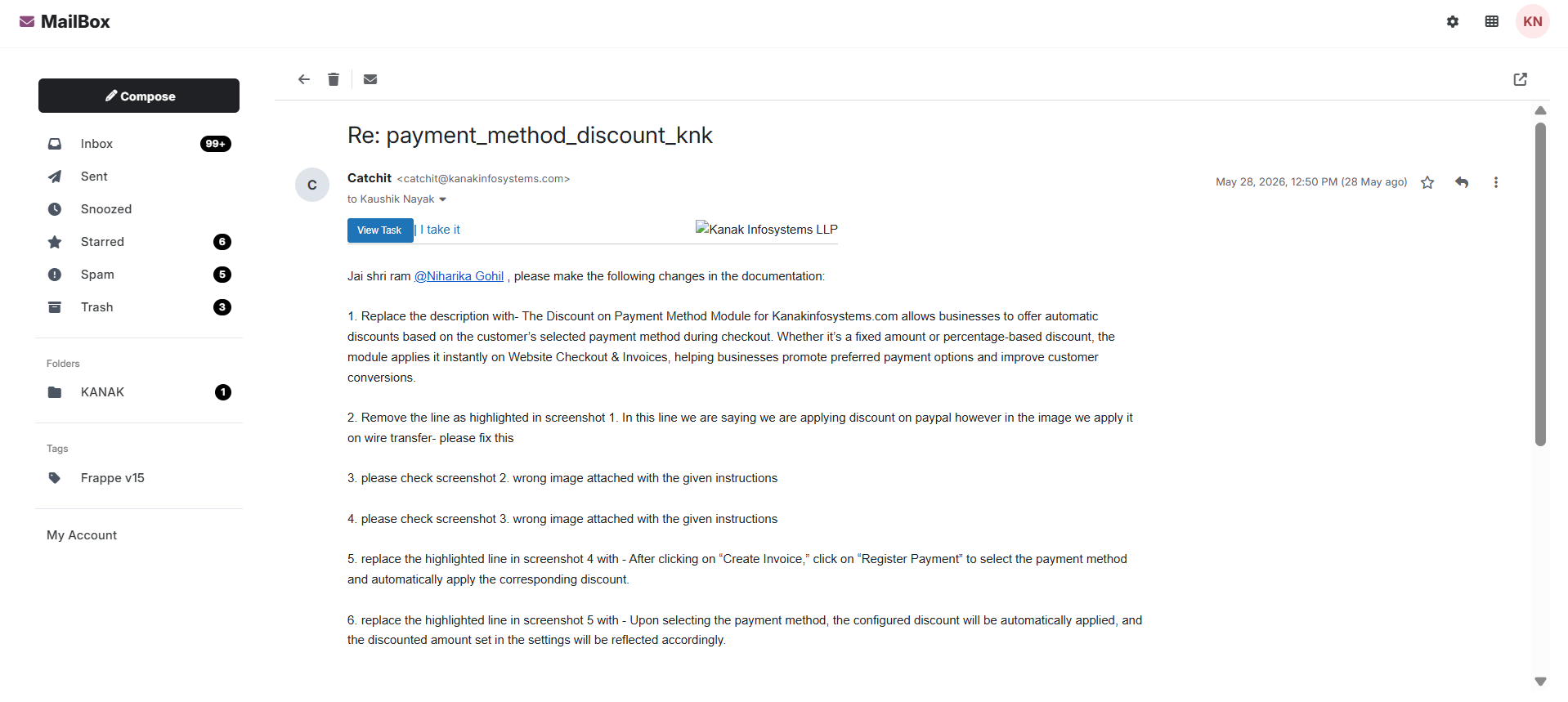
All files attached to the email are displayed within Frappe Inbox, allowing users to view, download, and manage attachments directly from the email conversation.
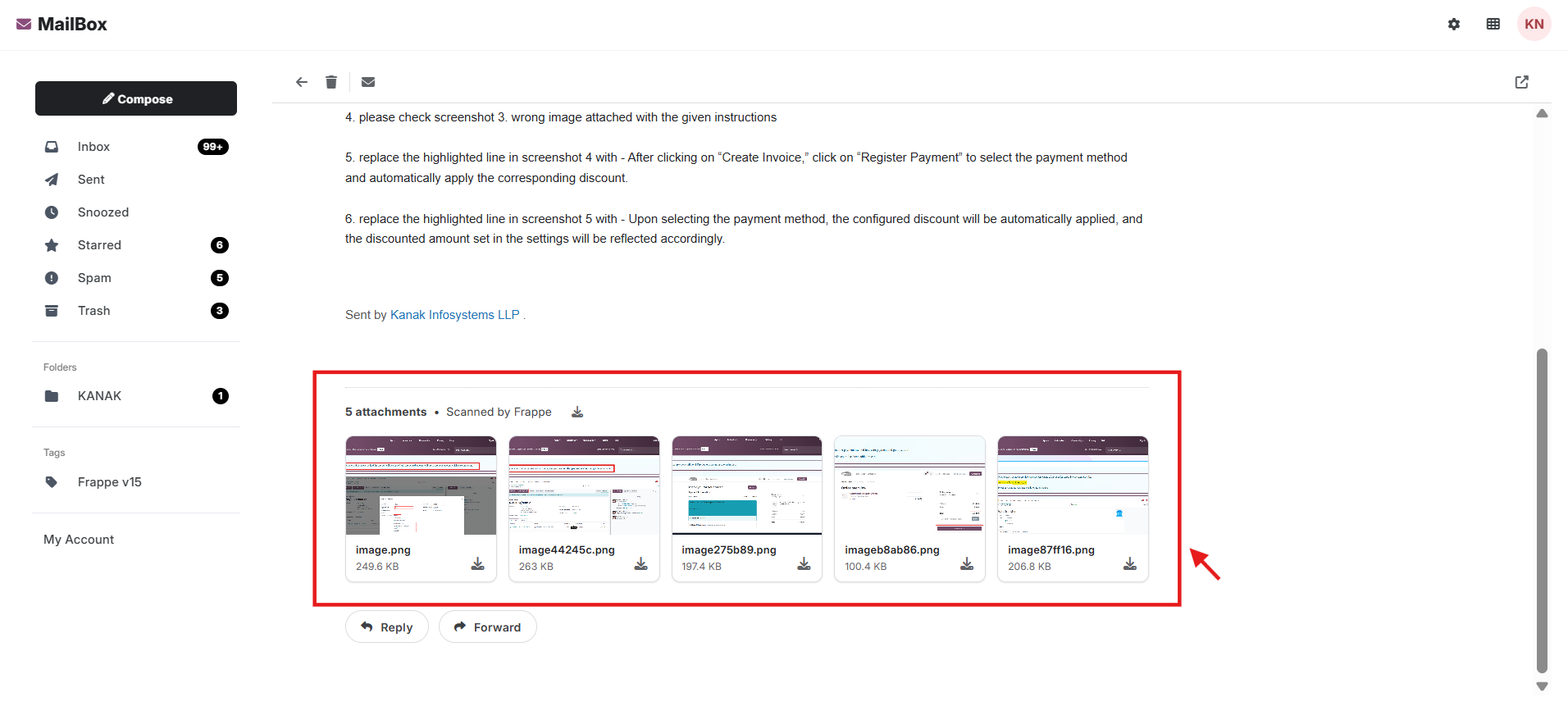
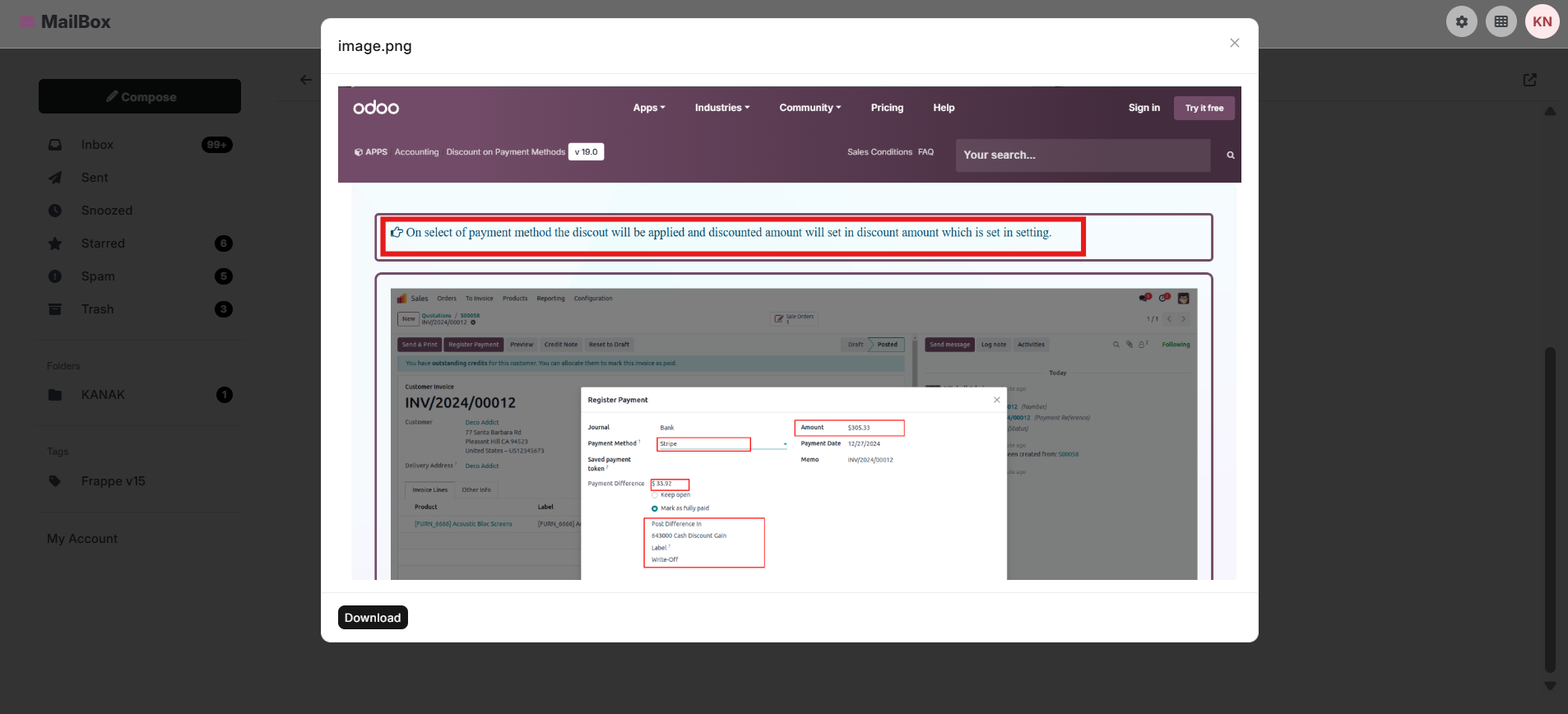
Click on an attached image to preview it directly within Frappe Inbox without downloading the file.
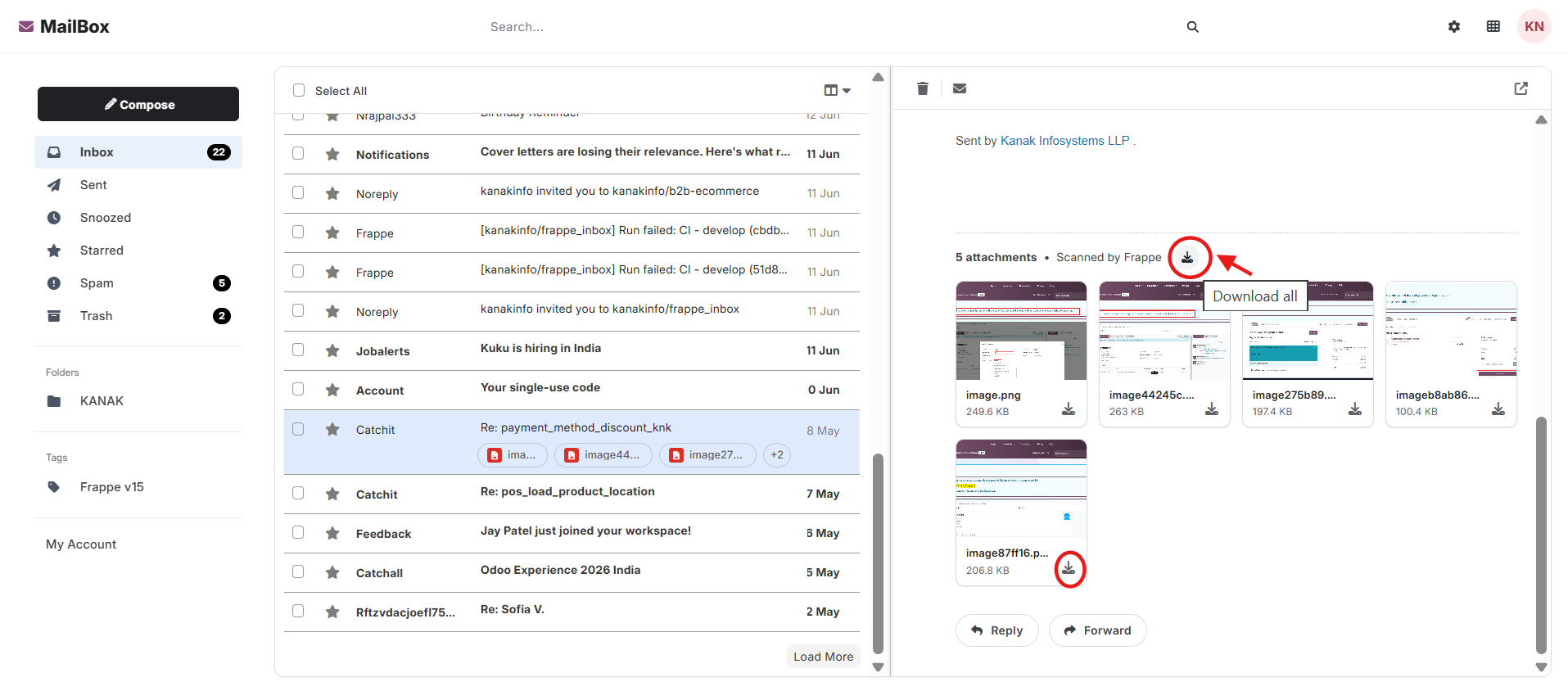
Users can download individual image attachments by selecting a specific image or use the Download All option to download all attached images with a single click.
Click the Toggle Split Pane View button to display the email list and email content side by side, enabling faster navigation and improved email management.
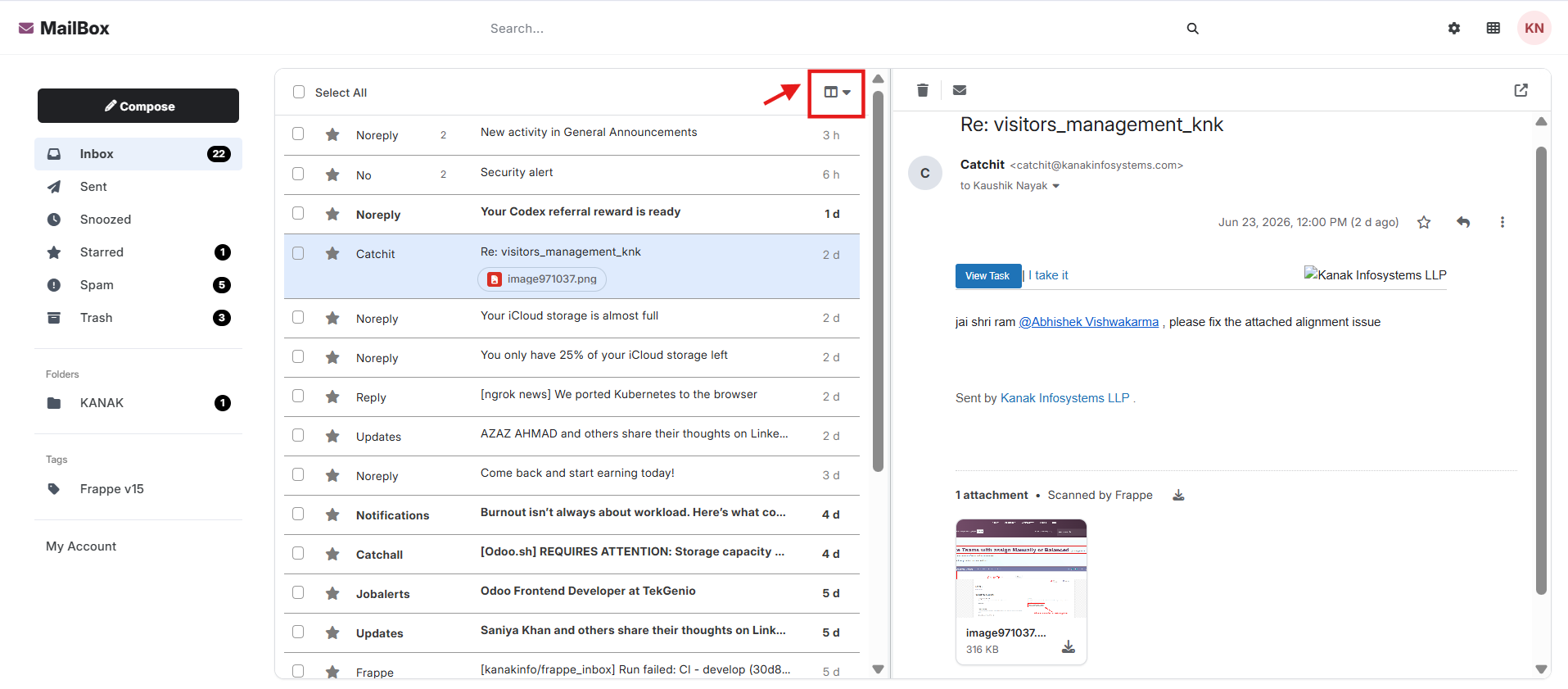
Long email conversations are displayed in a collapsible format, allowing users to expand or collapse individual messages for easier navigation and improved readability.
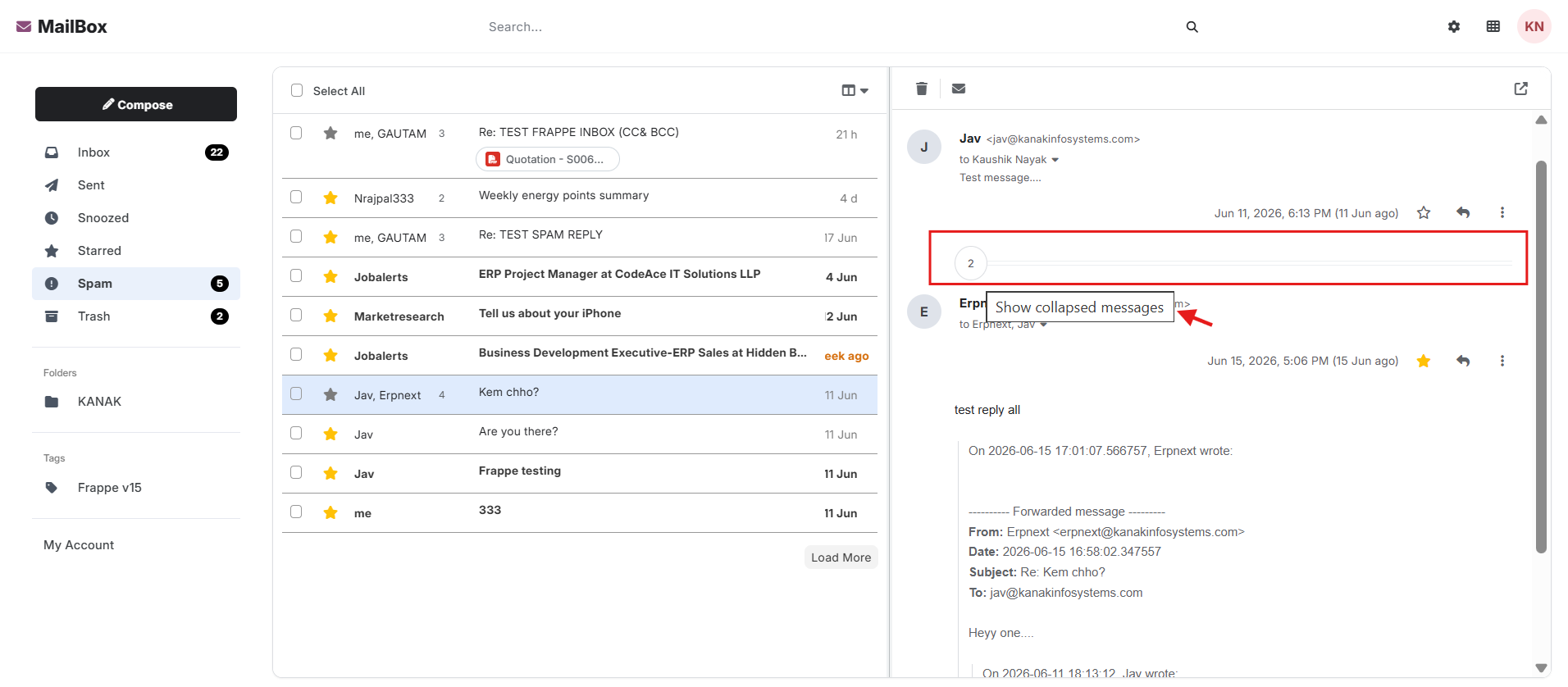
3. Organize and Track Communication :-
Improve productivity by starring important emails, creating custom folders and tags, snoozing messages for later follow-up, and using advanced search filters to quickly locate conversations. Users can also manage spam, restore deleted emails, and perform bulk actions for efficient mailbox management.
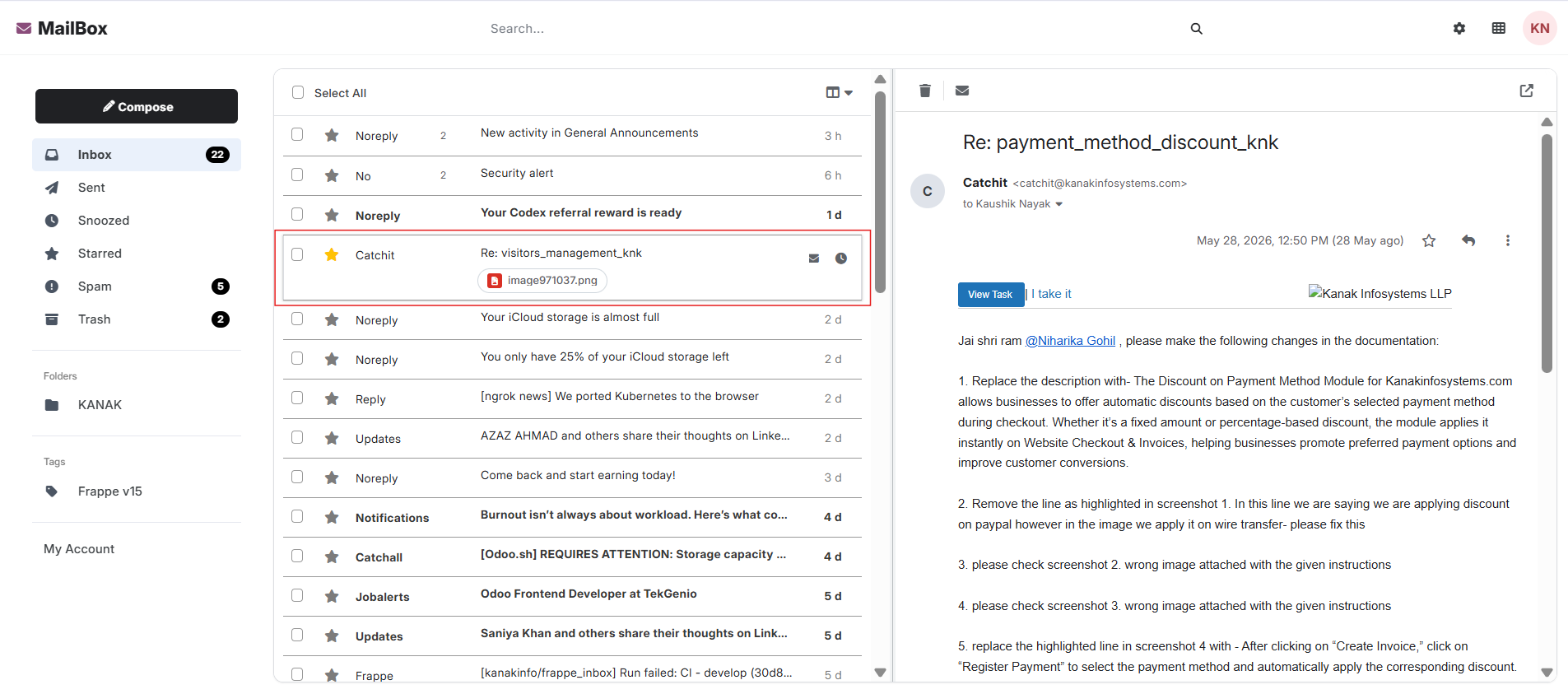
Click on the Starred folder to view all emails that have been marked as important or starred for quick access and follow-up.
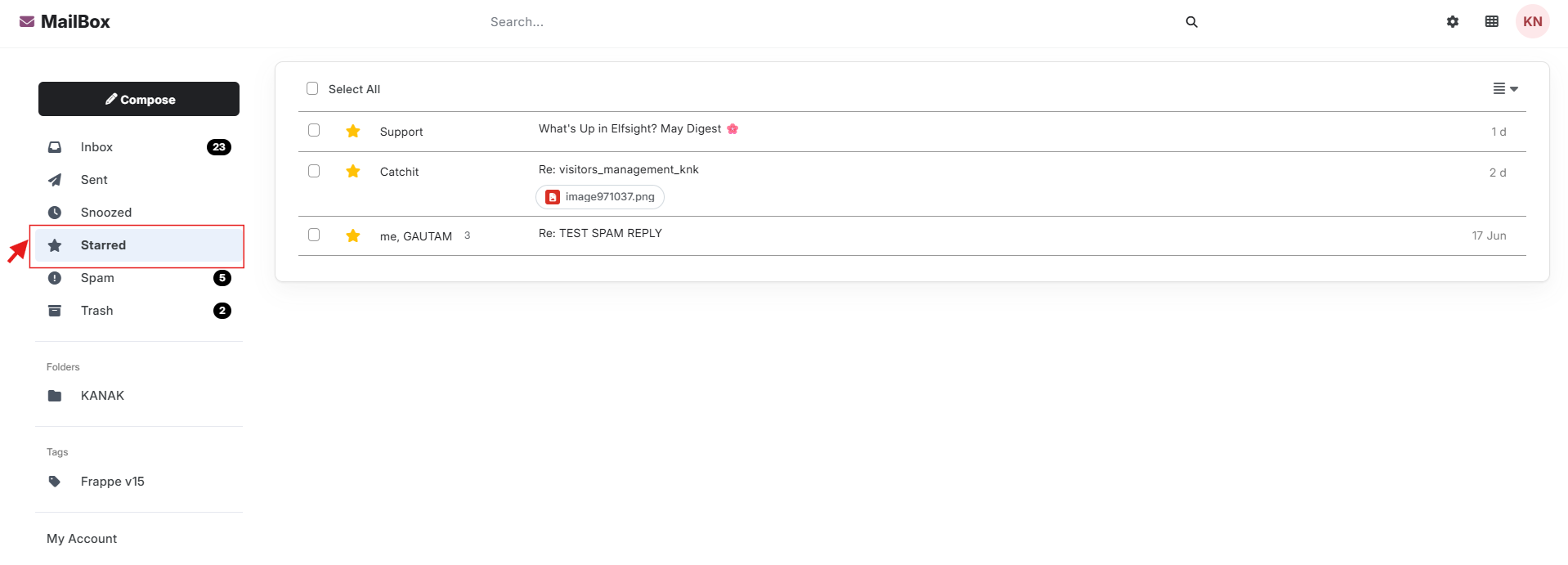
Click the Load More button to fetch and display additional emails in the current view. Each click loads the next set of emails, allowing users to browse older messages without leaving the page.
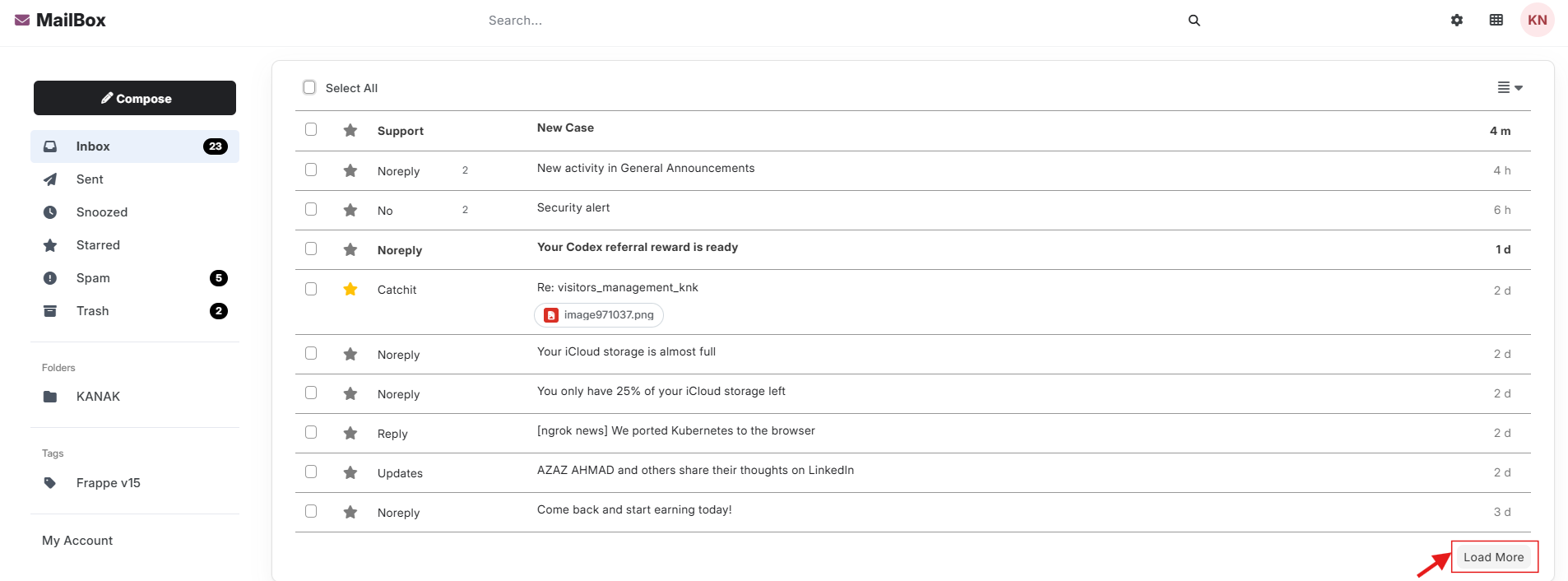
Use the Bulk Actions feature to select multiple emails or all emails at once and move them to a specific folder with a single operation.
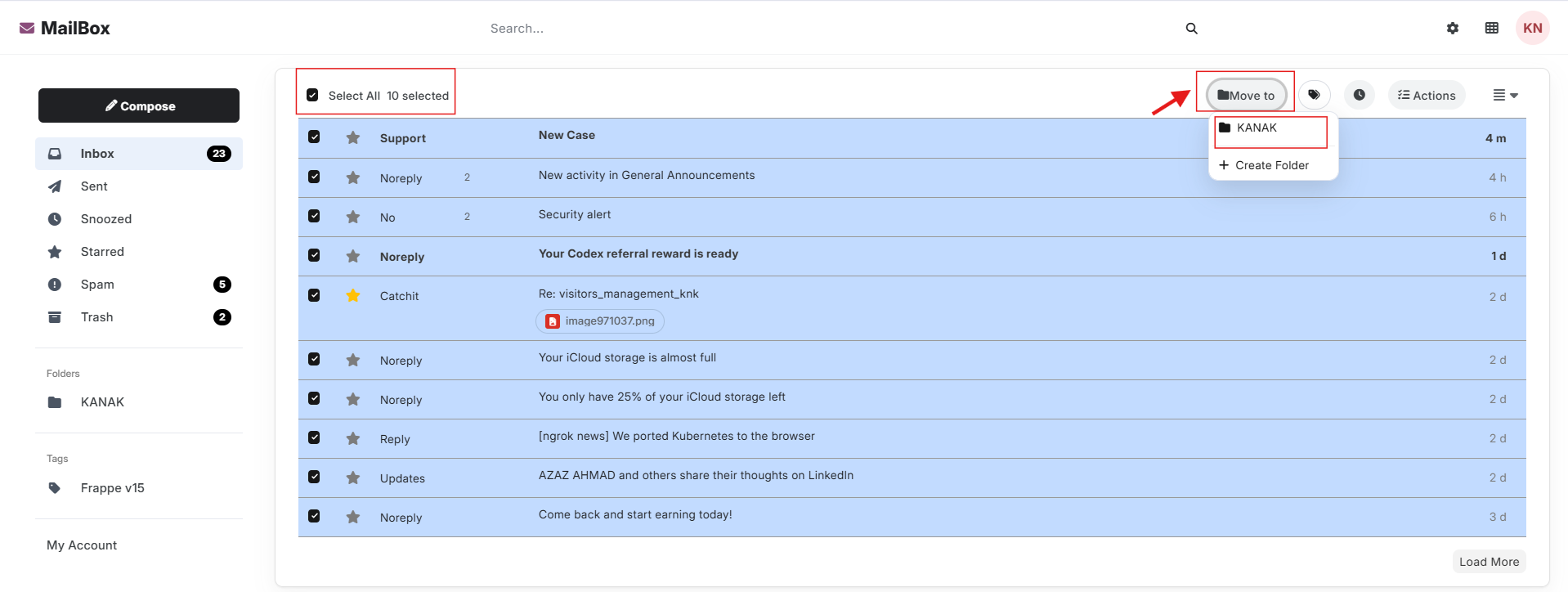
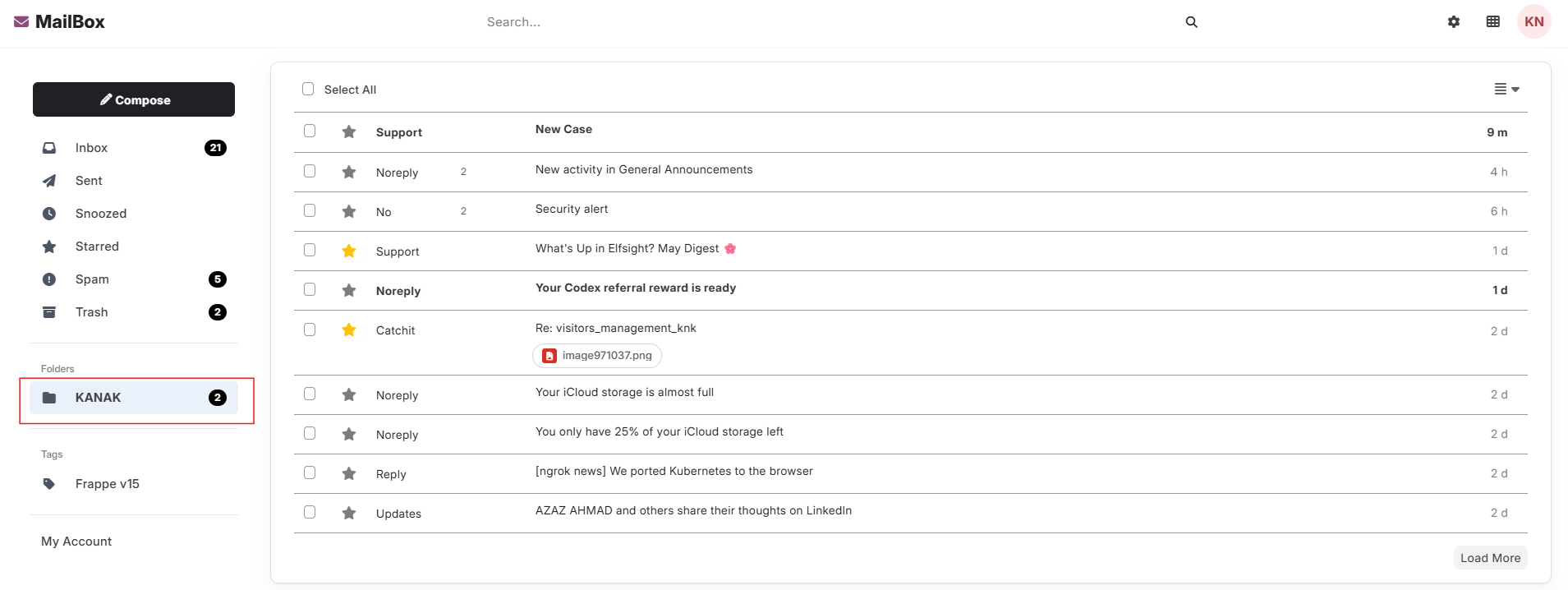
After moving the selected emails, open the destination folder to verify that all transferred emails are successfully available in their new location.
The destination folder also provides a Move to Inbox option, allowing users to transfer selected emails or all emails back to the Inbox with a single click.
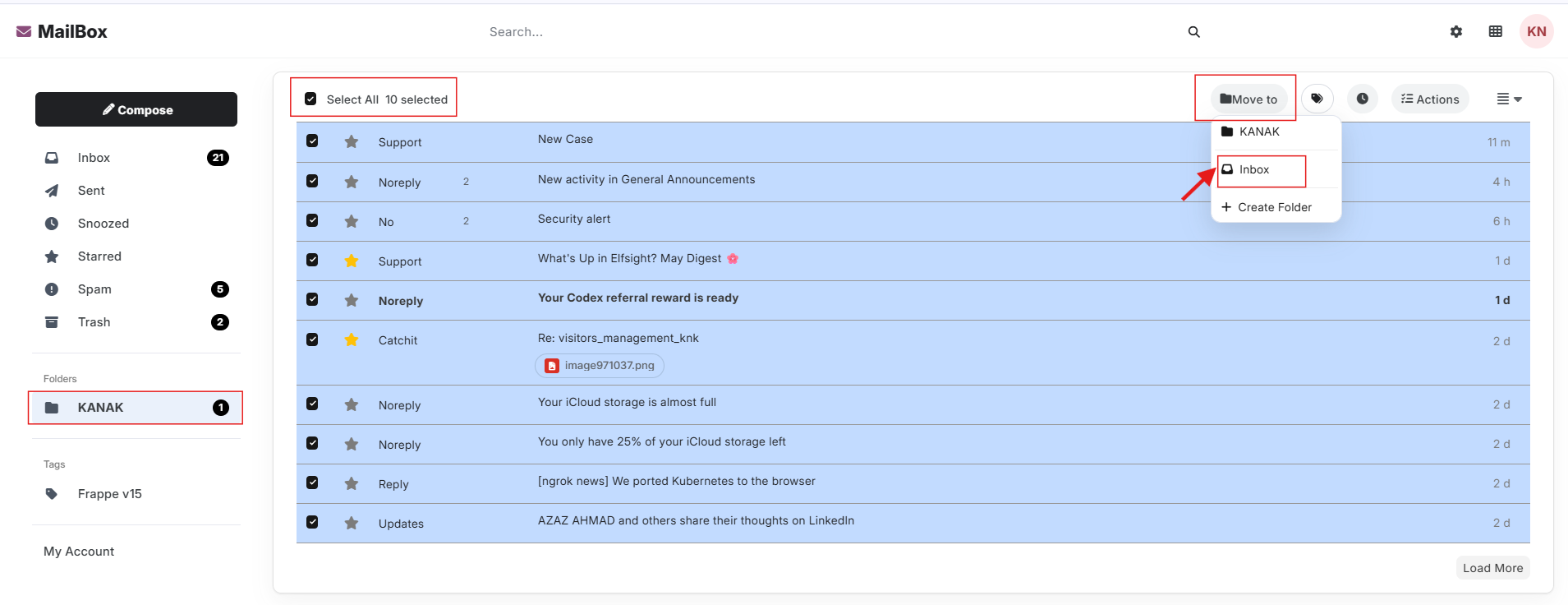
After completing the Move to Inbox action, all selected emails are transferred back to the Inbox and become available in the Inbox folder for easy access.
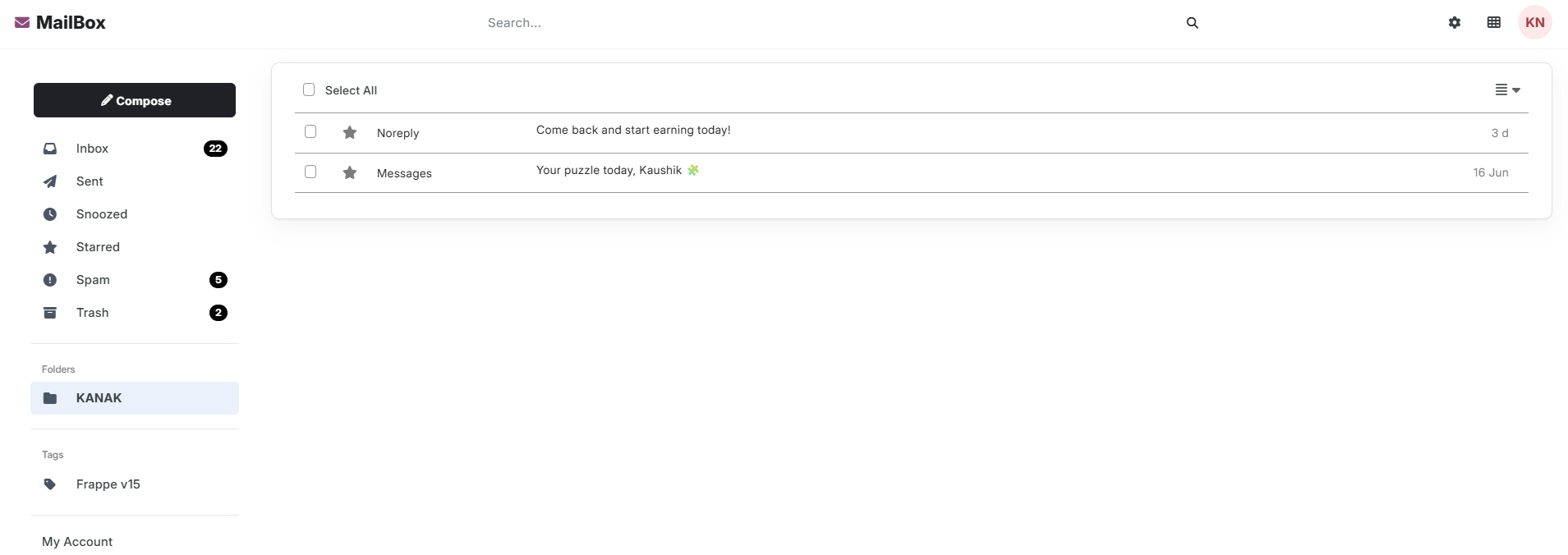
After returning to the Inbox, you can see that all selected emails have been successfully moved from the folder and are now available in the Inbox.
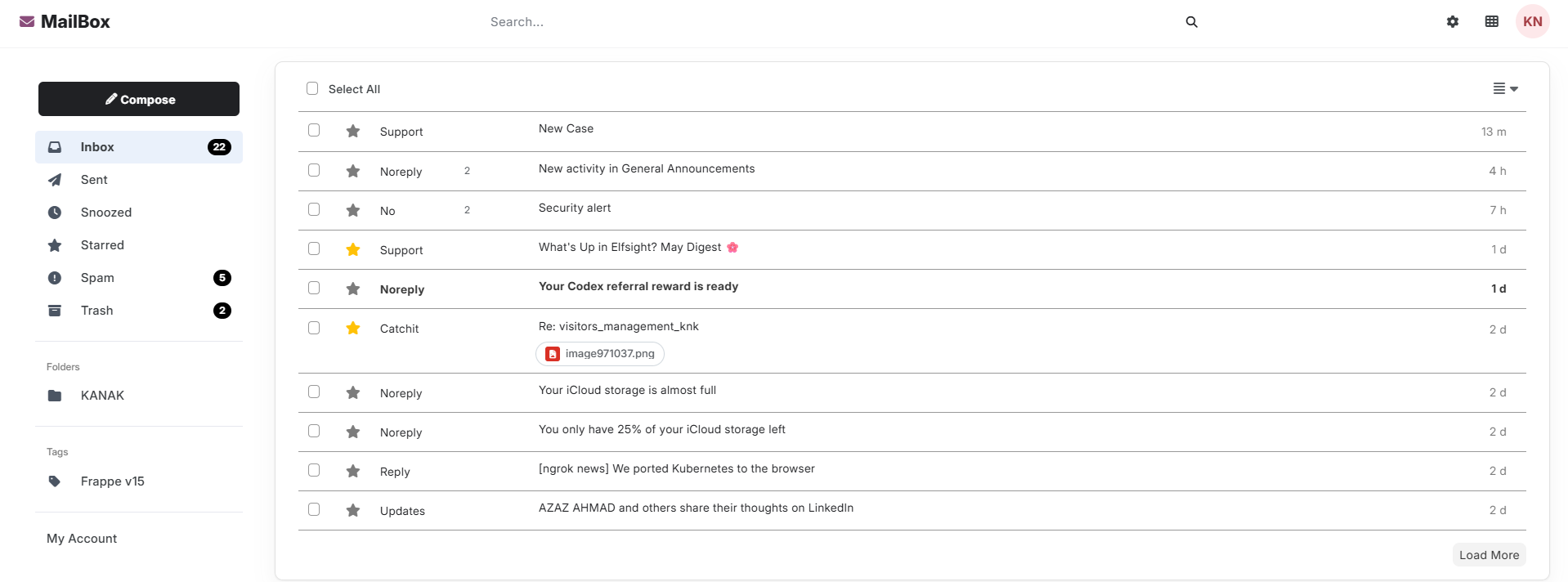
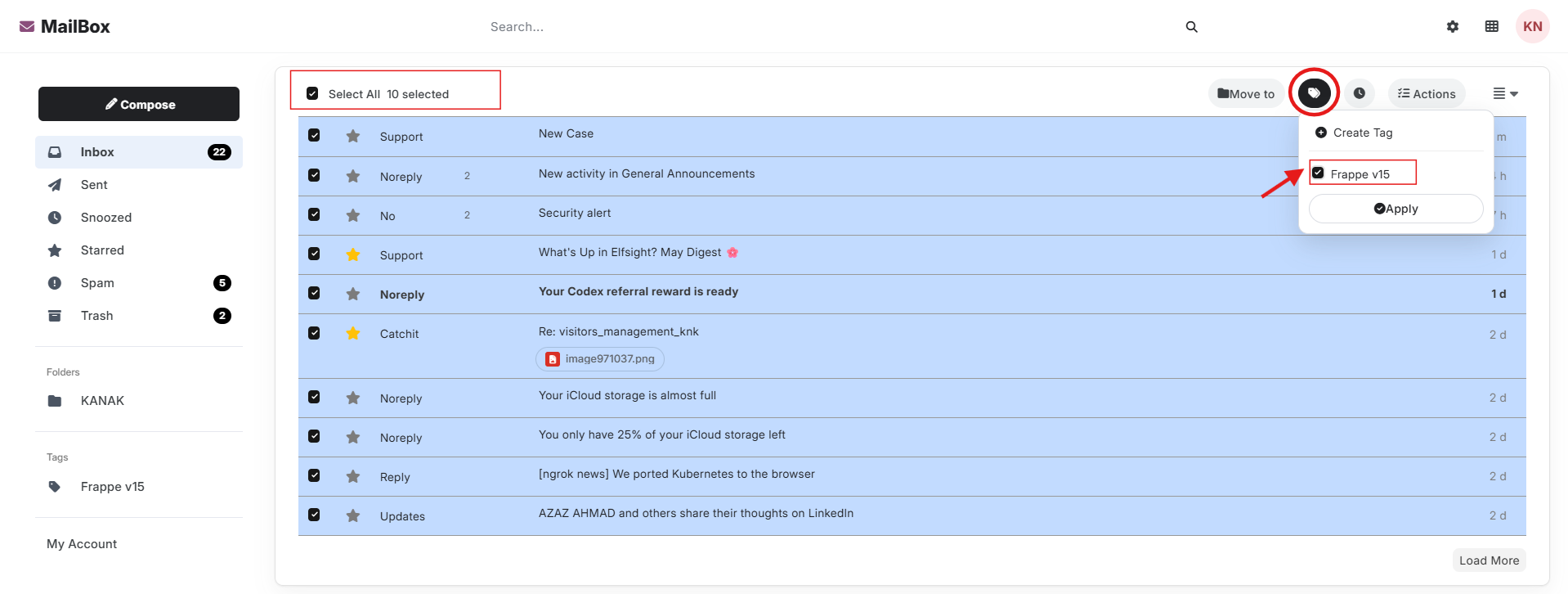
Use the Bulk Actions feature to select multiple emails or all emails at once and apply a tag to them in a single operation.
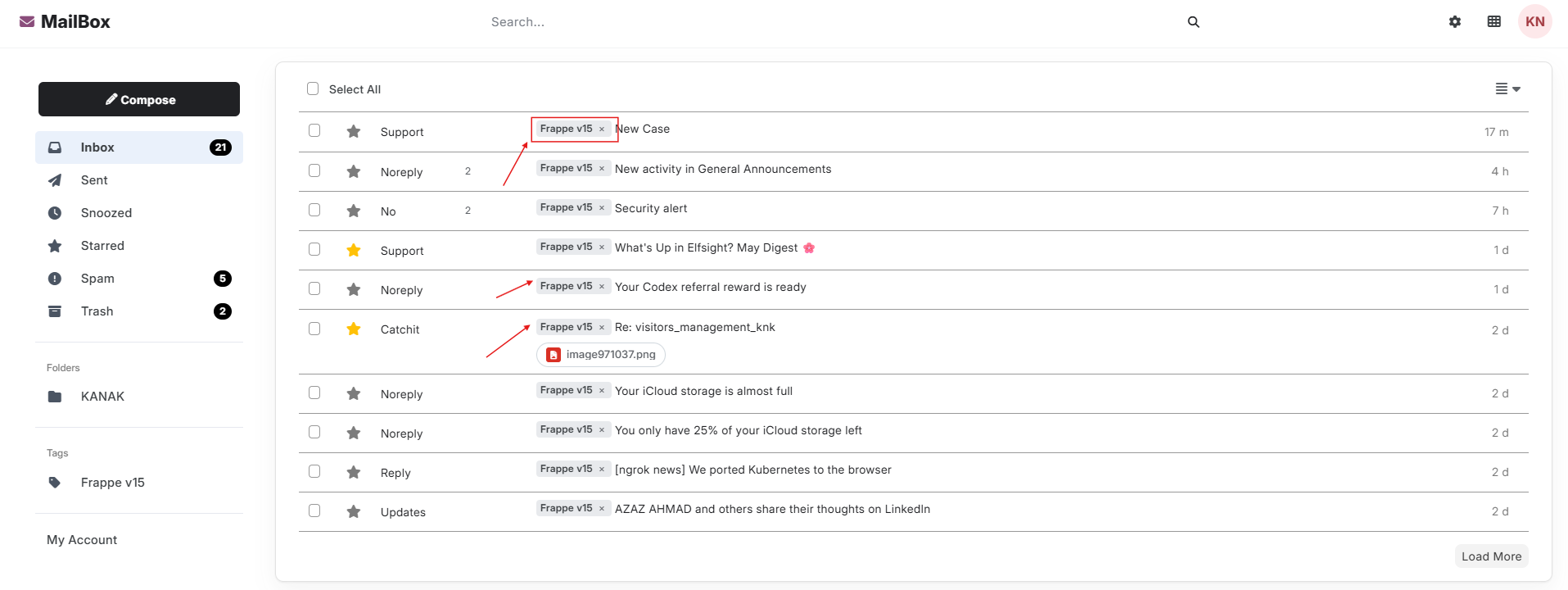
After applying the tag, the selected emails will display the assigned tag within the Inbox, making them easier to identify and organize.
Use the Bulk Snooze feature to select multiple emails or all emails at once and temporarily hide them from the Inbox until a specified date and time.
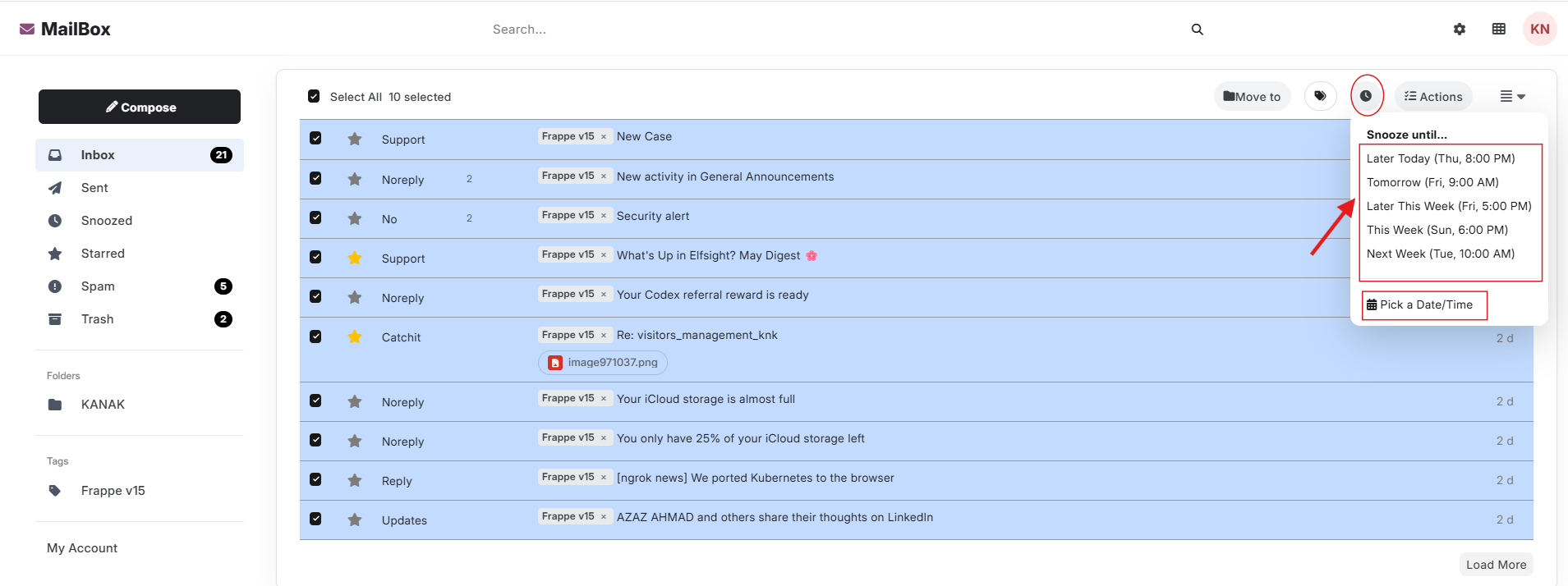
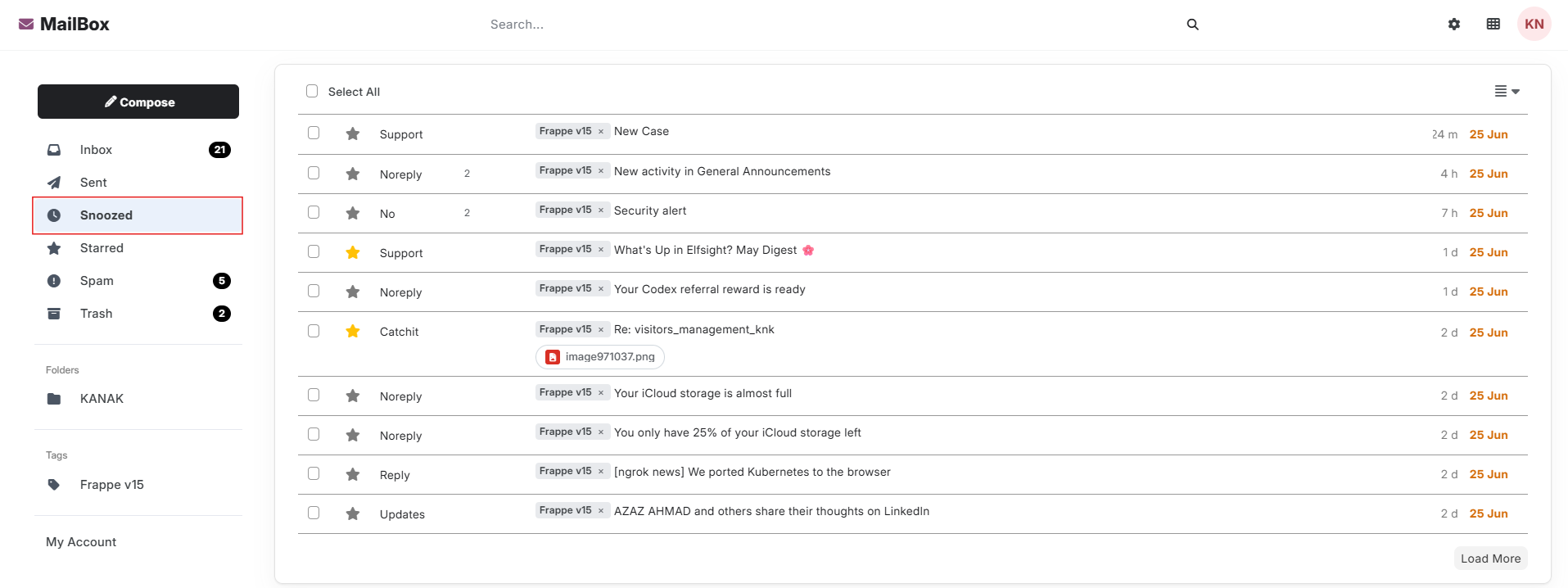
Click on the Snoozed folder to view all emails that have been snoozed and are scheduled to reappear in the Inbox at a later date and time.
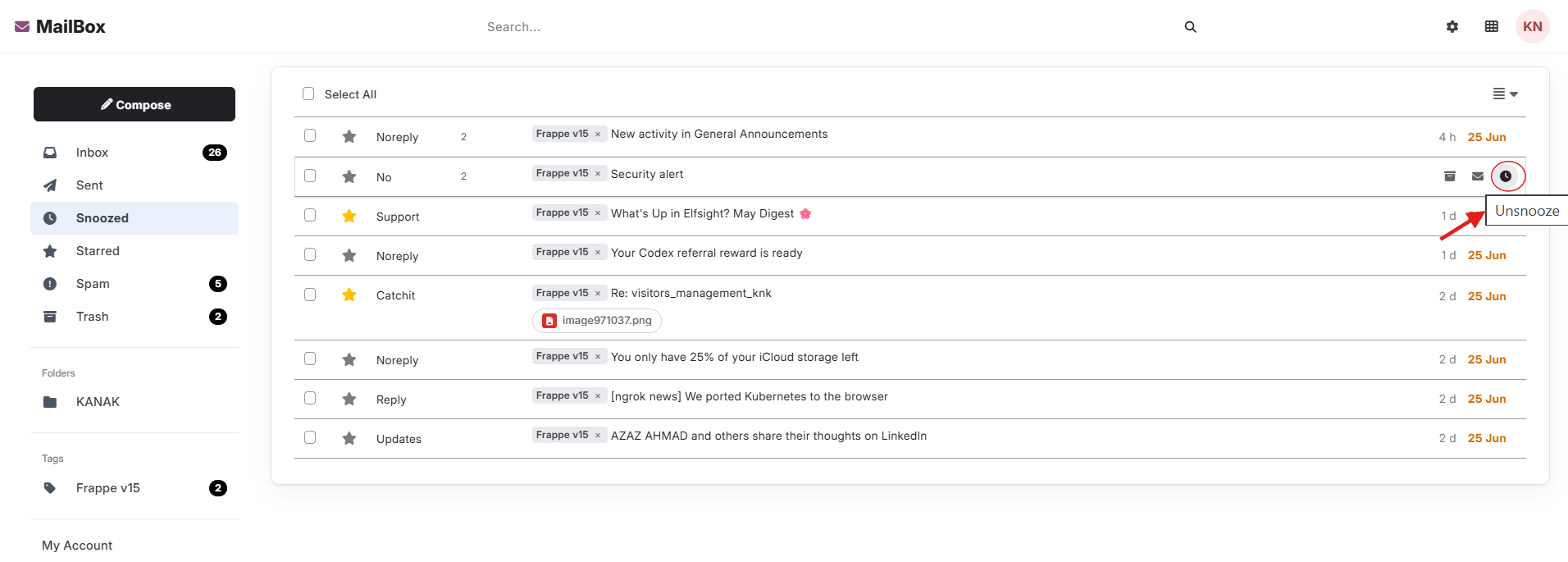
The Unsnooze option allows users to remove the snooze status from an email and return it to the Inbox immediately.
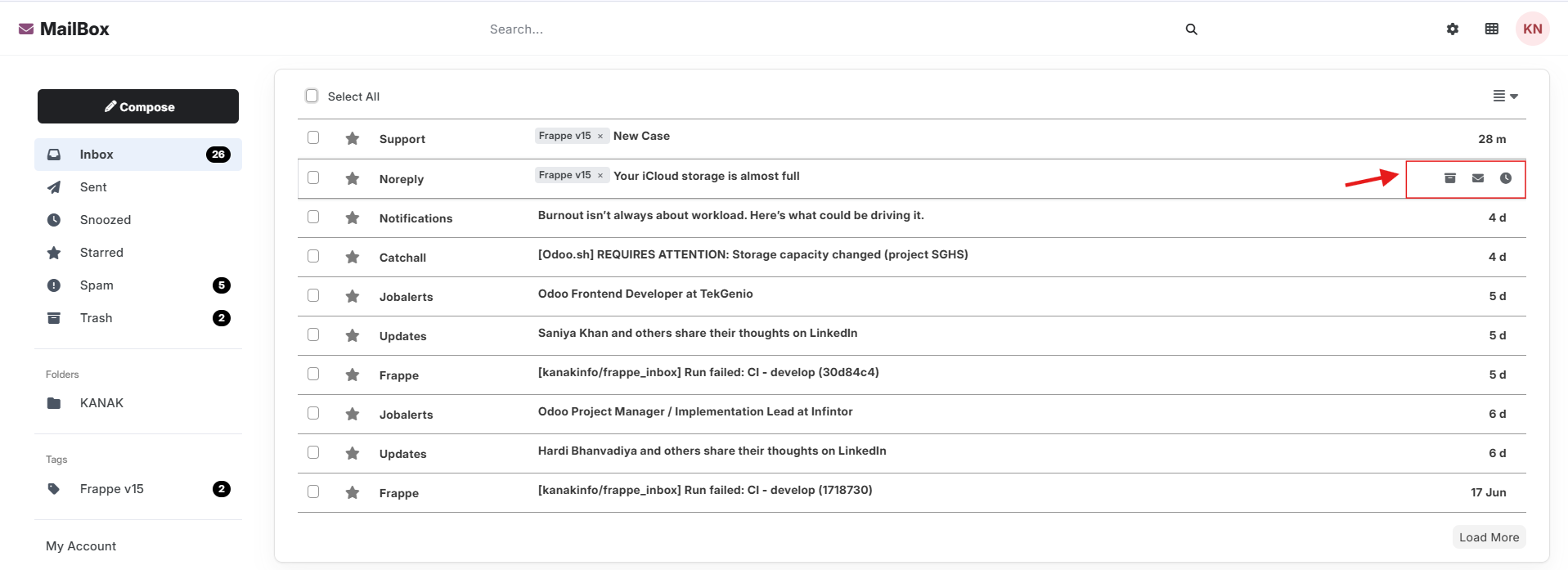
Each email includes quick action options that allow users to perform common tasks directly from the email list without opening the message.
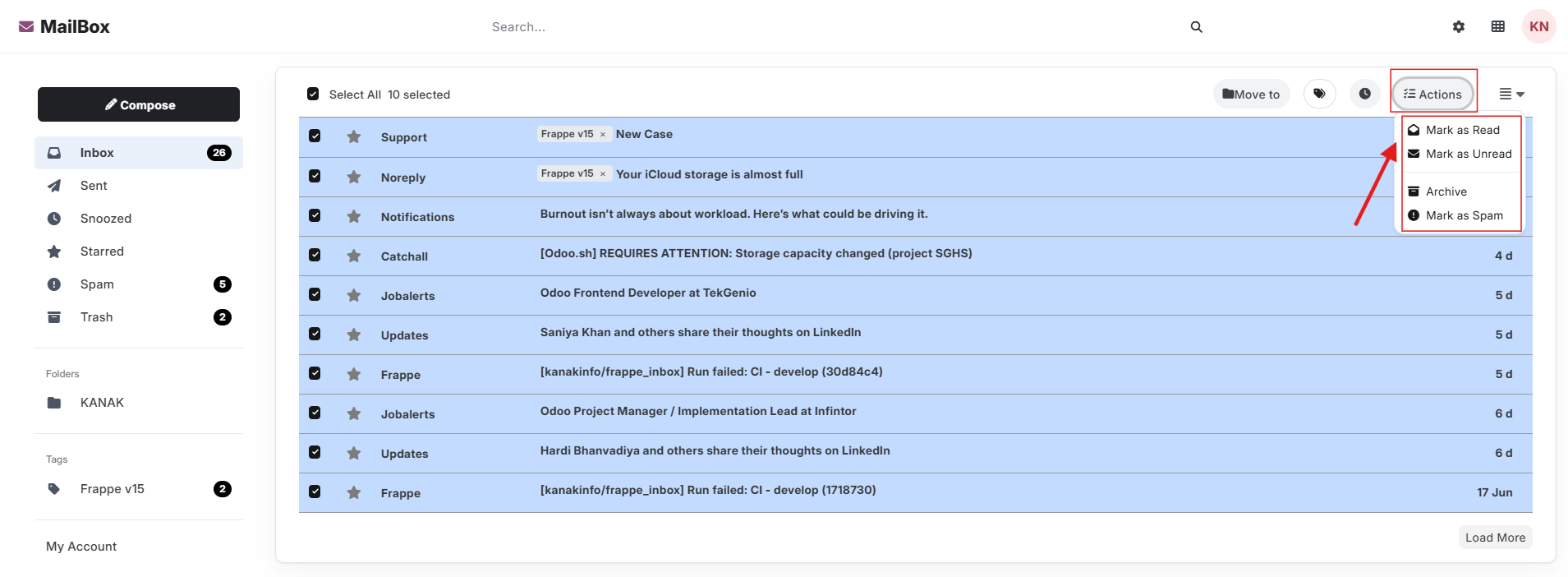
Use the Bulk Actions feature to select multiple emails or all emails at once and mark them as Read, Unread, Archived, or Spam in a single operation.
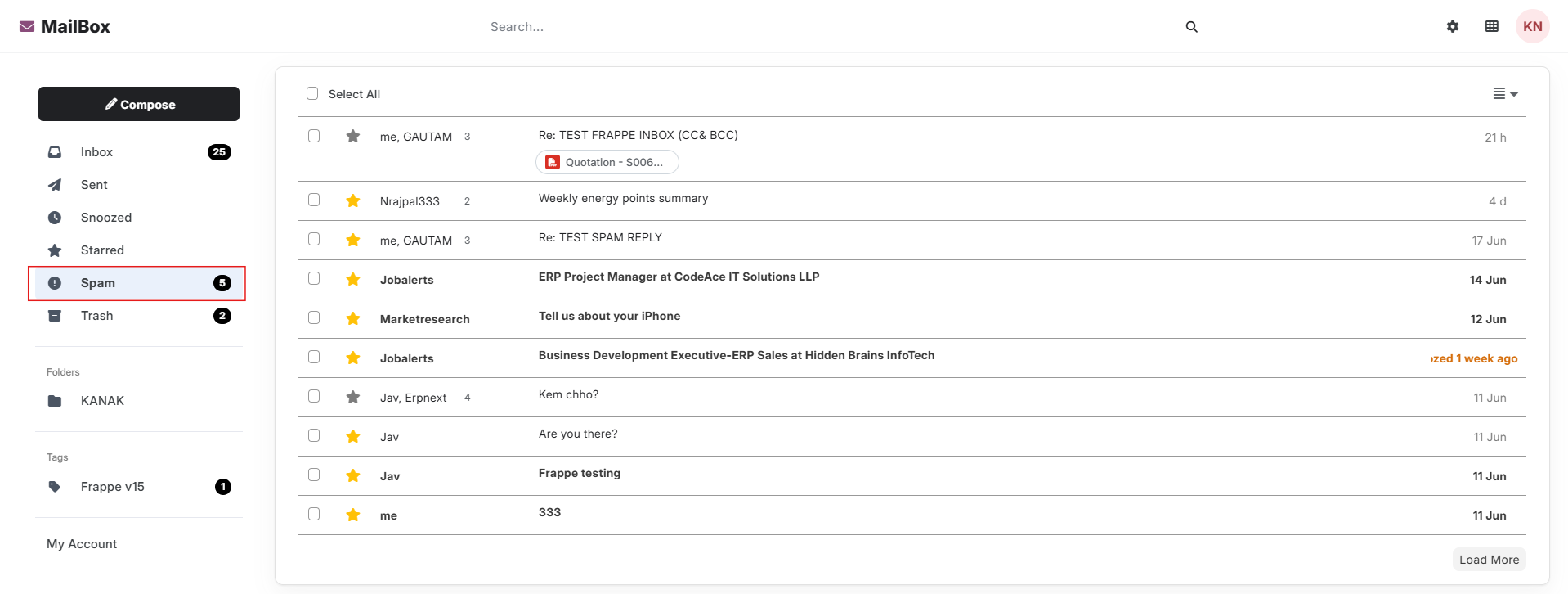
Click on the Spam folder to view all emails that have been marked as spam. This folder helps users separate unwanted or suspicious messages from their primary Inbox.
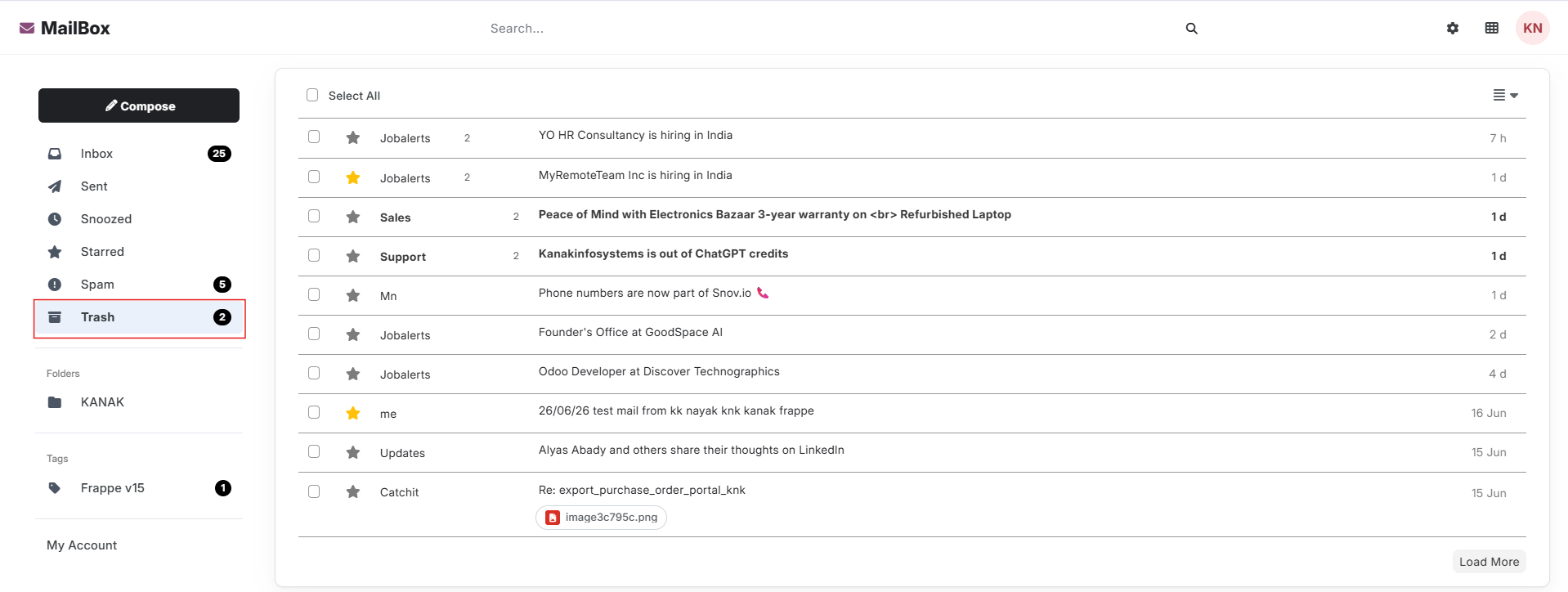
Click on the Trash folder to view all emails that have been moved to the trash. These emails remain available until they are permanently deleted or restored.
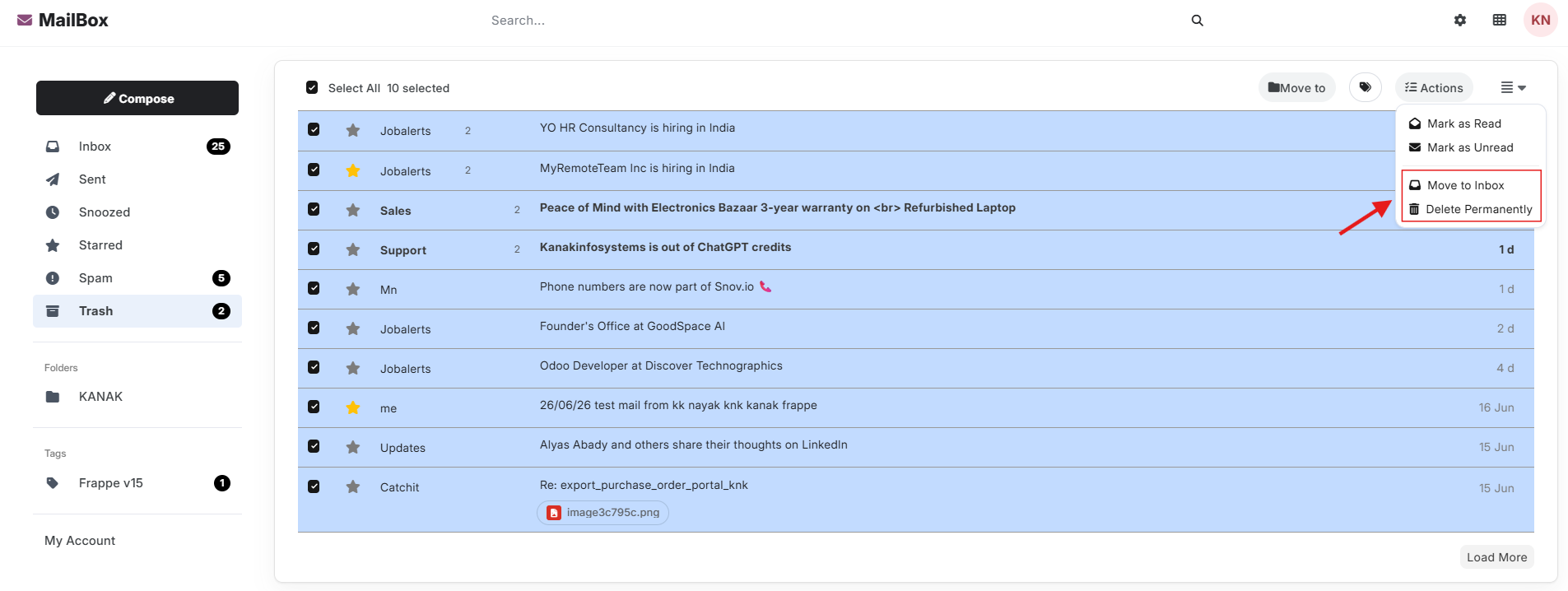
Emails in the Trash folder can be easily restored to the Inbox or permanently deleted, giving users full control over email recovery and cleanup.
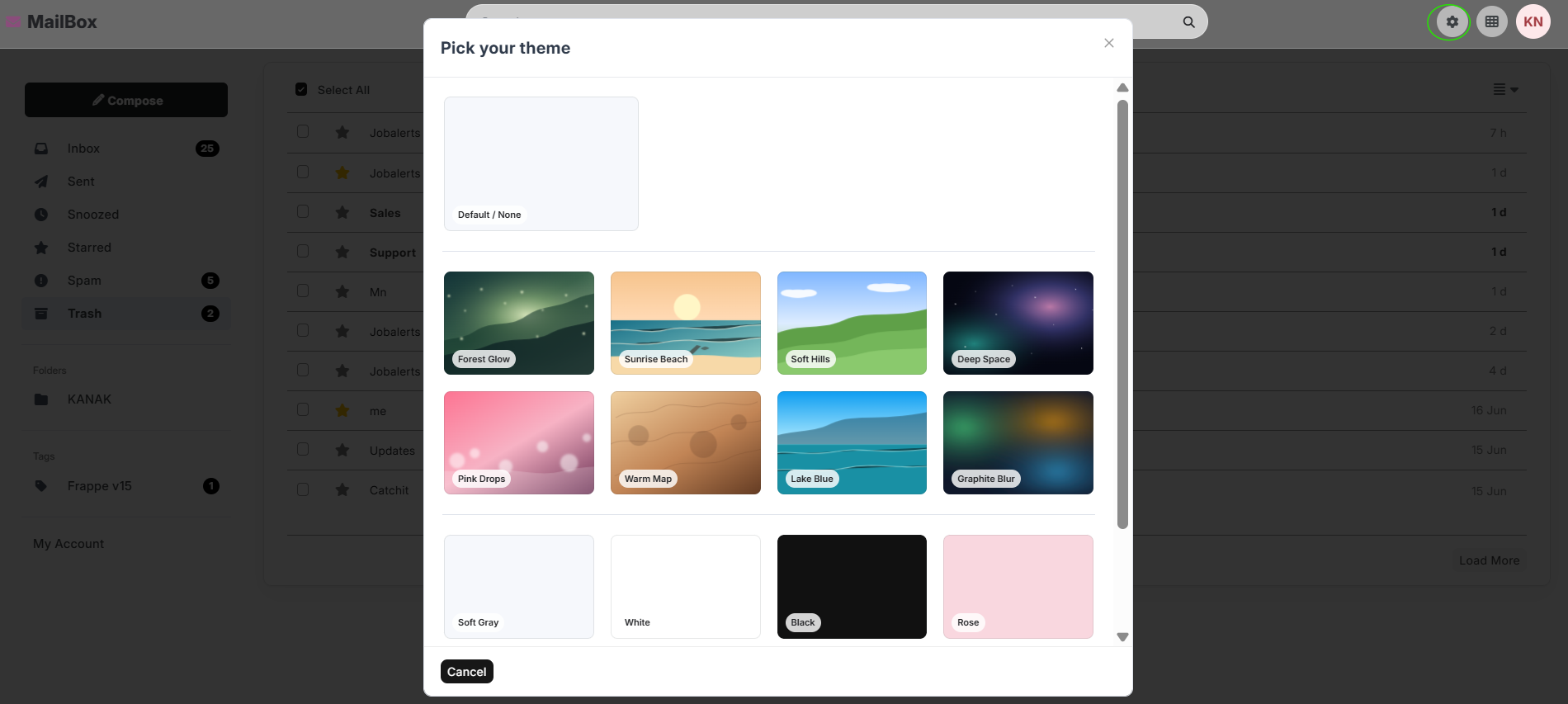
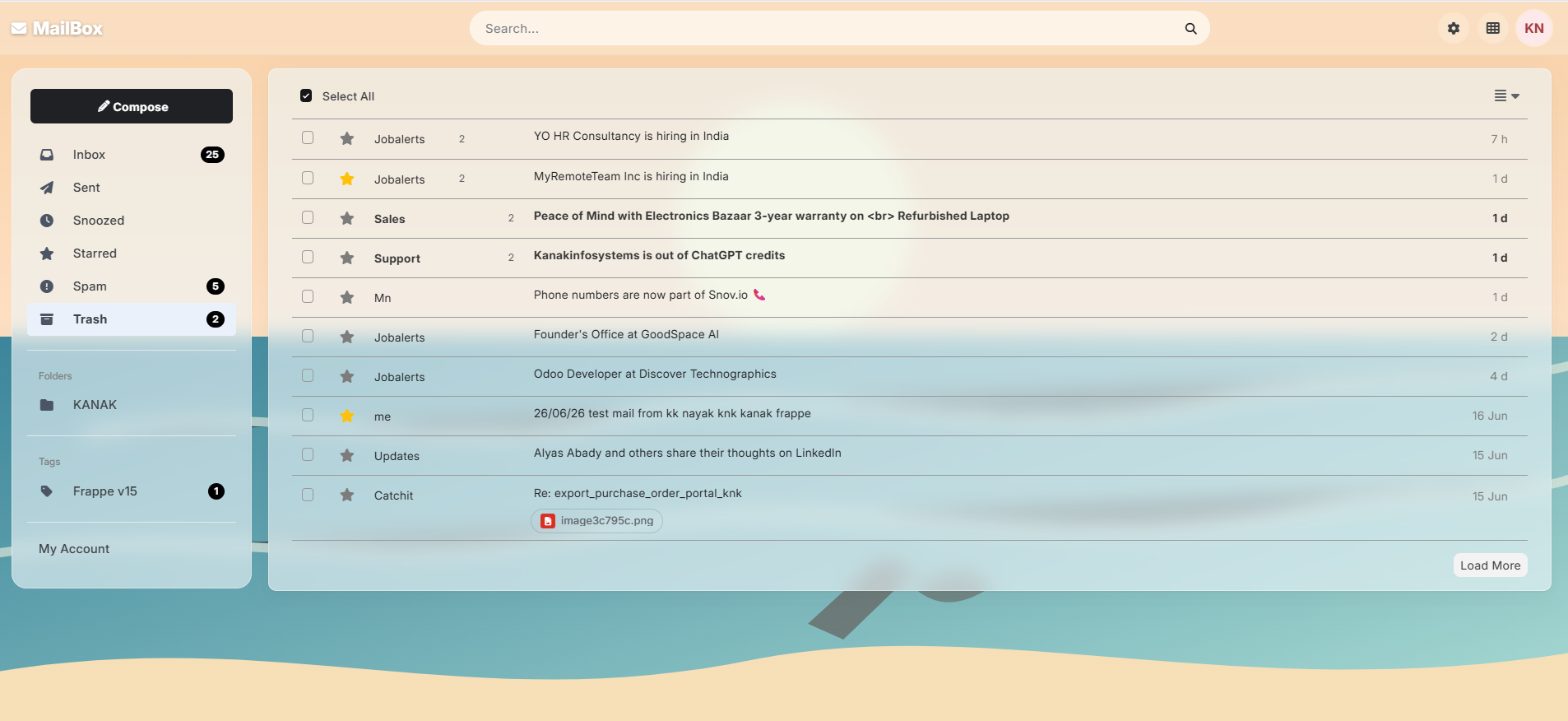
Users can easily customize the email theme and appearance according to their preferences, creating a personalized email experience.
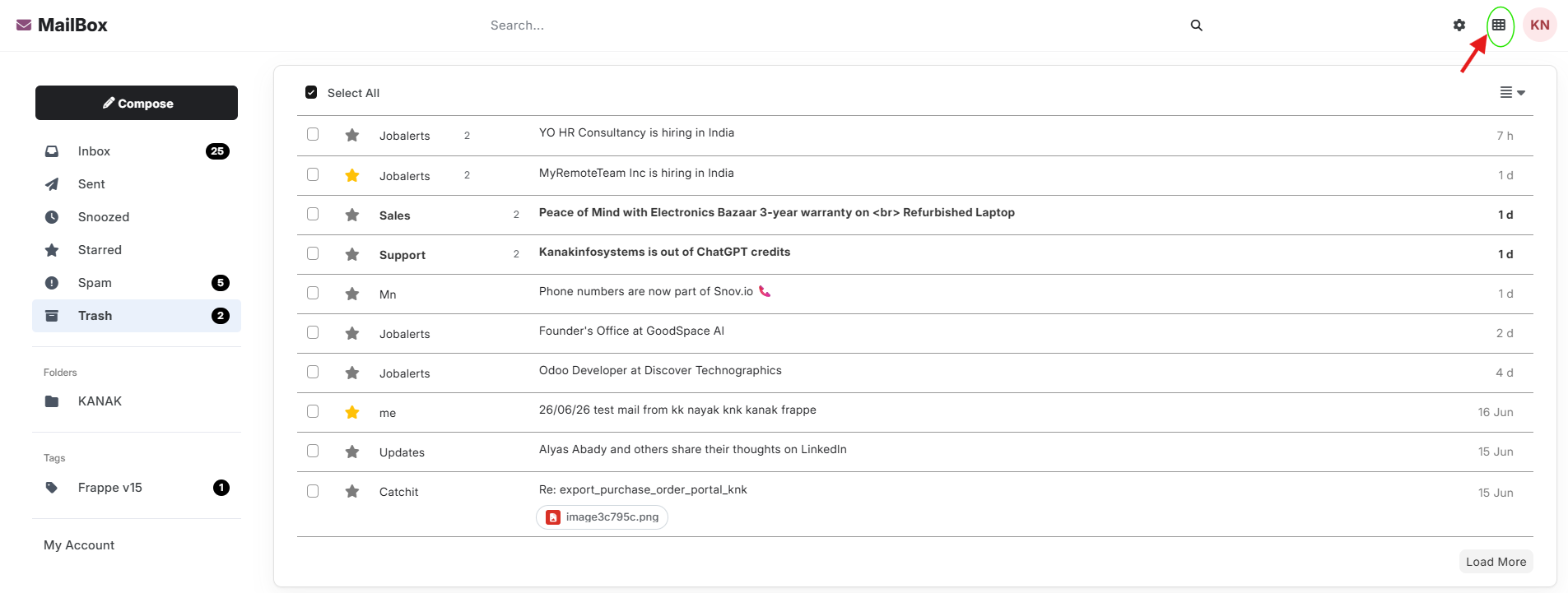
The Desk button provides quick access to the Frappe backend, allowing users to switch from Frappe Inbox to the main Desk interface with a single click.
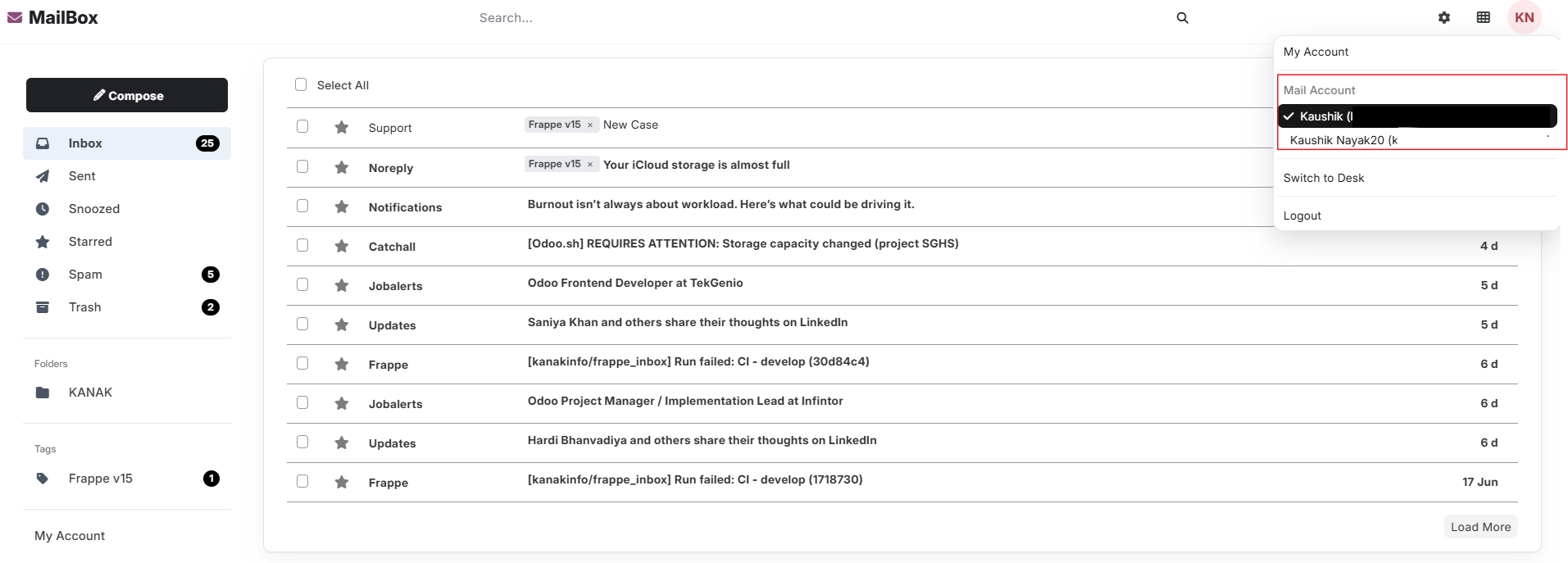
Users can configure and manage multiple email accounts within Frappe Inbox, allowing them to handle communications from different email addresses through a single interface.
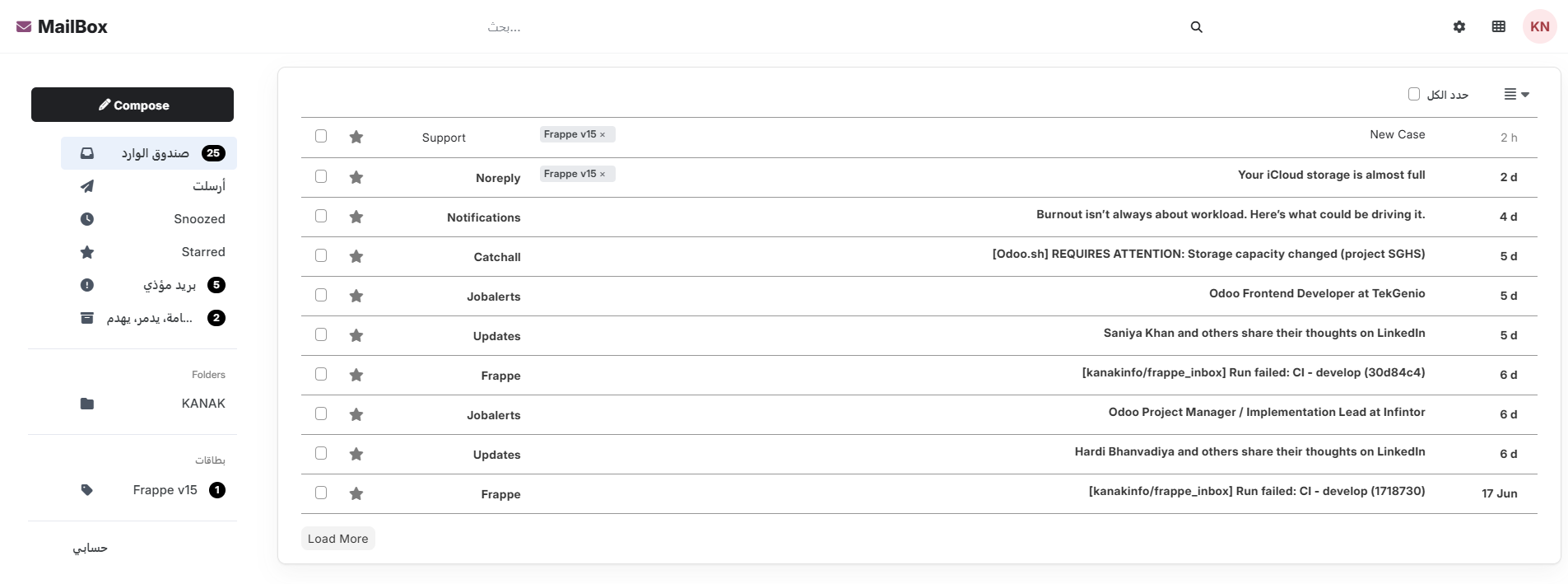
Frappe Inbox provides full Right-to-Left (RTL) language support, ensuring a seamless user experience for languages such as Arabic, Hebrew, Persian, and Urdu.
Frappe Inbox Support
- Installation & Setup Assistance
- Email Account Configuration Guidance
- Inbox & Mailbox Troubleshooting
- Performance Optimization & Issue Resolution
Version 15 (Latest Release)
- Smart Email Composer Compose emails with TO, CC, BCC, attachments, signatures, and document linking.
- Advanced Inbox Unified inbox with split-pane view, unread indicators, and threaded conversations.
- Organization Tools Star, Snooze, Tags, Folders, and Bulk Actions for better email management.
- Enterprise Features Spam management, Auto-Reply, Bounce Handling, Multi-Company Security, and RTL support.
Our Frappe Apps








Frappe Proprietary License v1.0

This software and associated files (the "Software") may only be used (executed,
modified, executed after modifications) if you have purchased a valid license
from the authors, typically via Frappe Apps, or if you have received a written
agreement from the authors of the Software (see the COPYRIGHT file).

You may develop Frappe apps that use the Software as a library (typically
by depending on it, importing it and using its resources), but without copying
any source code or material from the Software. You may distribute those
apps under the license of your choice, provided that this license is
compatible with the terms of the Frappe Proprietary License (For example:
LGPL, MIT, or proprietary licenses similar to this one).

It is forbidden to publish, distribute, sublicense, or sell copies of the Software
or modified copies of the Software.

The above copyright notice and this permission notice must be included in all
copies or substantial portions of the Software.

THE SOFTWARE IS PROVIDED "AS IS", WITHOUT WARRANTY OF ANY KIND, EXPRESS OR
IMPLIED, INCLUDING BUT NOT LIMITED TO THE WARRANTIES OF MERCHANTABILITY,
FITNESS FOR A PARTICULAR PURPOSE AND NONINFRINGEMENT.
IN NO EVENT SHALL THE AUTHORS OR COPYRIGHT HOLDERS BE LIABLE FOR ANY CLAIM,
DAMAGES OR OTHER LIABILITY, WHETHER IN AN ACTION OF CONTRACT, TORT OR OTHERWISE,
ARISING FROM, OUT OF OR IN CONNECTION WITH THE SOFTWARE OR THE USE OR OTHER
DEALINGS IN THE SOFTWARE.

Comment on this module. Please Login