 +91 981-810-8884, 0114-214-3250
| Required Apps |
•
accountant
|
| Technical Name | post_dated_cheque_management_knk |
| License | OPL-1 |
| Also available in version | v 15.0 v 16.0 v 17.0 v 18.0 |

Enterprise
Odoo.sh

Post Dated Cheque Management
The Post Dated Cheque Management module simplifies handling of post-dated cheques for customers and vendors. It supports invoice and bill payments through post-dated cheques, ensures proper accounting journal entries, and provides complete tracking of cheque statuses including Deposited, Returned, Bounced, and Done.

Accounting Configuration
Set the Invoice Settlement - "Manual" or "Autopaid".
Set two account for PDC. -
1.Pdc Receivable
2.Pdc Payable
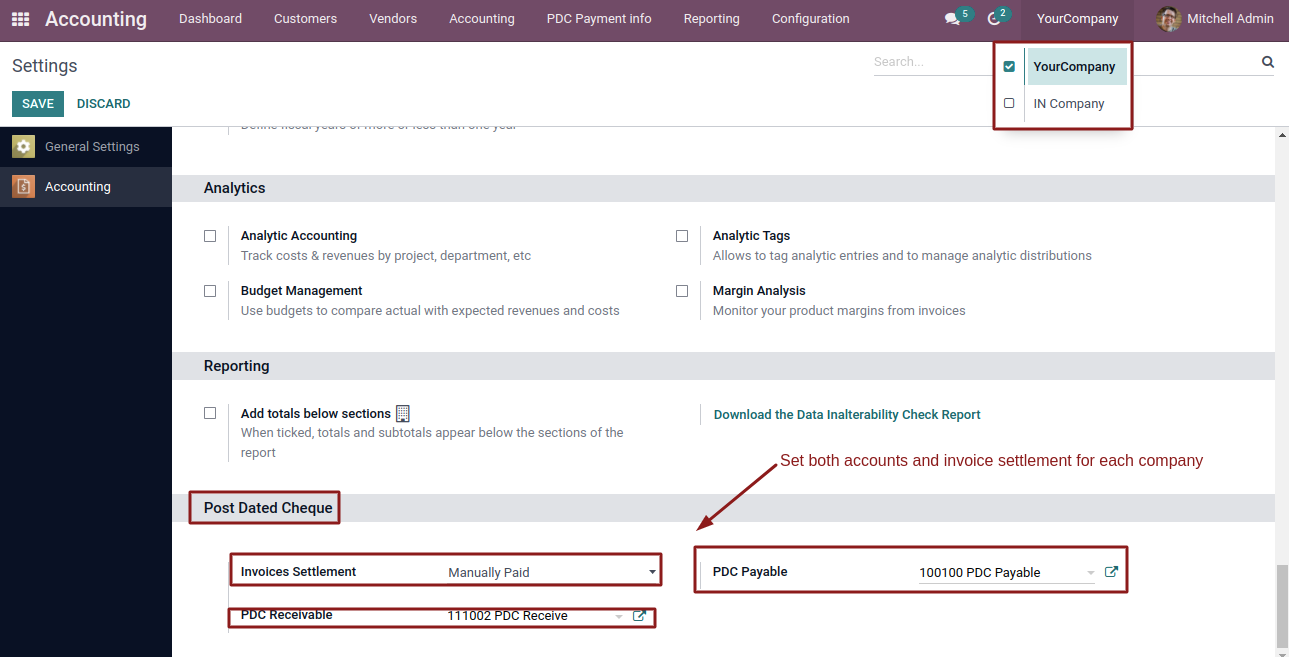
Invoice Payment in Manually Paid
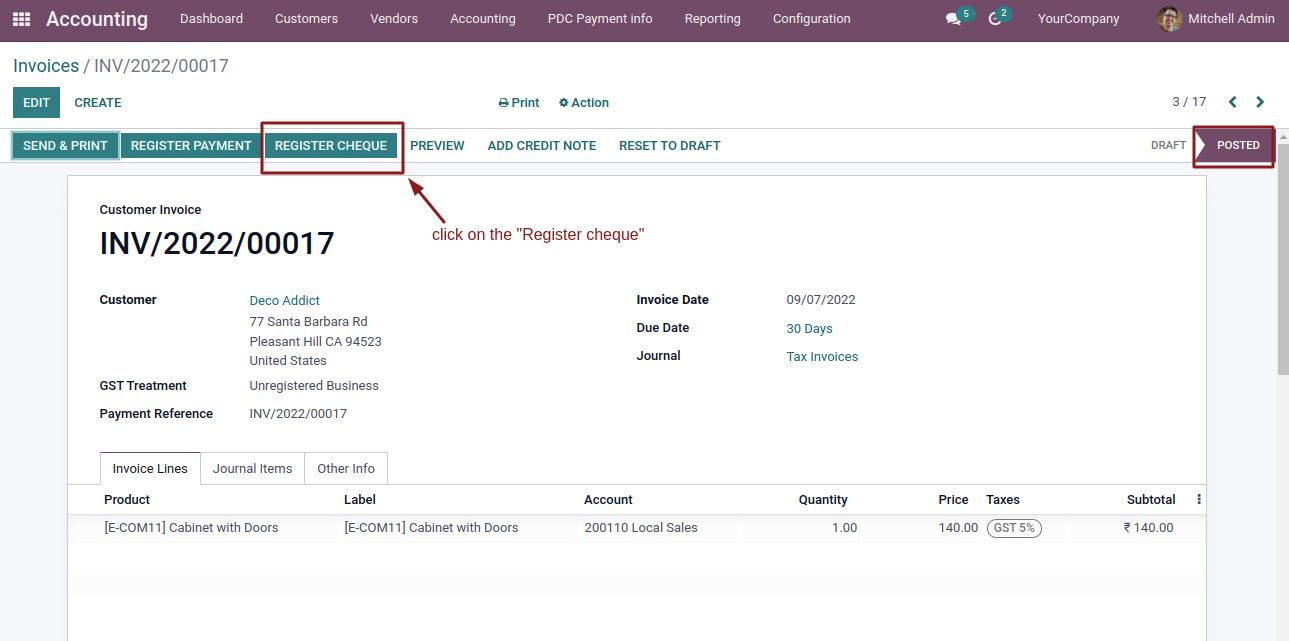
After creating and posting an invoice, the Register Cheque button becomes available on the invoice form.
Enter the cheque details
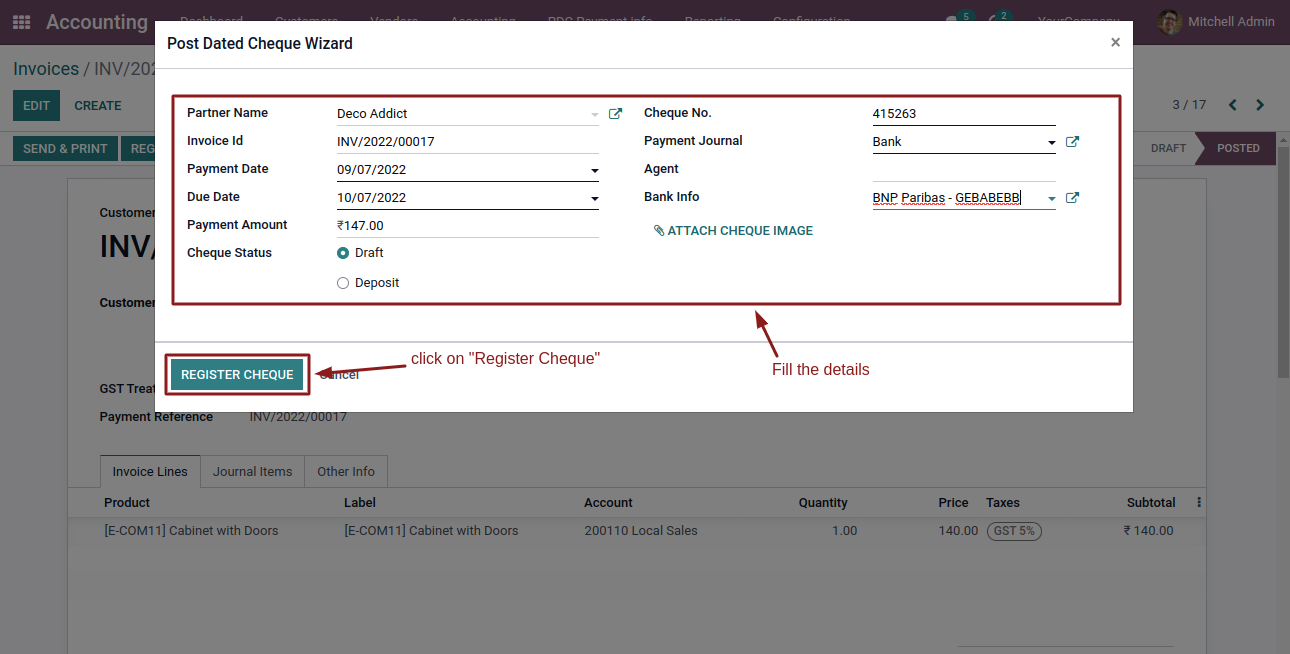
Once the details are filled in, clicking the Register Cheque button opens the PDC payment form.
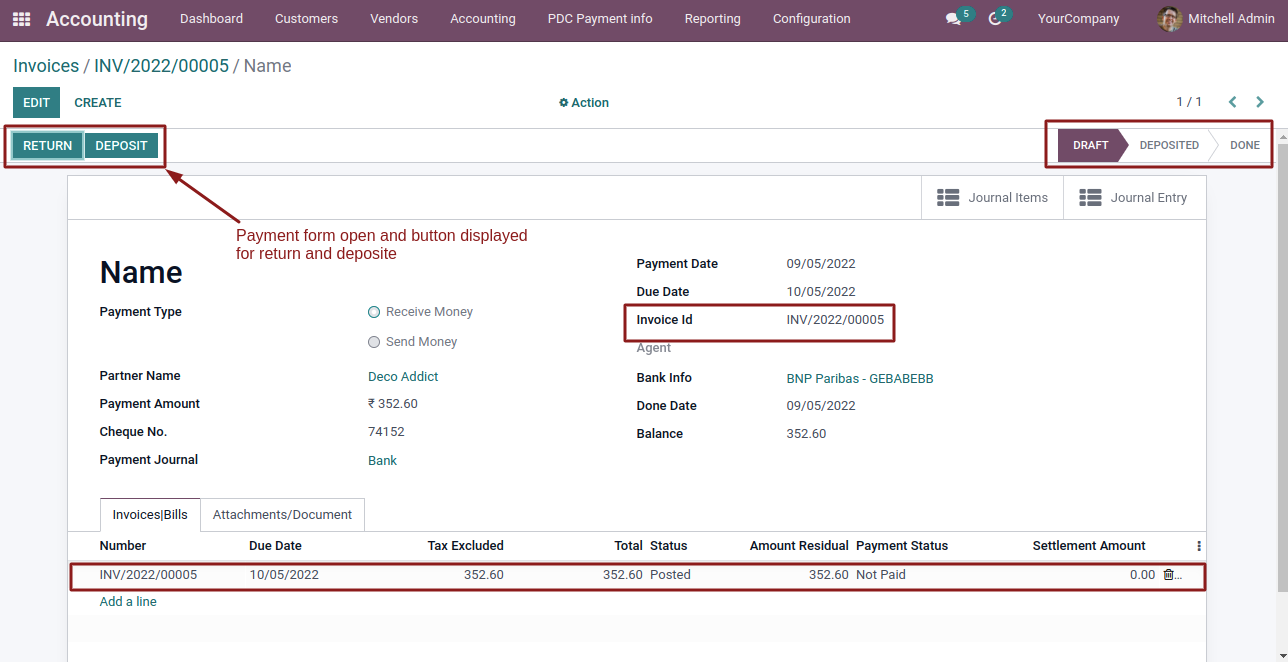
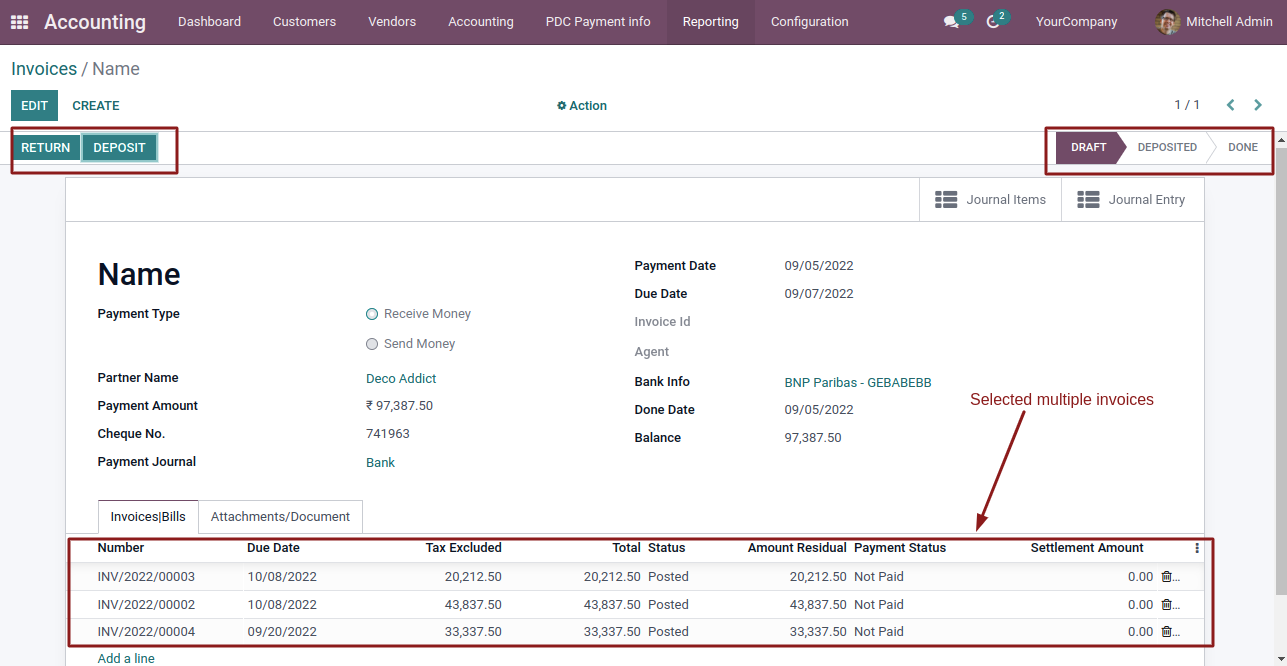
When you click the Return button in the PDC payment form, the cheque state is updated to Returned.
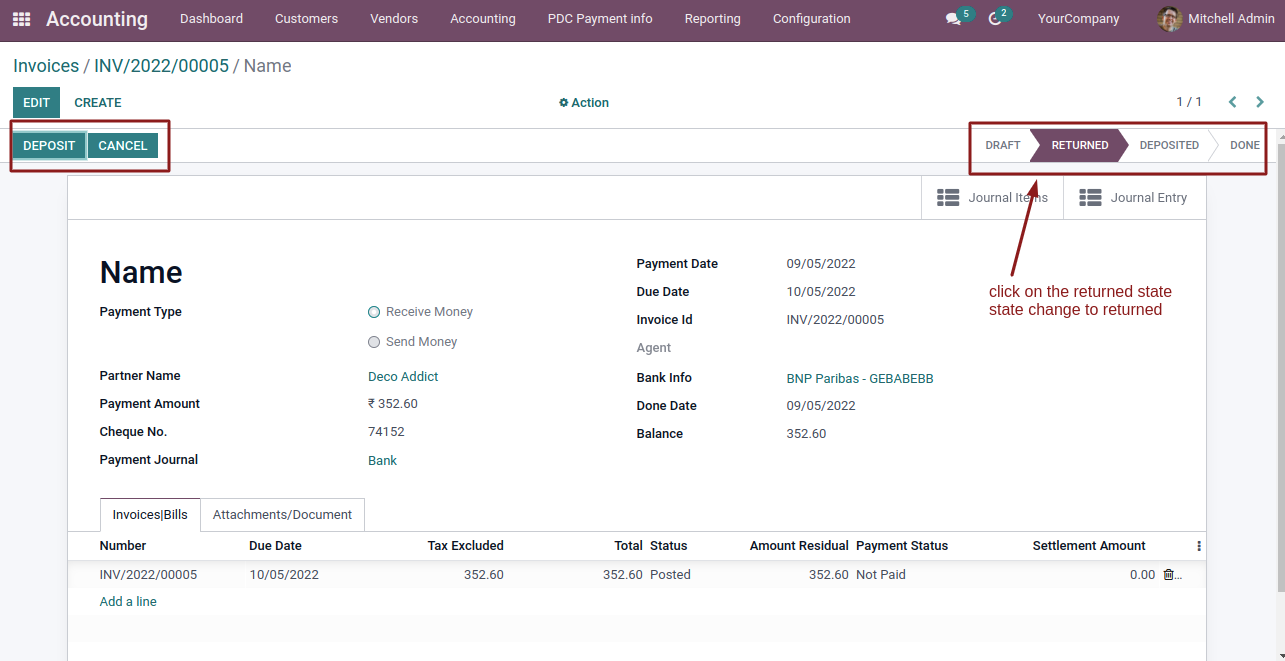
When you click the Deposit button in the PDC payment form, the cheque status is updated to Deposited.
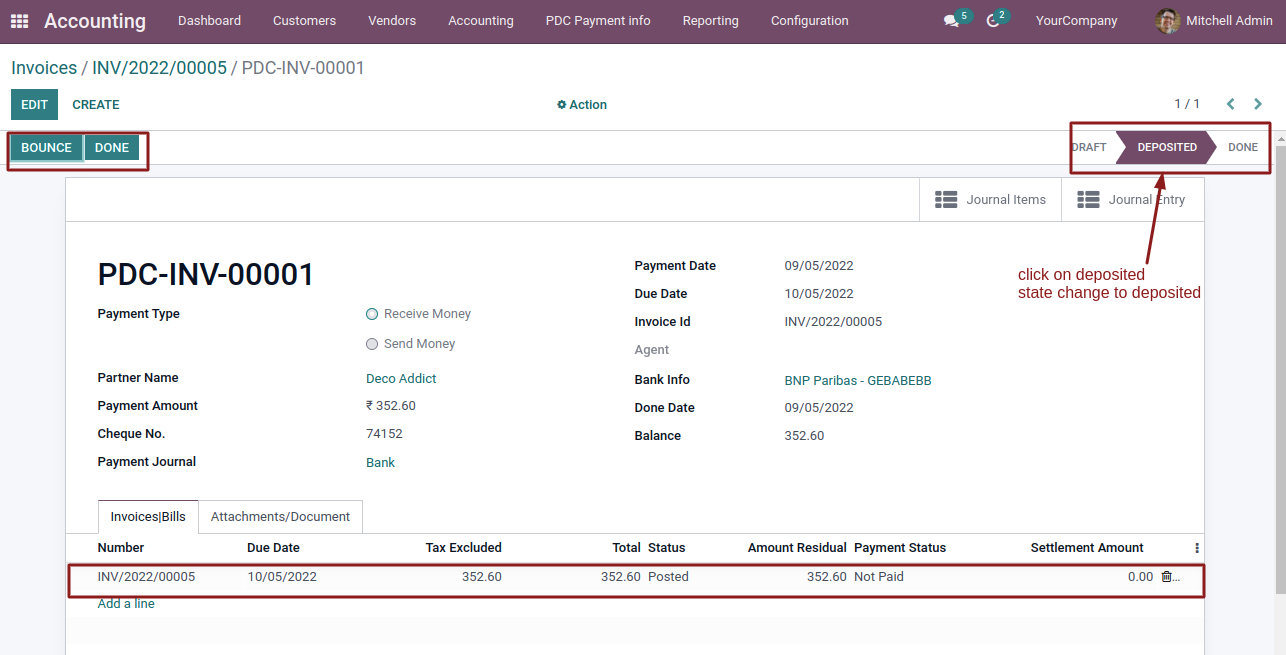
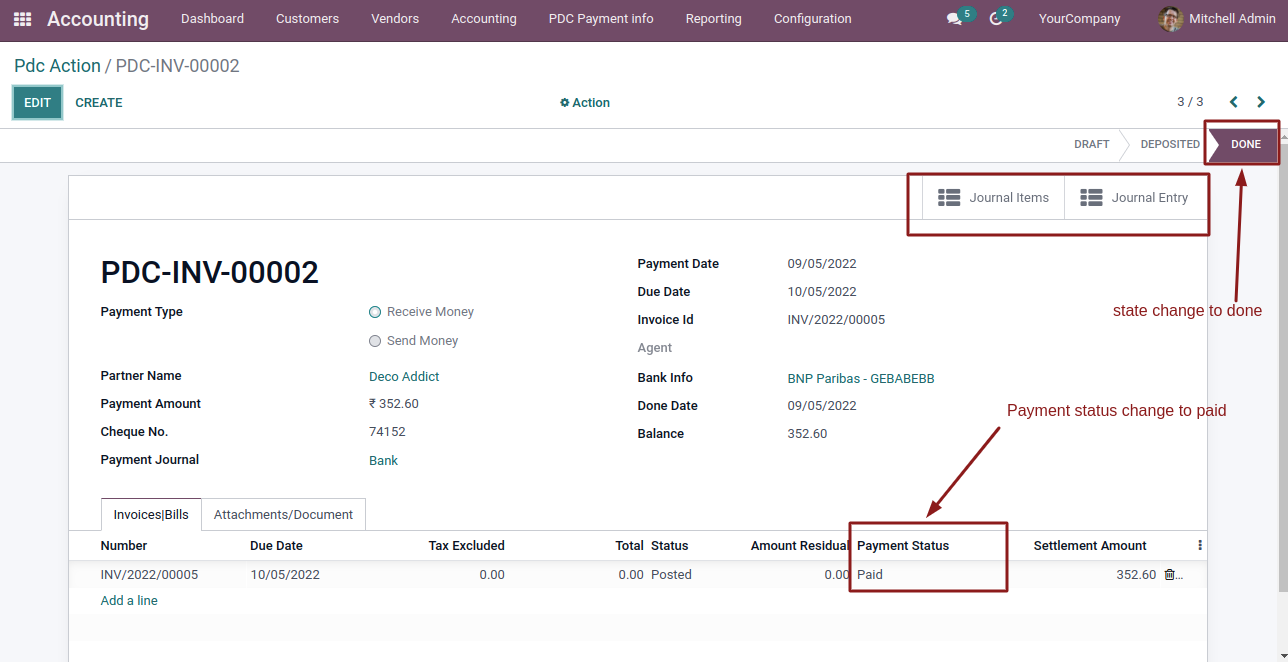
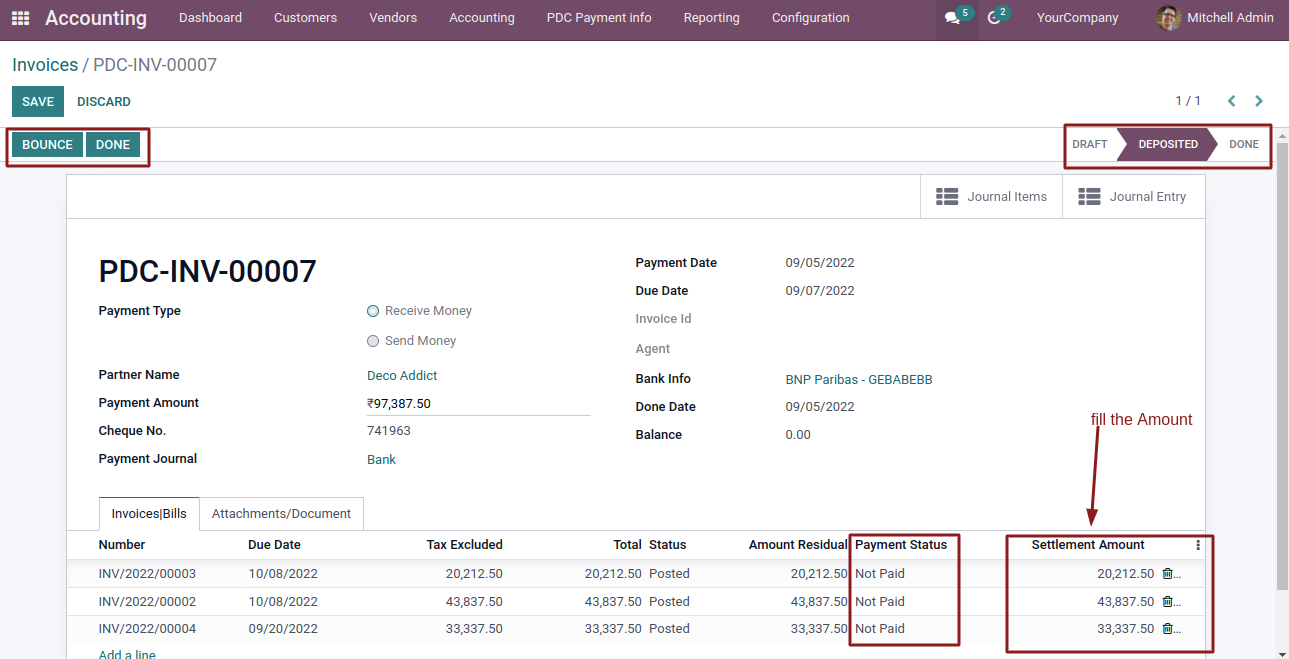
Fill in the settlement amount, then click Done to complete the process.
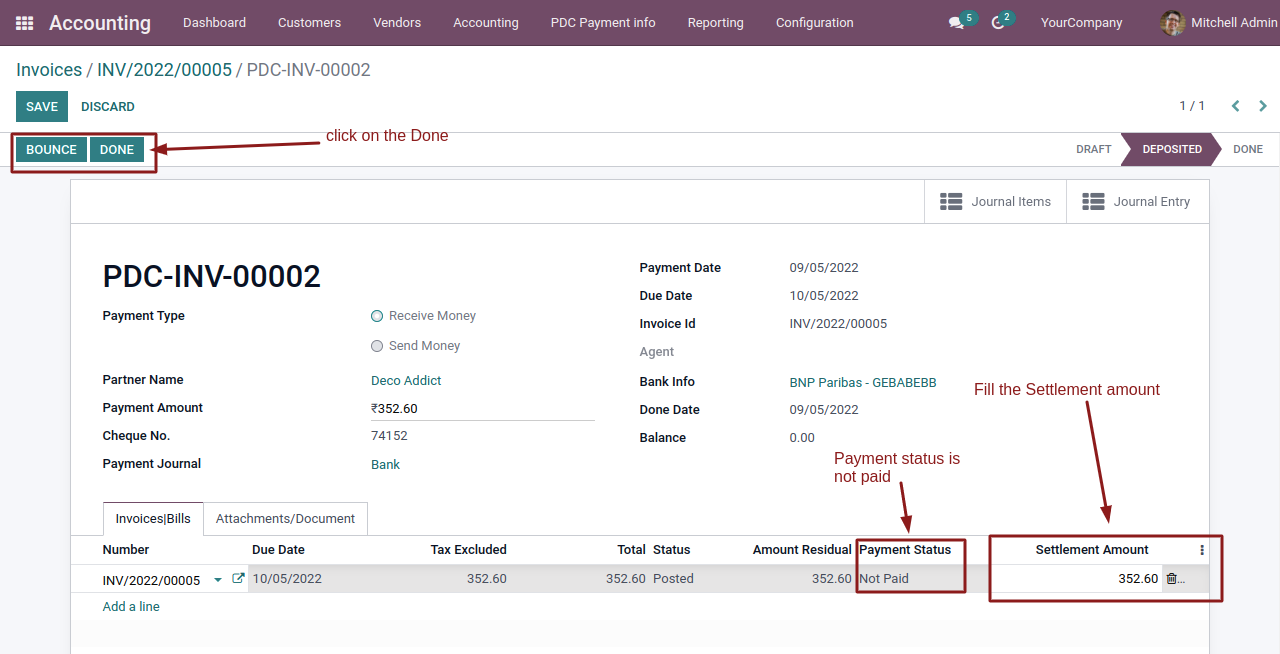
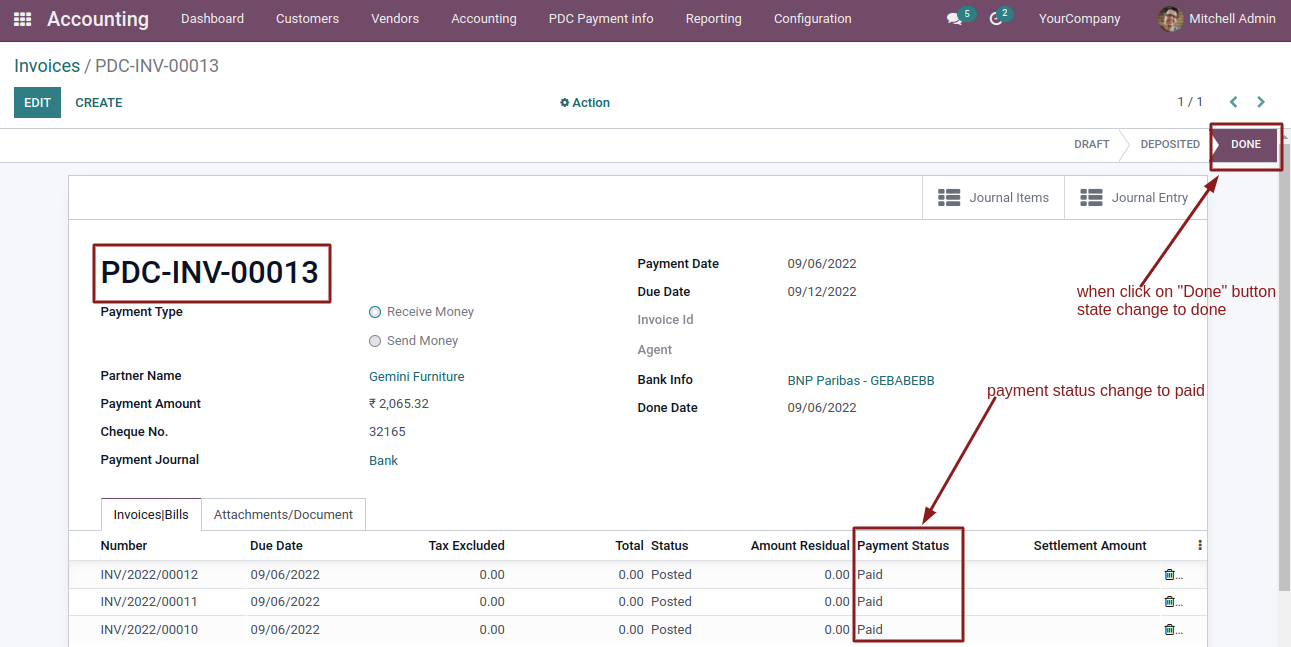
Once completed, the cheque status changes to Done and the payment status becomes Paid.
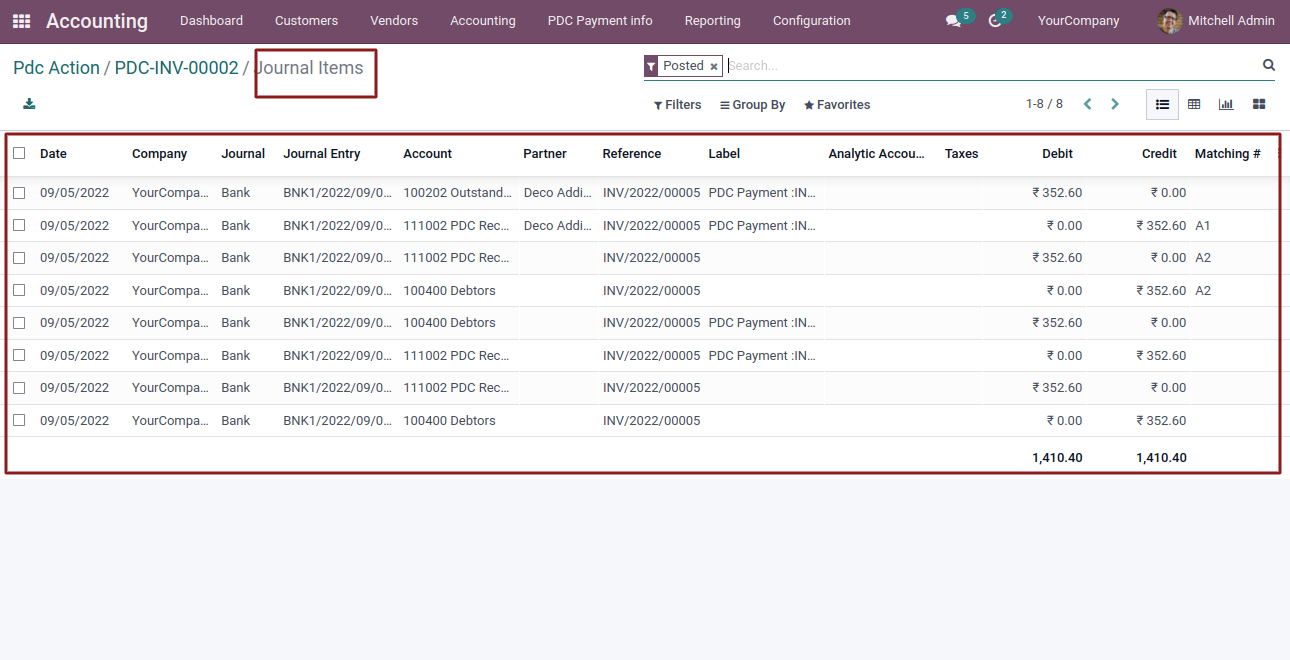
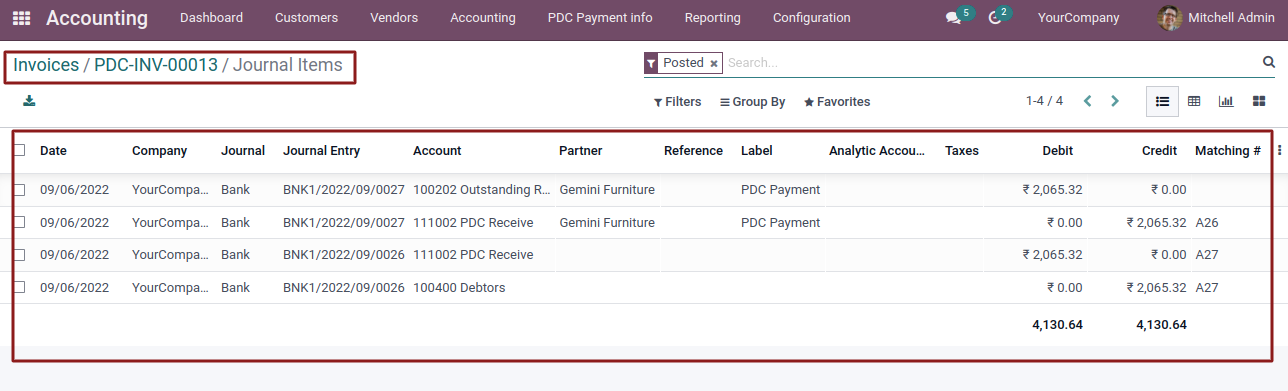
Journal entry and journal items are created.
Payments can be made in three different ways:
- Less than the Payment Amount
- Equal to the Payment Amount
- More than the Payment Amount
- When a payment amount is less than the invoice or bill amount, the invoice or bill is marked as Partially Paid.
- When the payment amount matches the invoice or bill amount, the invoice or bill is marked as Paid.
- When the payment amount exceeds the invoice or bill amount, the invoice or bill is marked as Paid, and the remaining balance is carried forward and displayed on the next invoice or bill for the same customer.
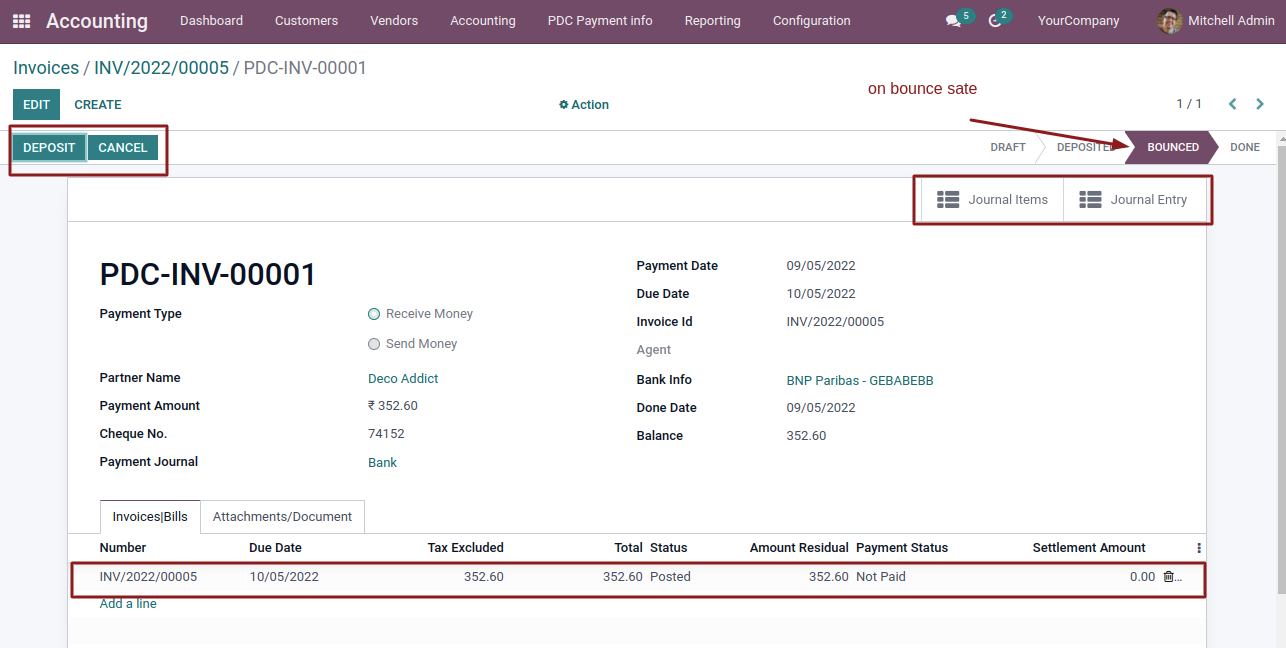
When a cheque bounces, its status is updated to Bounced.
Pay Multiple Invoices
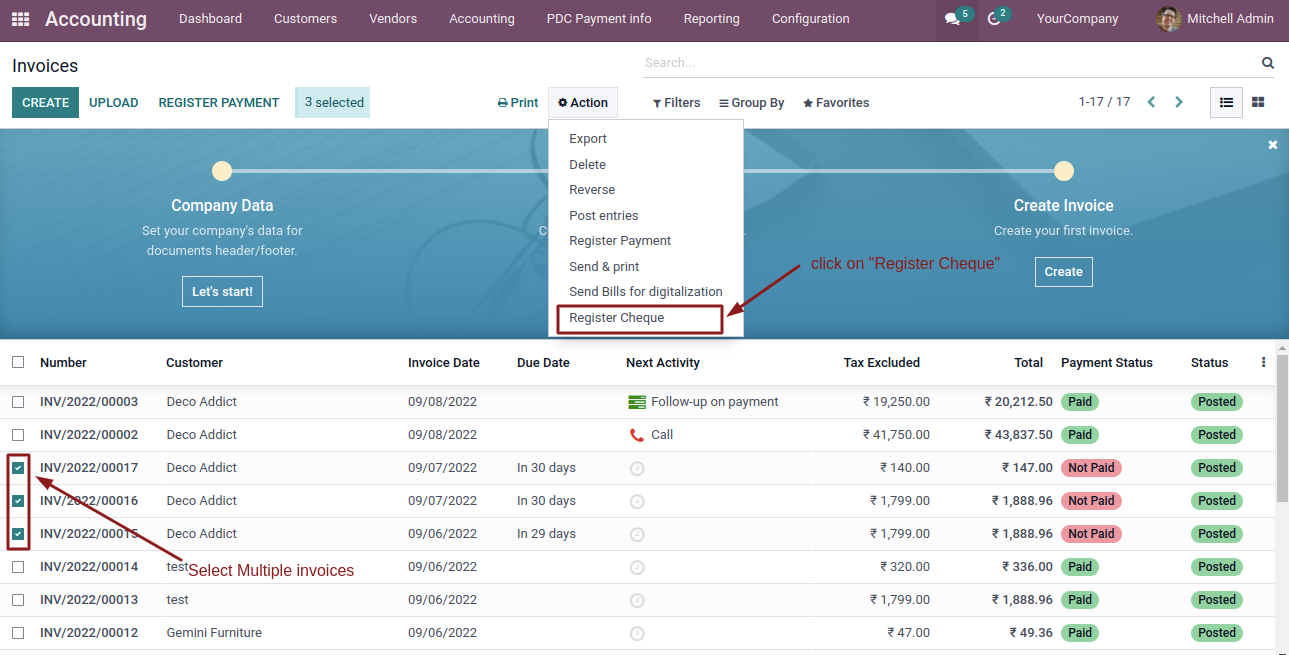
Select Multiple invoices and Click on "Register Cheque".
Pay Multiple Invoices
Enter details.
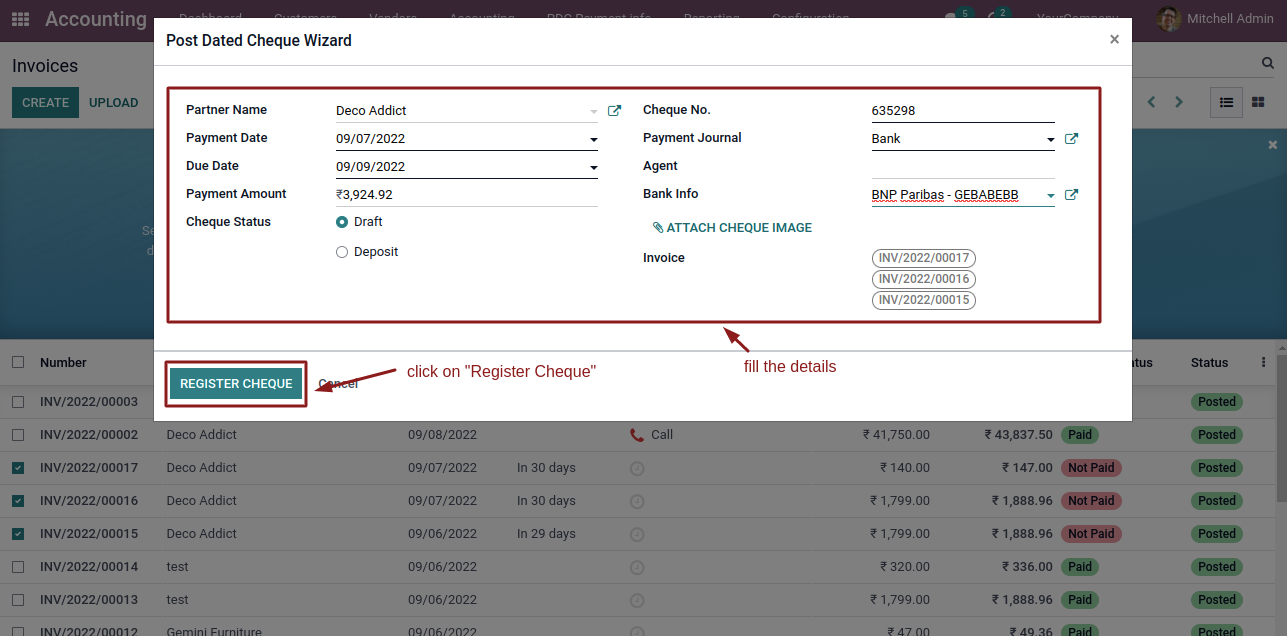
Once the details are entered, clicking the Register Cheque button opens the PDC payment form.
Fill in the settlement amount for each invoice.
Click on Done.
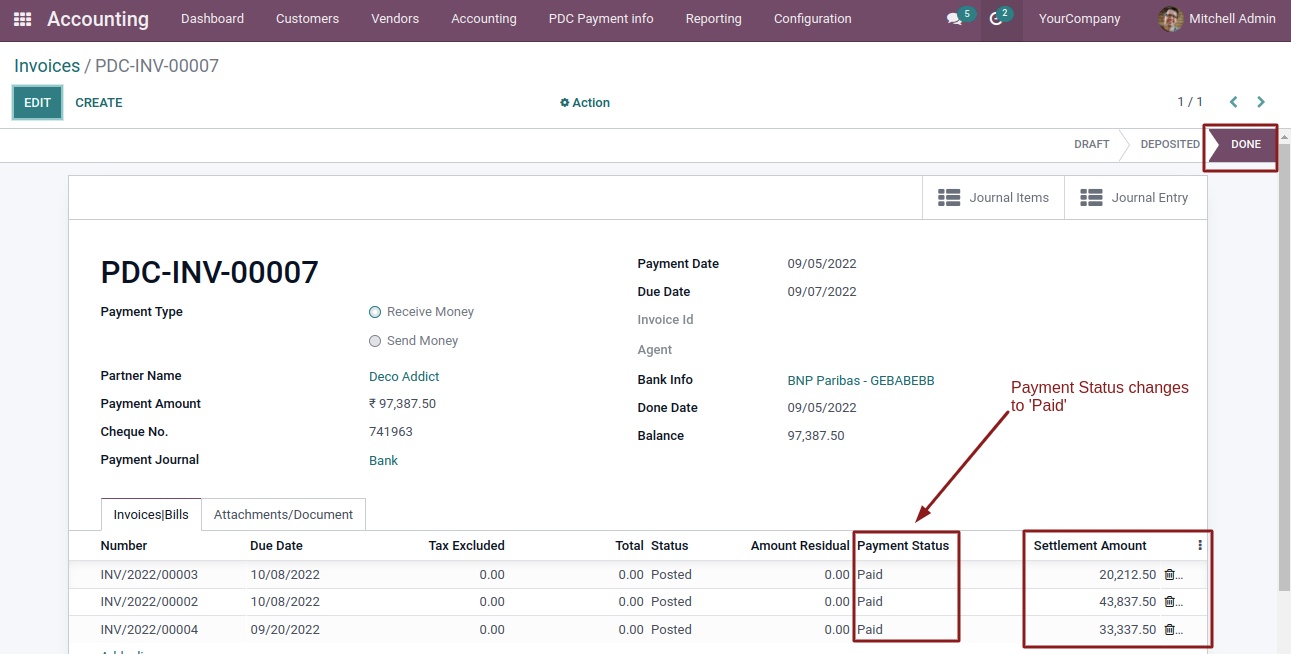
Journal Entry and Journal items are created.
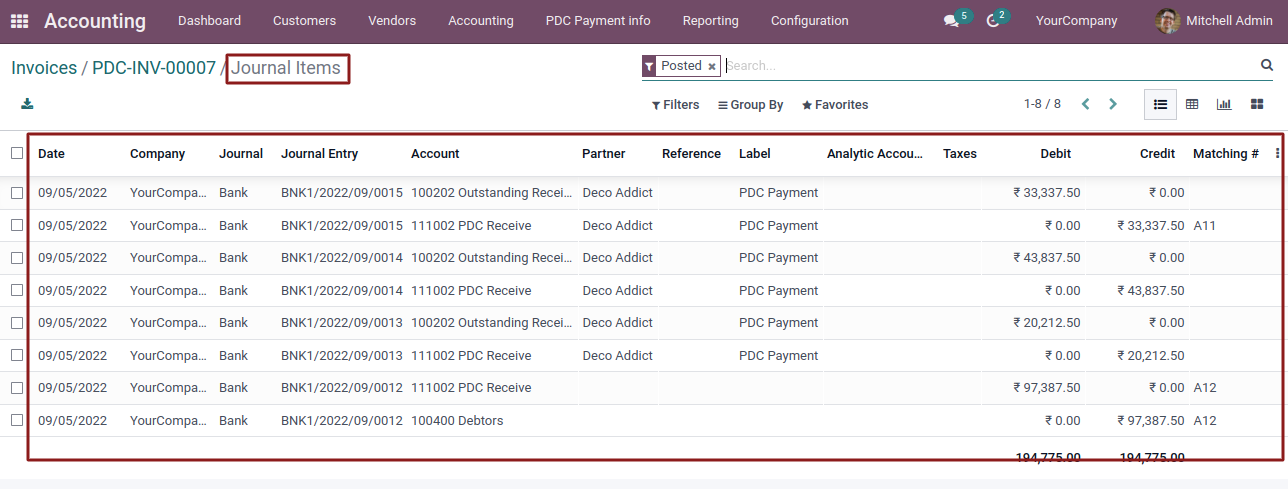
Tracking of Payment
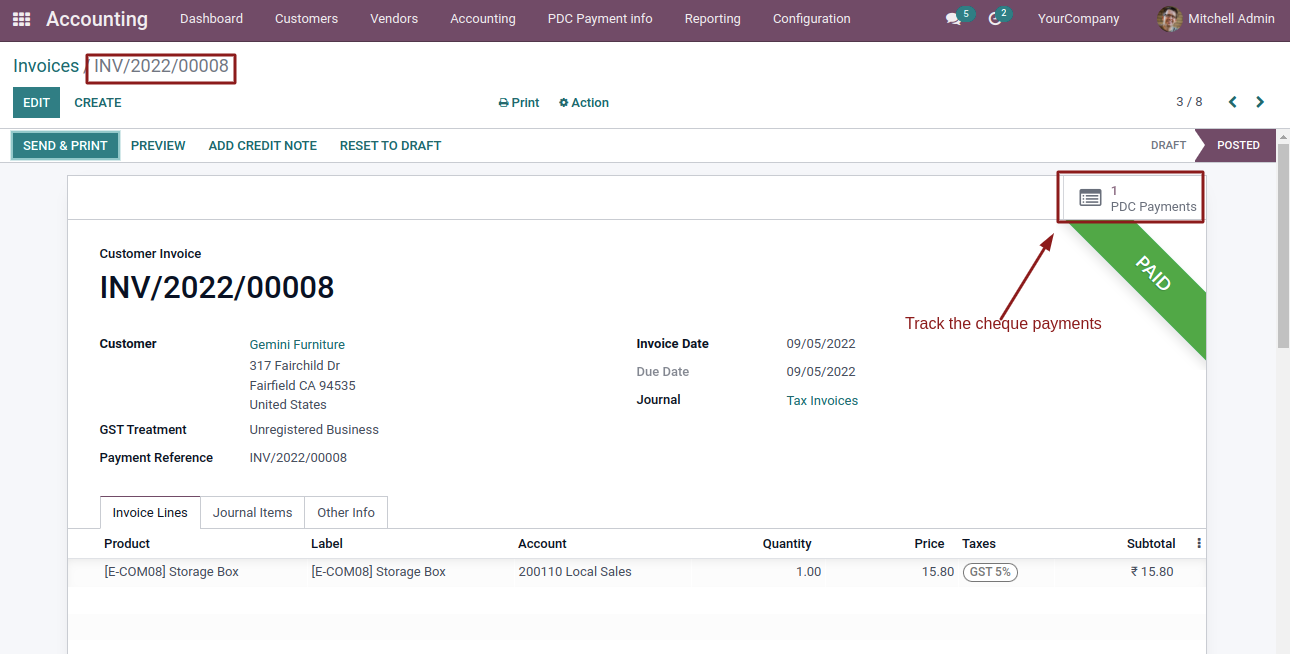
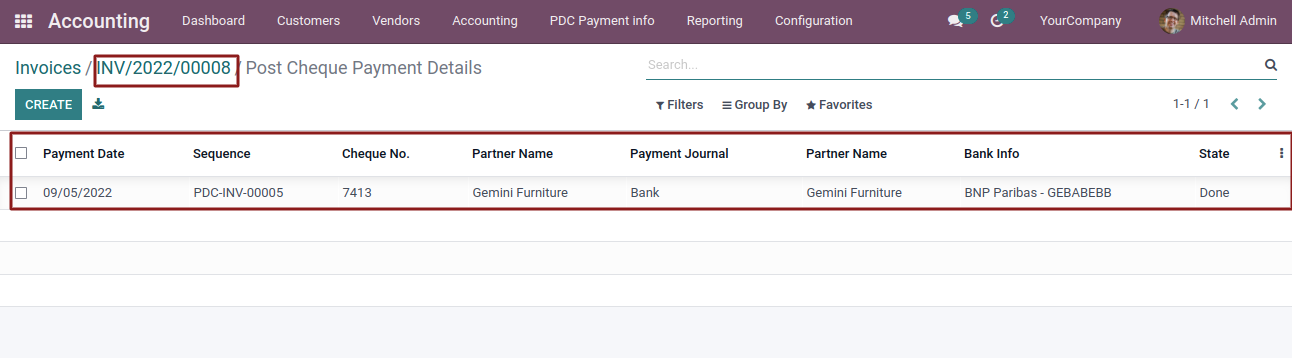
Make cheque payment through "PDC Payment info" :-
Select PDC Payment Info to process PDC payments.
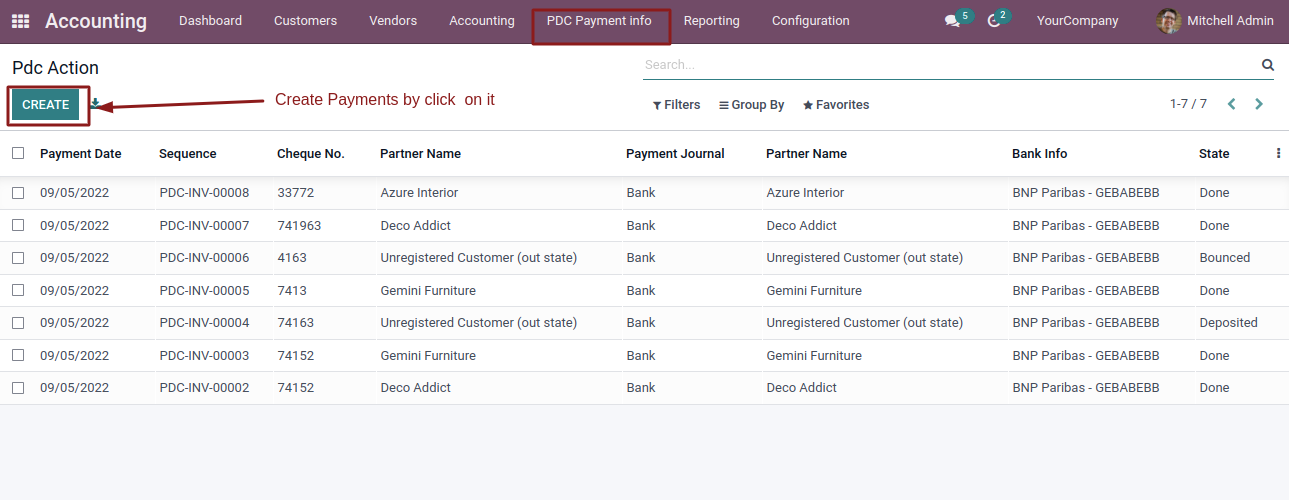
Select the partner and payment type and select invoices.
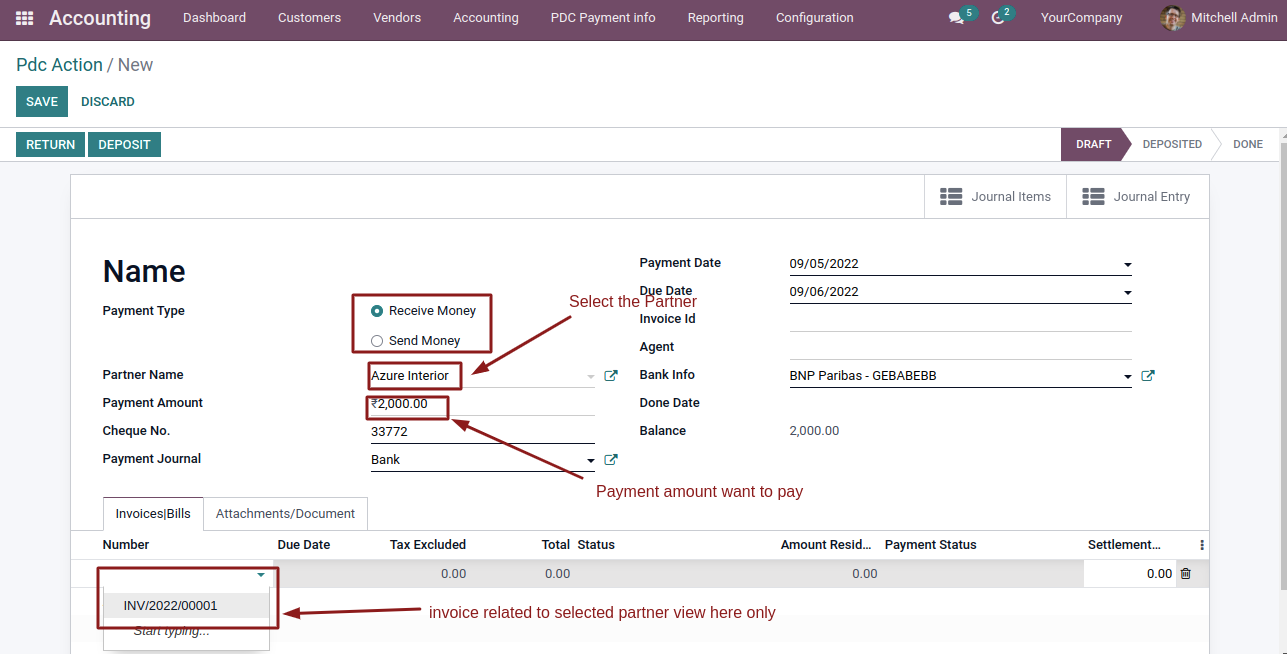
Select Deposit, then click Done to pay the invoices.
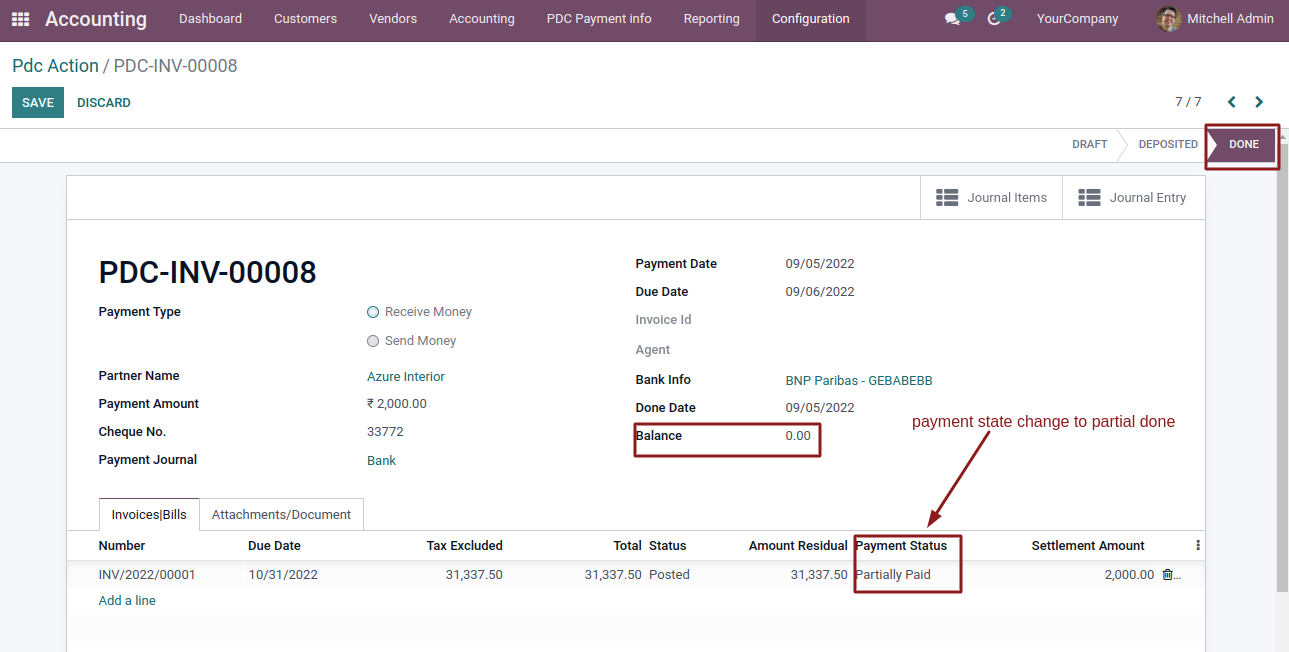
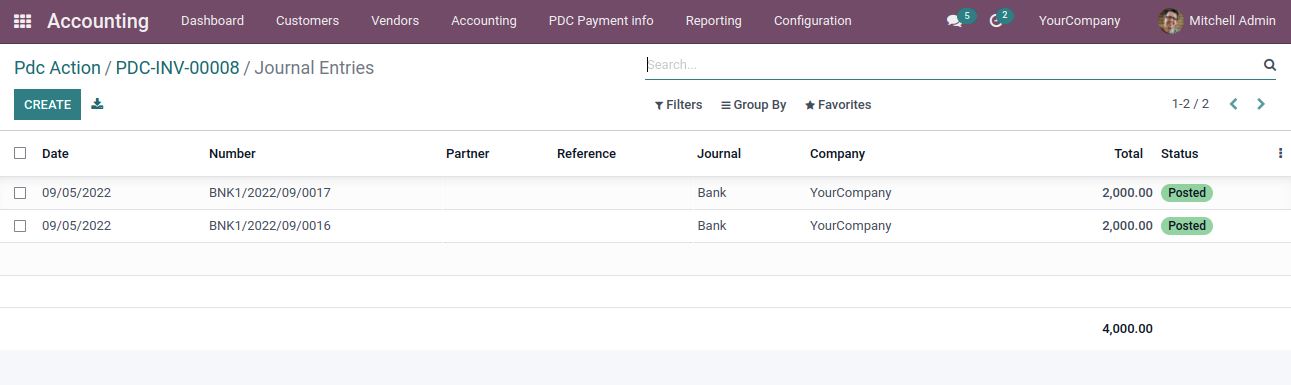
Journal entries are created.
You can accept an advance cheque payment by choosing the partner and specifying the amount.
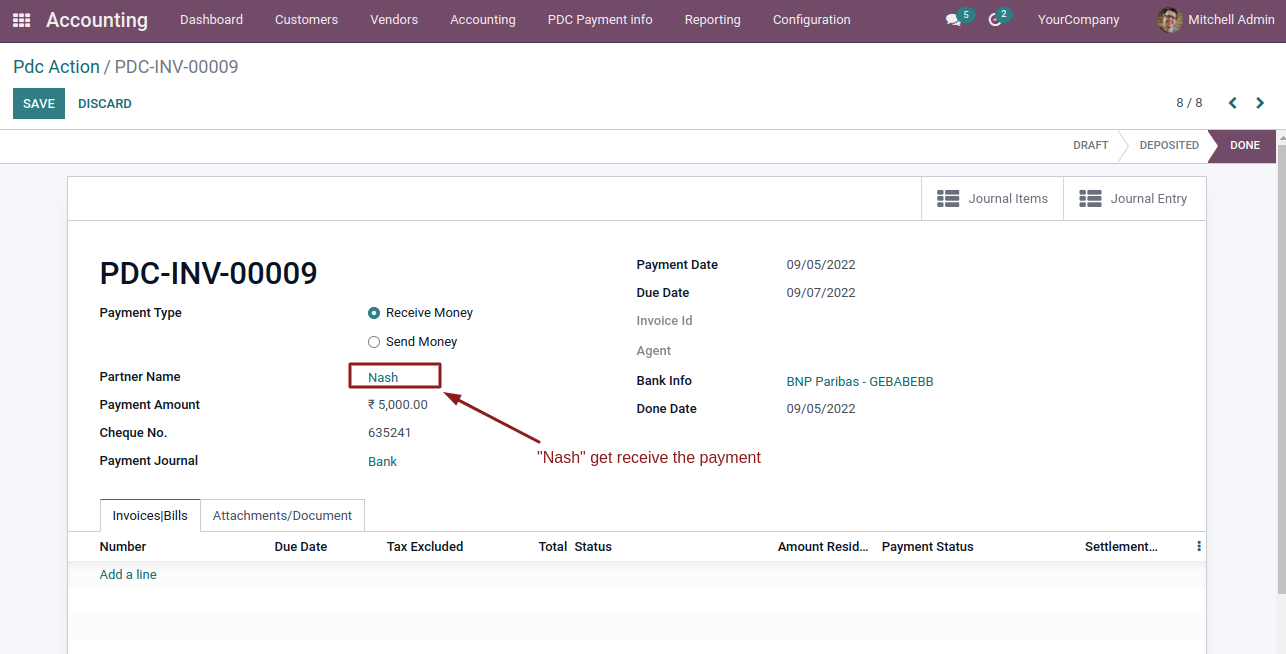
Entry for advance amount.
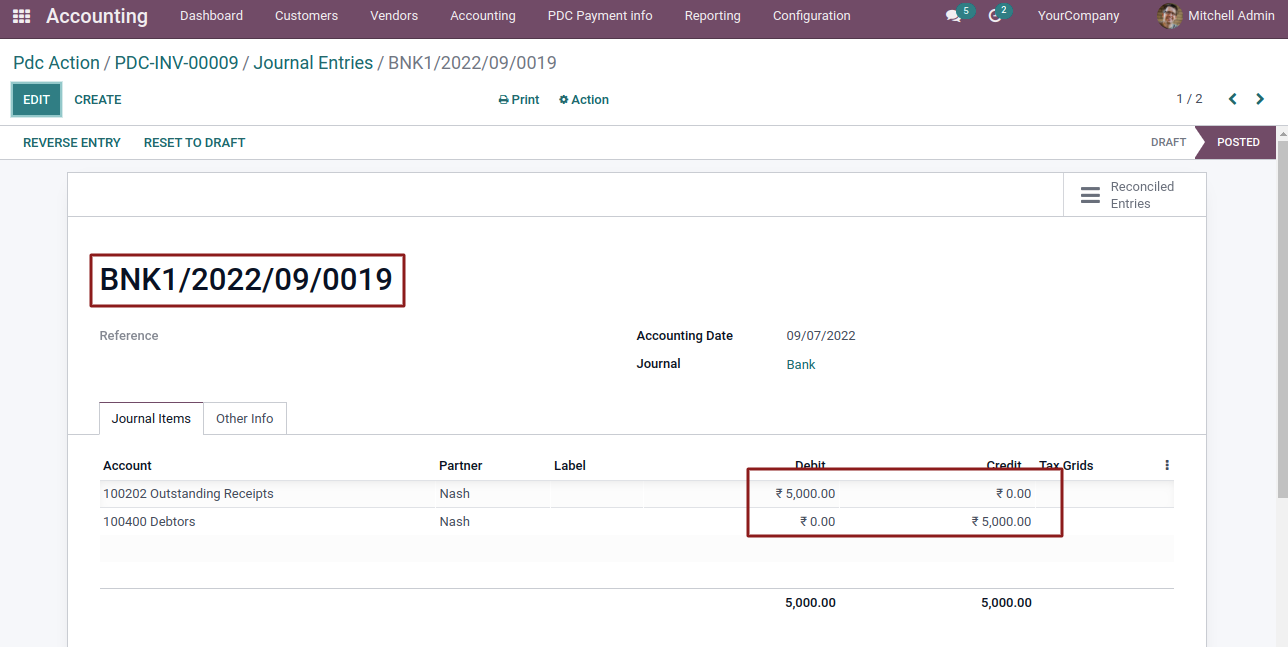
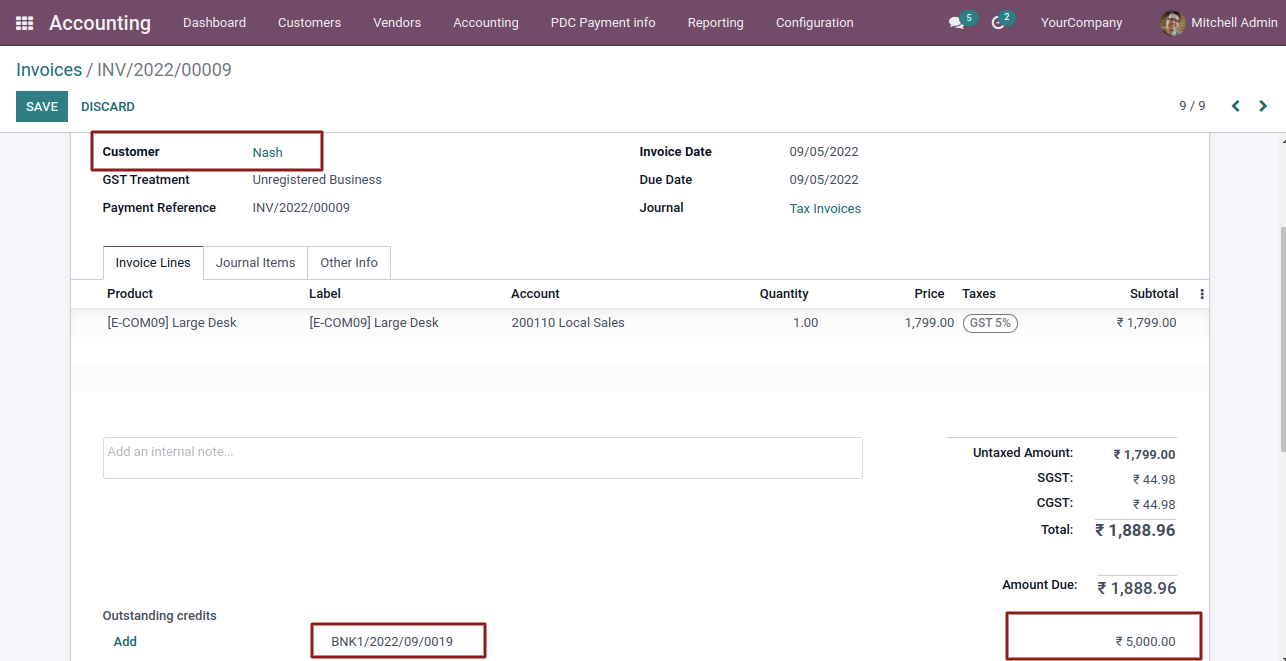
Advance cheque amount displayed on next invoice.
Same process we perform for vendor Bills.
Invoice Payment in Autopaid order :-
Create and post an invoice to view the Register Cheque button on the invoice form.
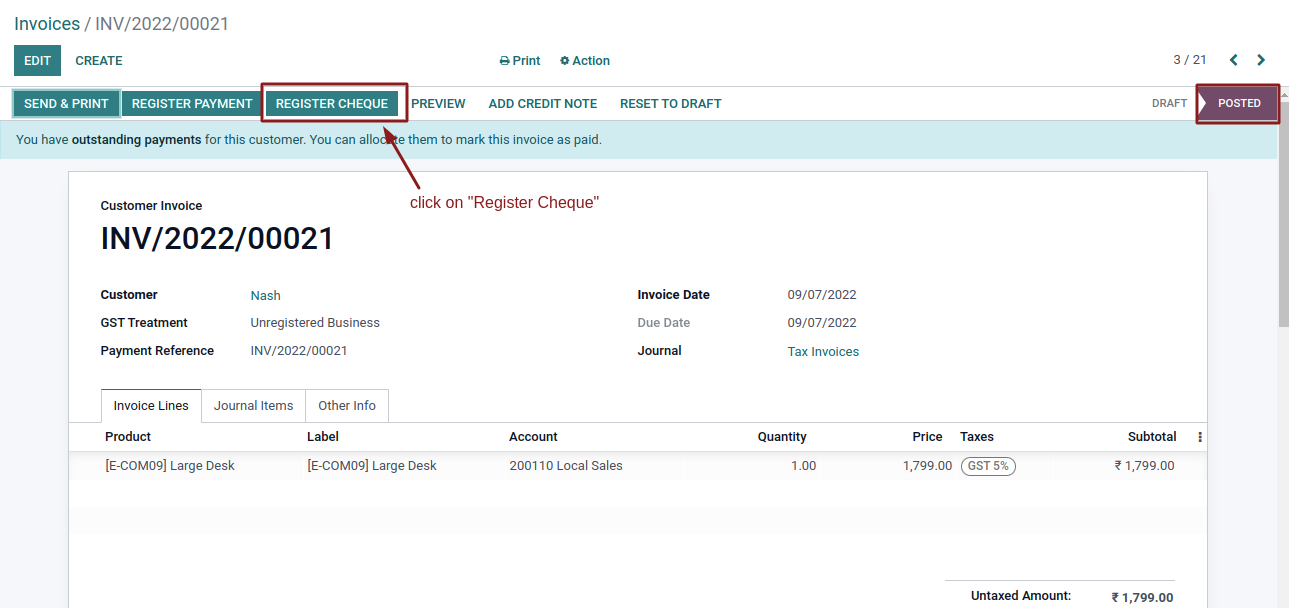
Enter the cheque details.
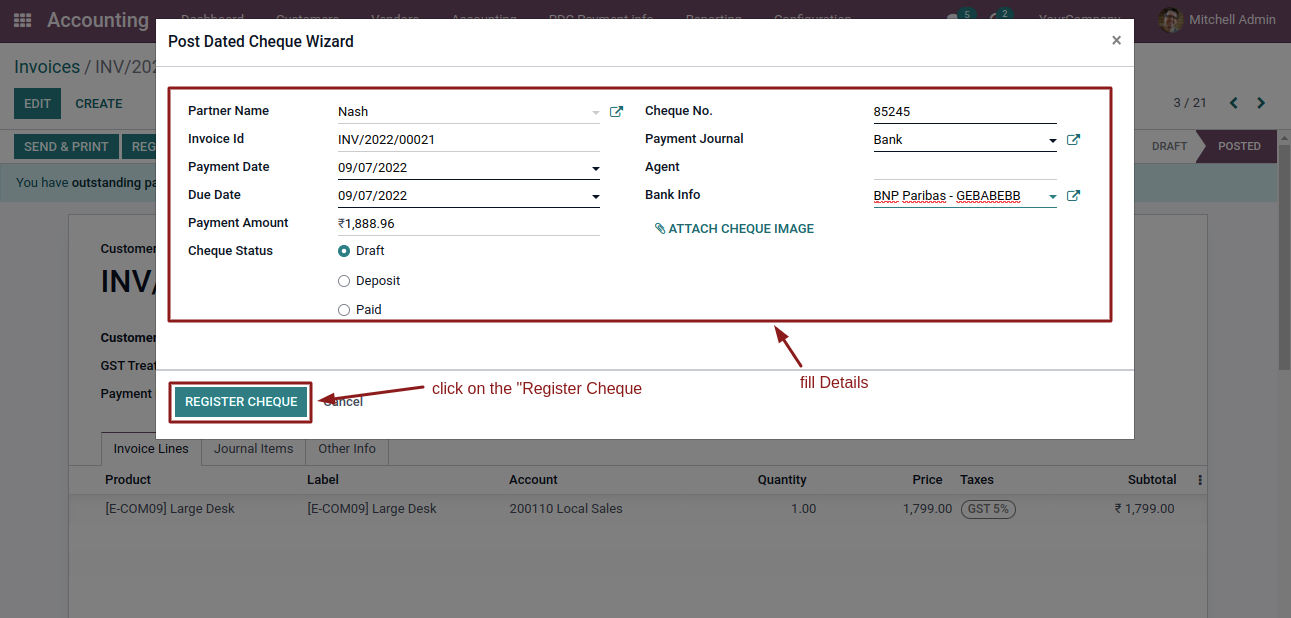
When you click the Return button in the PDC payment form, the cheque status is updated to Returned.
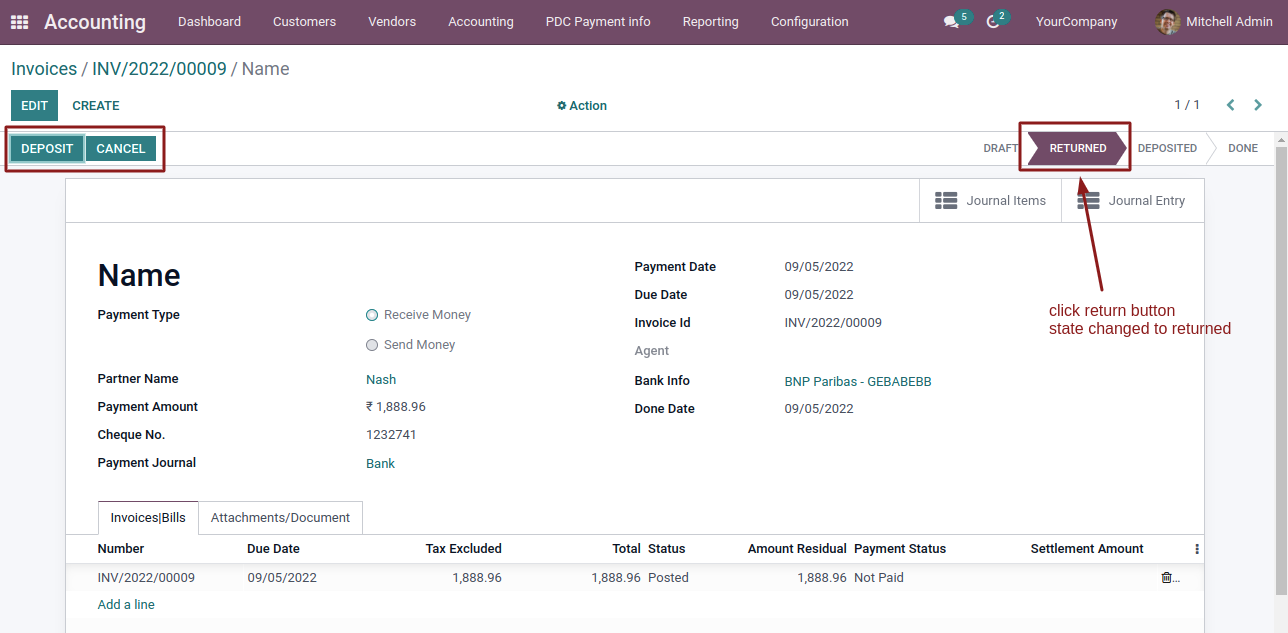
When you click the Deposit button in the PDC payment form, the cheque status is updated to Deposited.
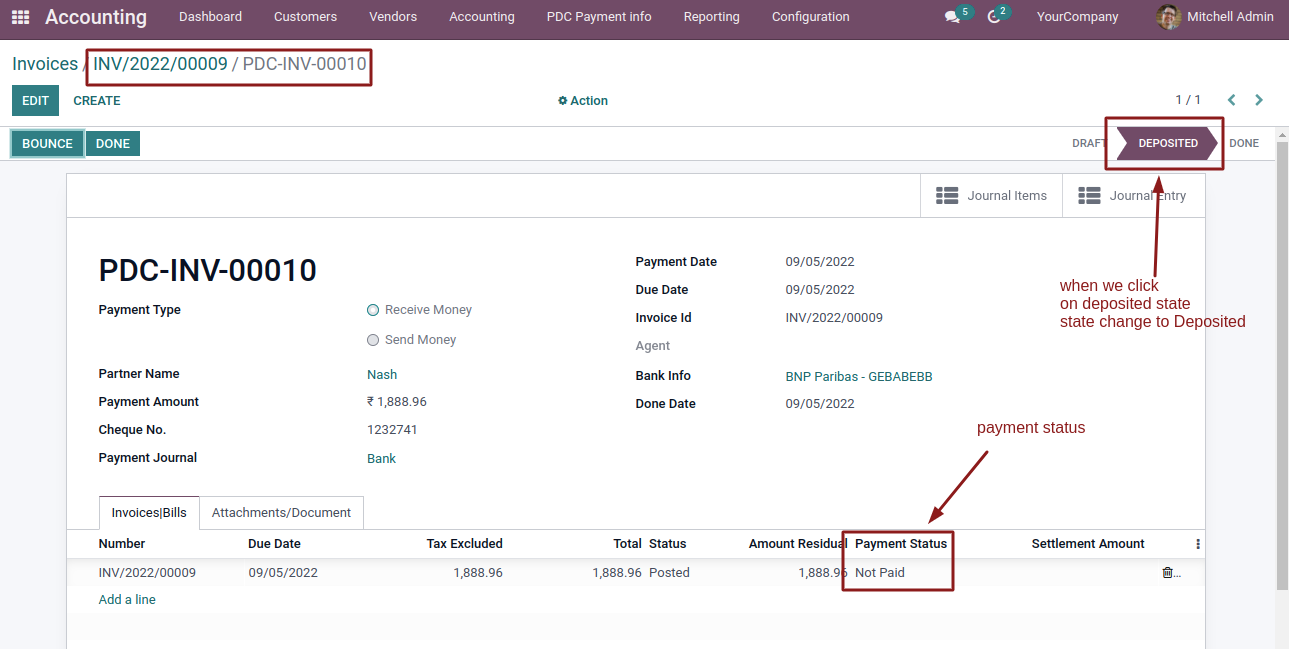
Enter the settlement amount and click the Done button.
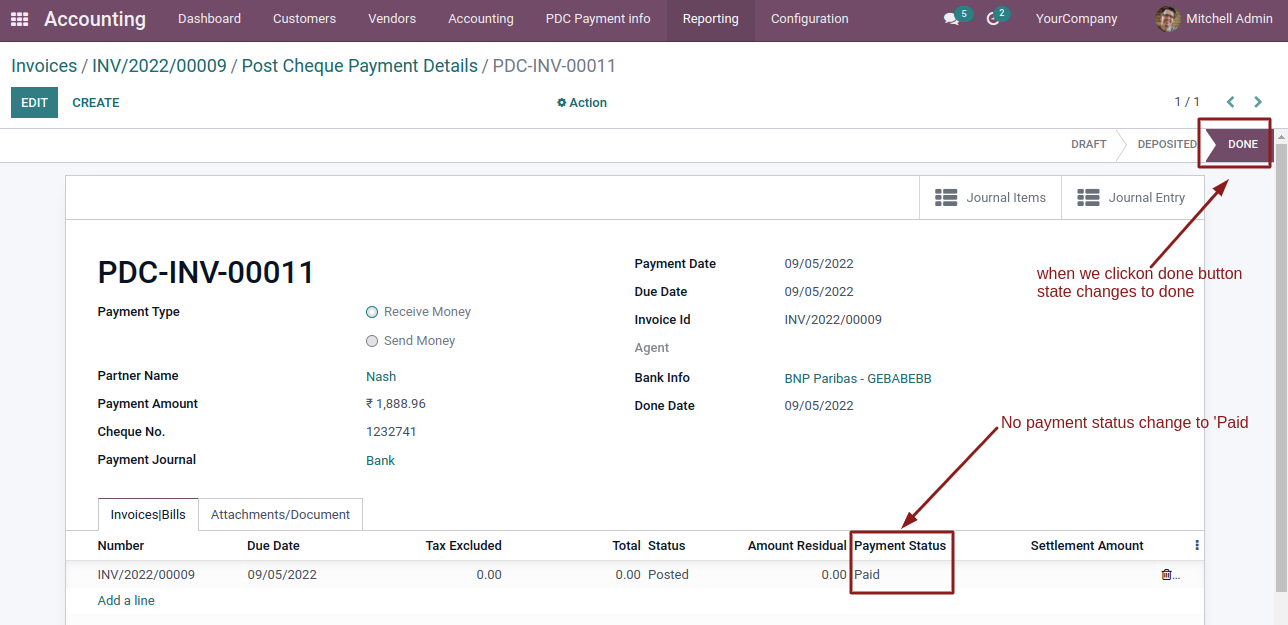
Journal entry and Journal items are created.
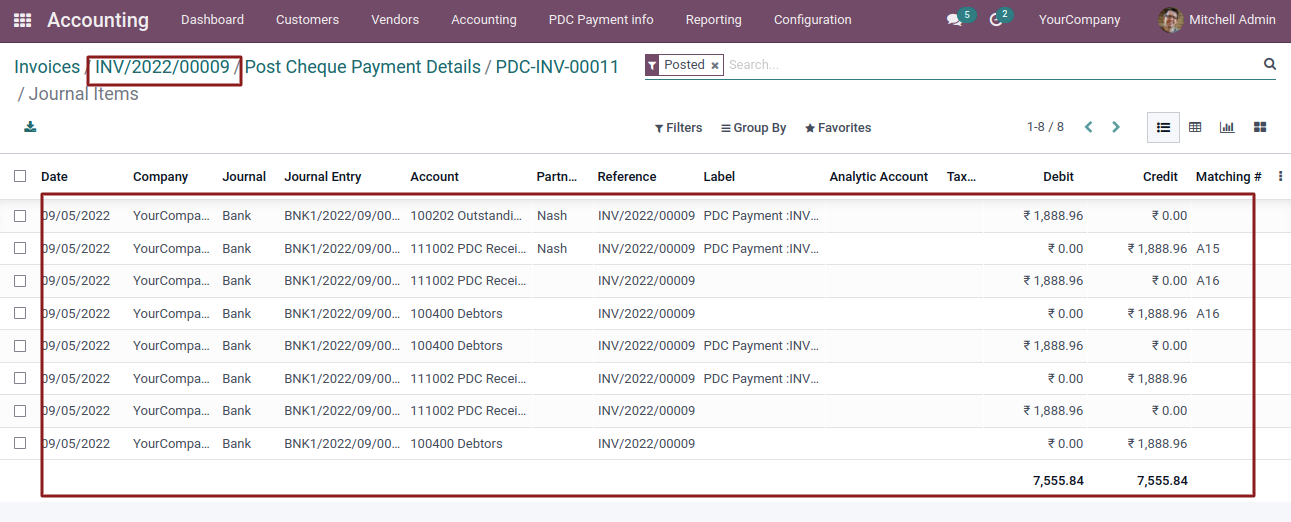
Cheque payments can be made in two different ways:
- Less than the Payment Amount
- Equal to the Payment Amount
- When the cheque amount is less than the invoice or bill amount, it is treated as a partial payment.
- When the cheque amount matches the invoice or bill amount, the invoice or bill is marked as paid.
If the cheque is bounced, the cheque state is changed to Bounced.
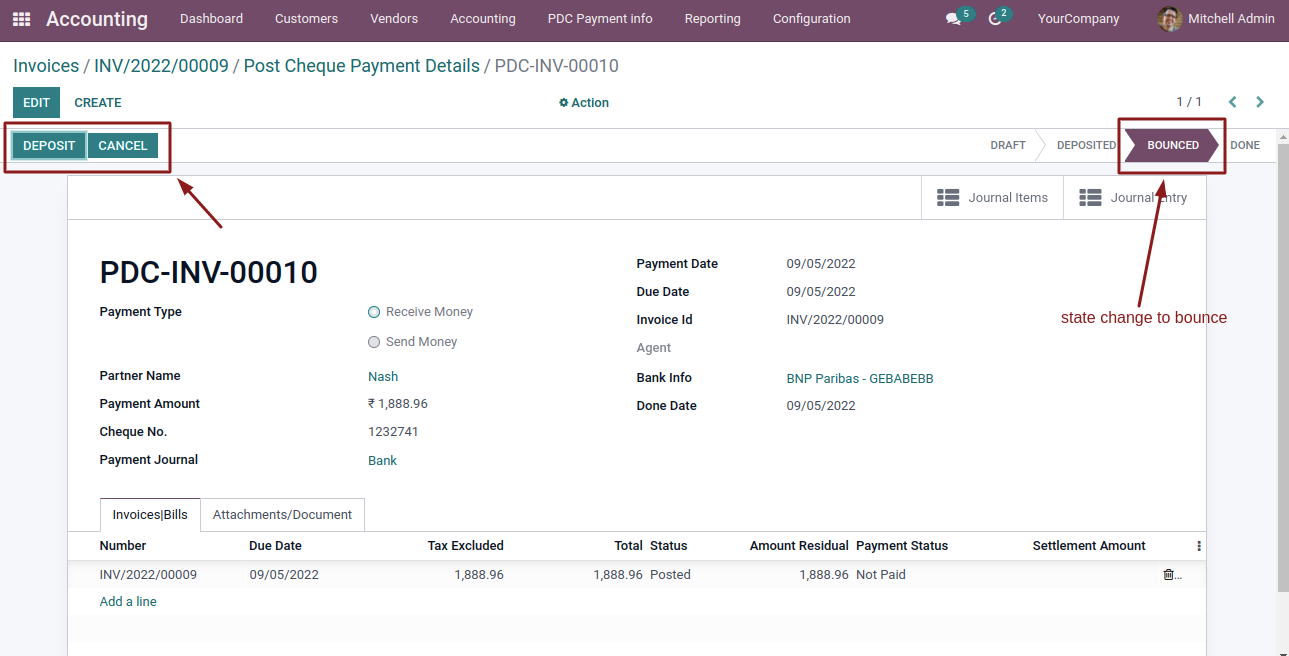
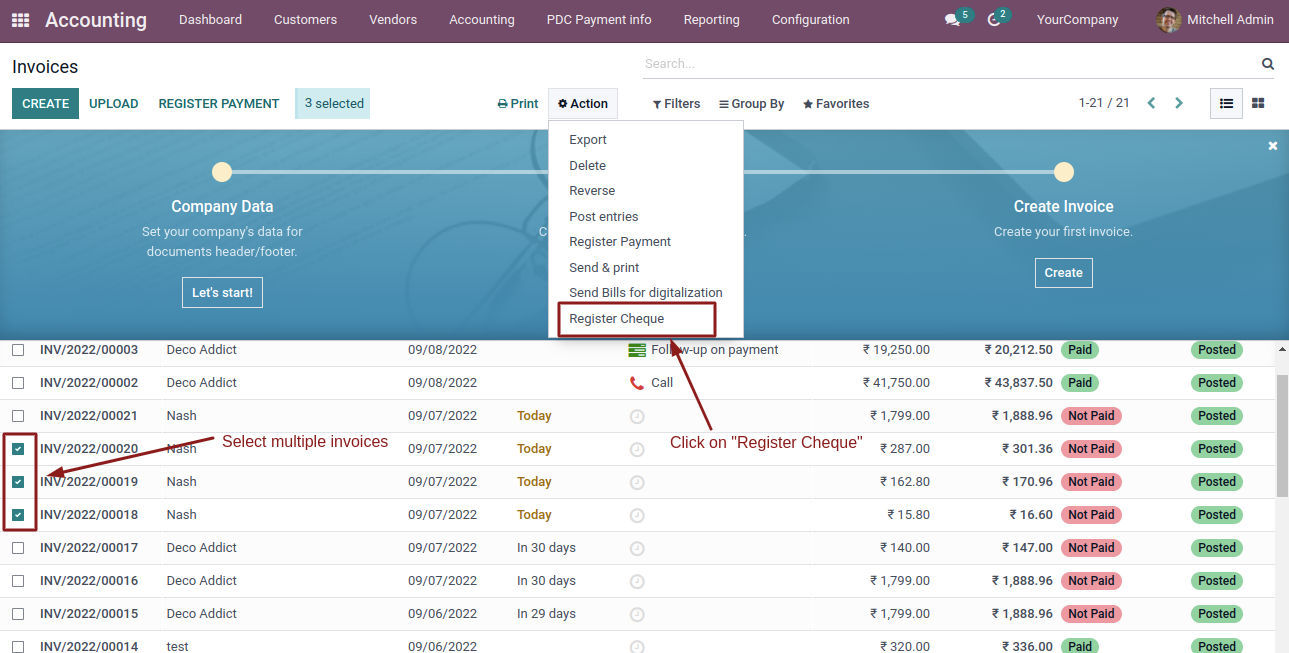
Pay Multiple Invoices :-
Select Multiple invoices.
Fill details.
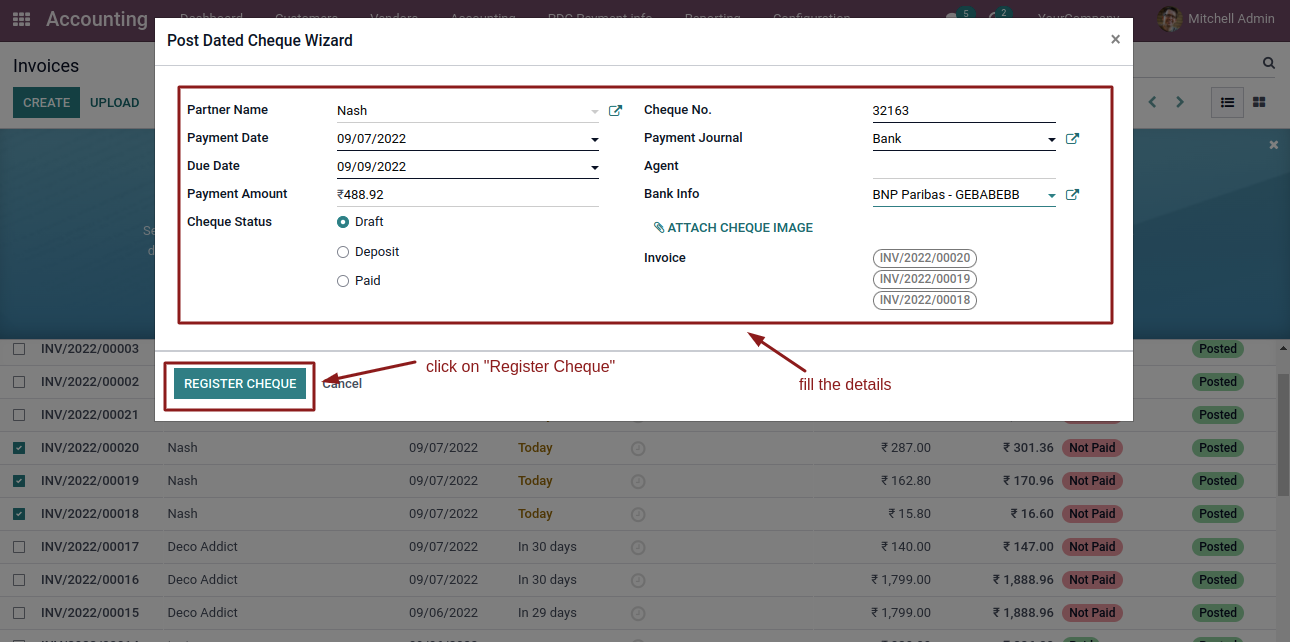
After entering the required details, click the Register Cheque button and then click Deposit.
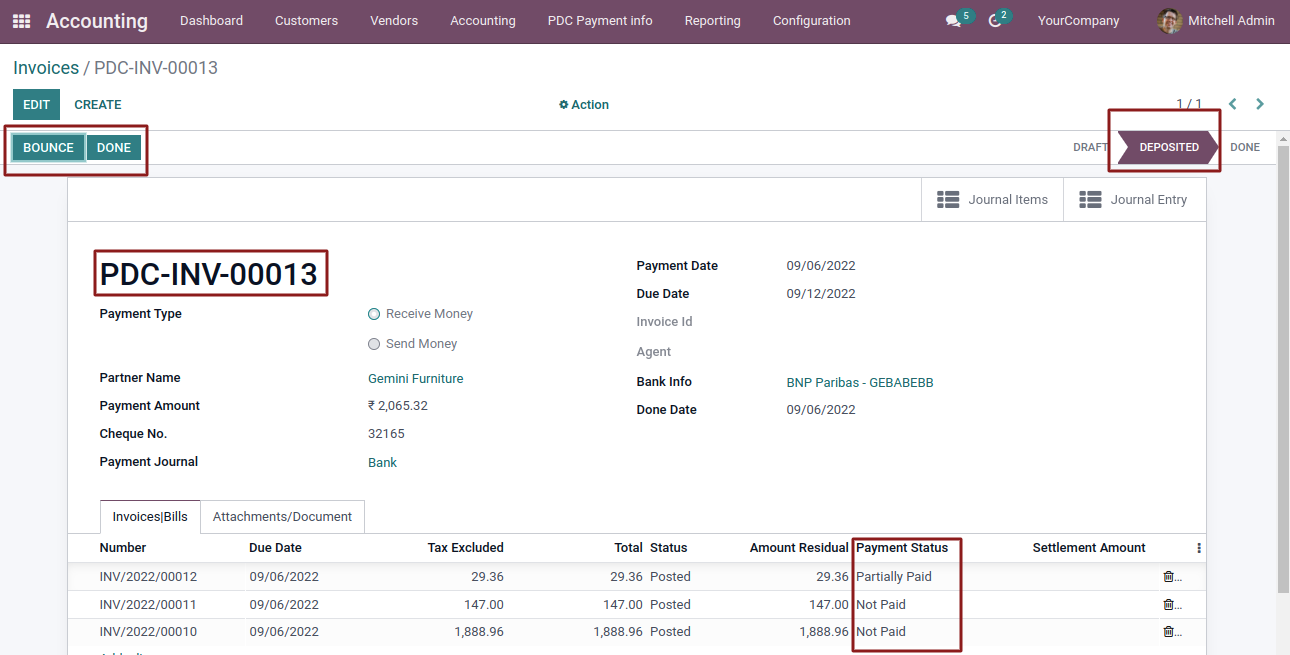
Done State.
Journal entry and Journal items created.
Make cheque payment through "PDC Payment info".
Click on PDC Payment Info to make PDC payments.
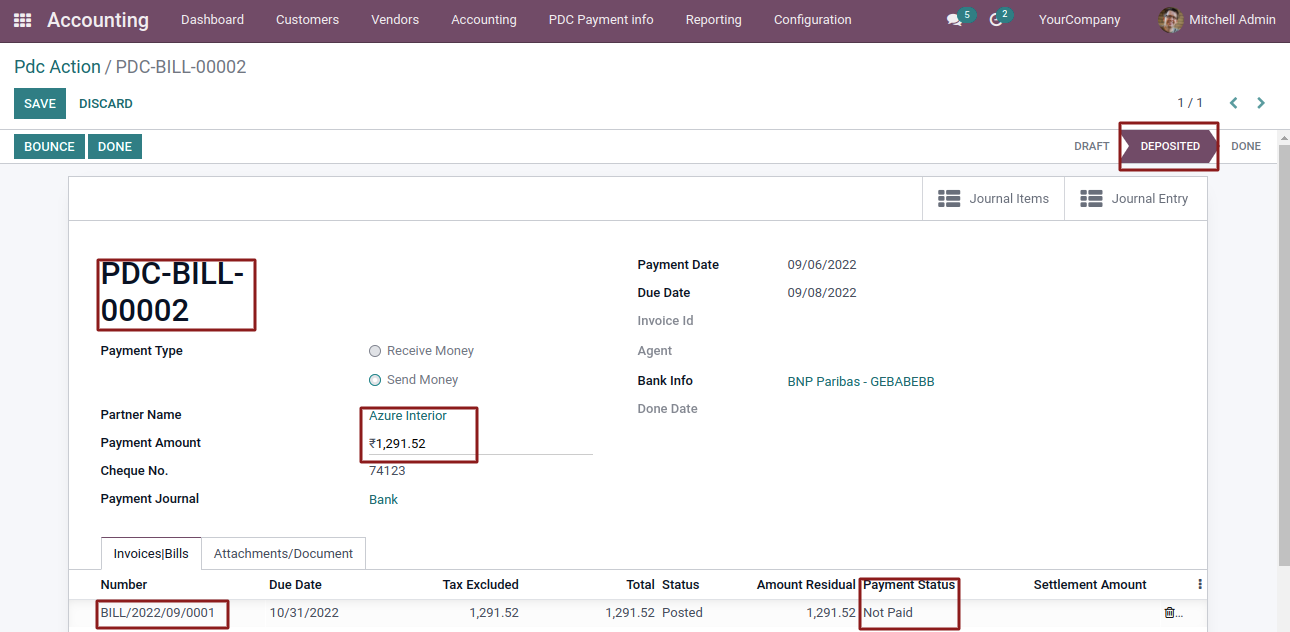
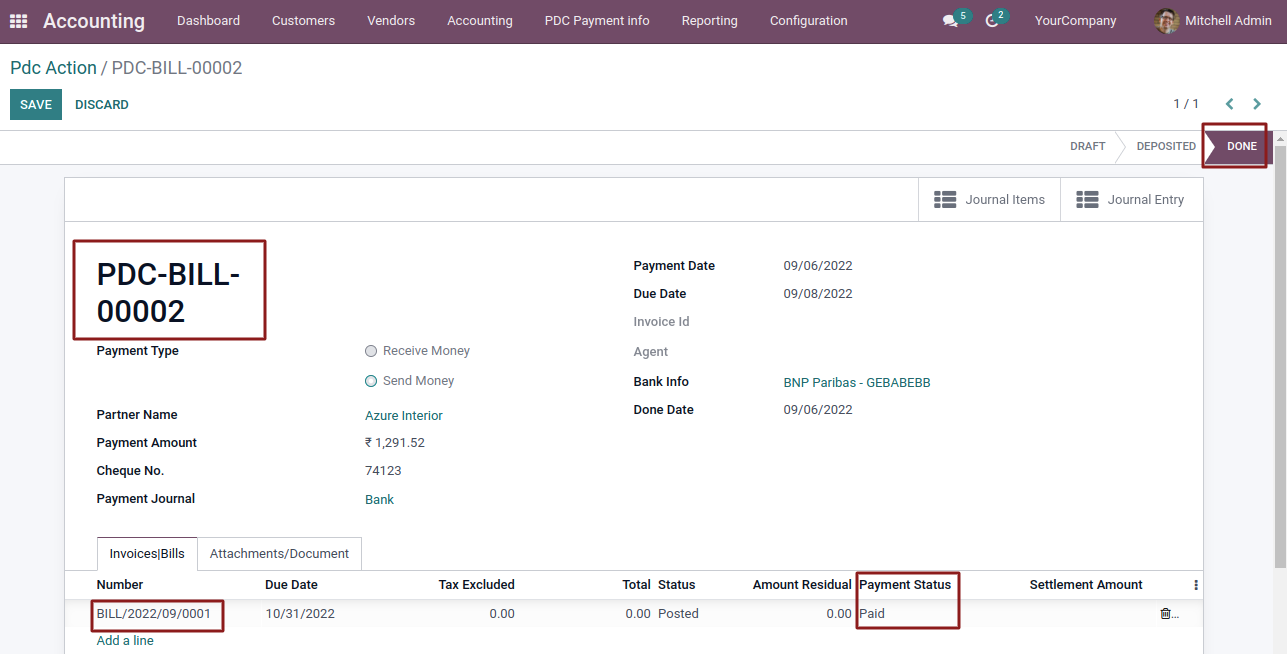
Select the partner and payment type and select Bills.
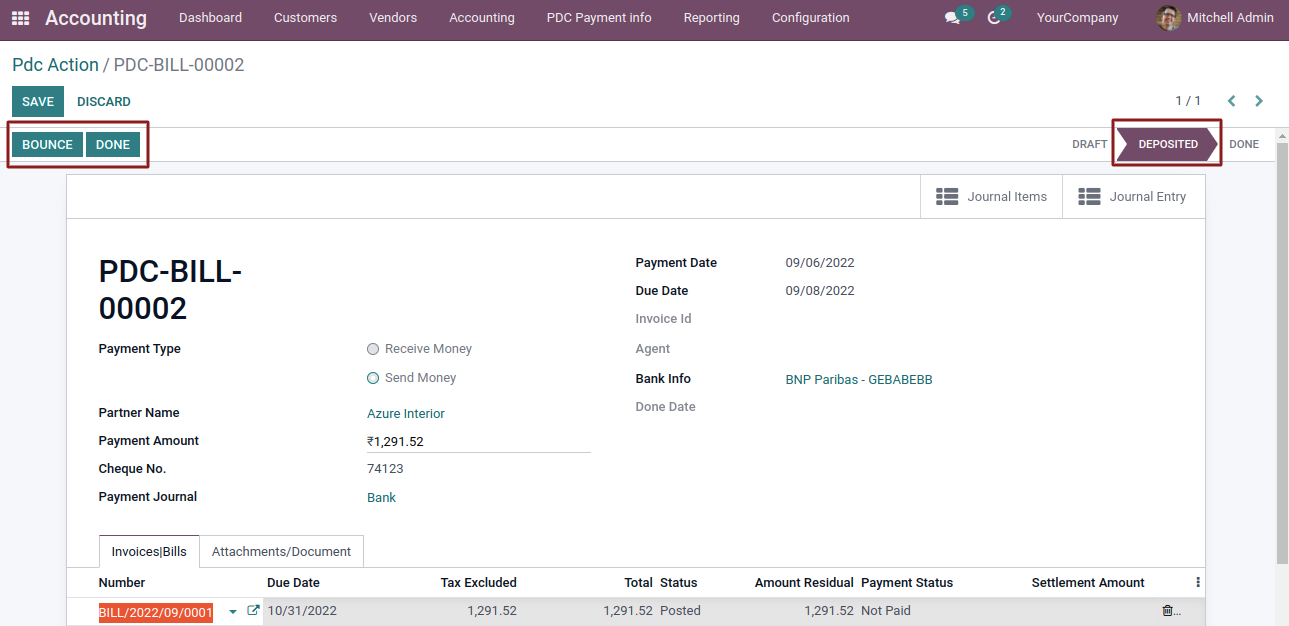
Click on deposite.
Click on done.
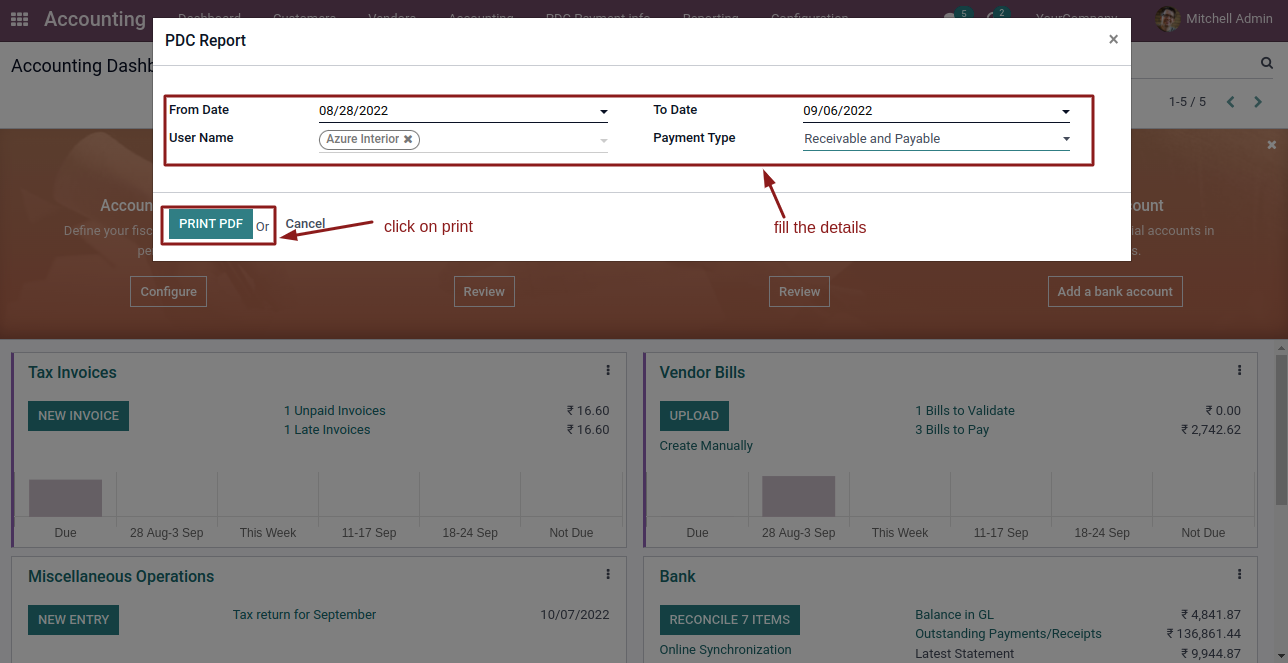
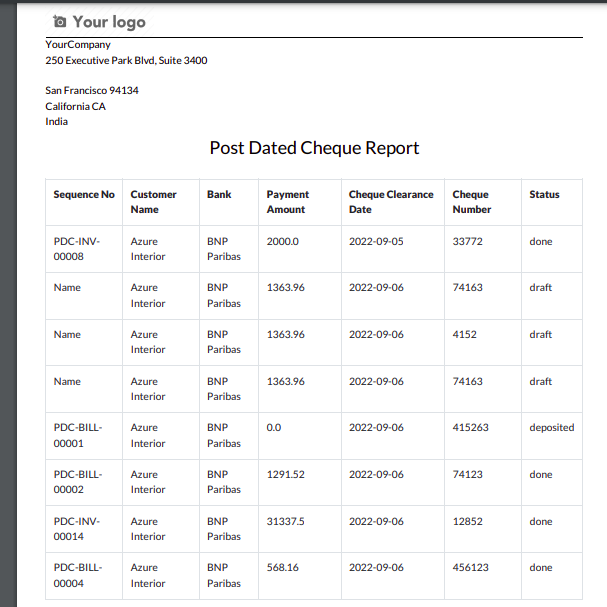
PDF Report
In Reporting click on PDC Report.
Enter the Details.
Key Features

Cheque payments can be made only in the company's configured currency.
Easily manage payments for a single vendor or customer.
Invoices and bills can be paid either manually or automatically.
Any remaining balance after payment is carried forward and reflected in the next invoice or bill.
Seamlessly manage payments for multiple invoices or bills.
Supports advance payments for both customers and vendors.
Pay specific invoices or bills based on the available cheque amount.
Attach cheque images for better record-keeping.
Track cheque payments received against corresponding invoices and bills.
Free 3 Months Support
Need help or any technical support ?
Kanak Infosystems LLP. will provide free 3 months support for bug fixes, any doubts or queries, installation, configuration support or any types of issues related to this module.
At our company, we take pride in providing exceptional help and technical support to our valued customers.
Our team of dedicated experts is well-versed in the intricacies of the Odoo platform.


Our Services

Hire Odoo Developer
Odoo Customization

Odoo Development

Odoo Installation
Odoo Integration

Odoo Resource

Odoo Themes

Odoo Training

Important Notice
All applications are developed within the default, up-to-date Odoo environment, and as such, we cannot guarantee flawless compatibility with third-party apps. While we strive to ensure smooth integration, any conflicts or issues that arise due to third-party applications will require additional support services, which can be provided at an extra cost. Kindly contact our support team for more information or to arrange paid support.
Reach out to us at our offices for any inquiries or collaboration.
Delhi Office
Unit no. 1017 & 1026, 11th Floor, Westend Mall,
Janak Puri, New Delhi,
Delhi, India - 110058
Gujarat Office
Unit no. 307, The Landmark, Urjanagar 1, Kudasan,
Gandhinagar, Gujarat, India - 382421
Kanak Infosystems LLP. Proprietary License v1.0

This software and associated files (the "Software") may only be used (executed,
modified, executed after modifications) if you have purchased a valid license
from the authors, typically via Odoo Apps, or if you have received a written
agreement from the authors of the Software (see the COPYRIGHT file).

You may develop Odoo modules that use the Software as a library (typically
by depending on it, importing it and using its resources), but without copying
any source code or material from the Software. You may distribute those
modules under the license of your choice, provided that this license is
compatible with the terms of the Kanak Infosystems LLP. Proprietary License (For example:
LGPL, MIT, or proprietary licenses similar to this one).

It is forbidden to publish, distribute, sublicense, or sell copies of the Software
or modified copies of the Software.

The above copyright notice and this permission notice must be included in all
copies or substantial portions of the Software.

THE SOFTWARE IS PROVIDED "AS IS", WITHOUT WARRANTY OF ANY KIND, EXPRESS OR
IMPLIED, INCLUDING BUT NOT LIMITED TO THE WARRANTIES OF MERCHANTABILITY,
FITNESS FOR A PARTICULAR PURPOSE AND NONINFRINGEMENT.
IN NO EVENT SHALL THE AUTHORS OR COPYRIGHT HOLDERS BE LIABLE FOR ANY CLAIM,
DAMAGES OR OTHER LIABILITY, WHETHER IN AN ACTION OF CONTRACT, TORT OR OTHERWISE,
ARISING FROM, OUT OF OR IN CONNECTION WITH THE SOFTWARE OR THE USE OR OTHER
DEALINGS IN THE SOFTWARE.

Comment on this module. Please Login