 +91 981-810-8884, 0114-214-3250

Community
Enterprise
Odoo.sh

Geo Location Attendance
Geo Location Attendance module helps manage employee attendance based on geo-location in Odoo. It ensures employees can check in and check out only within the defined work location range.

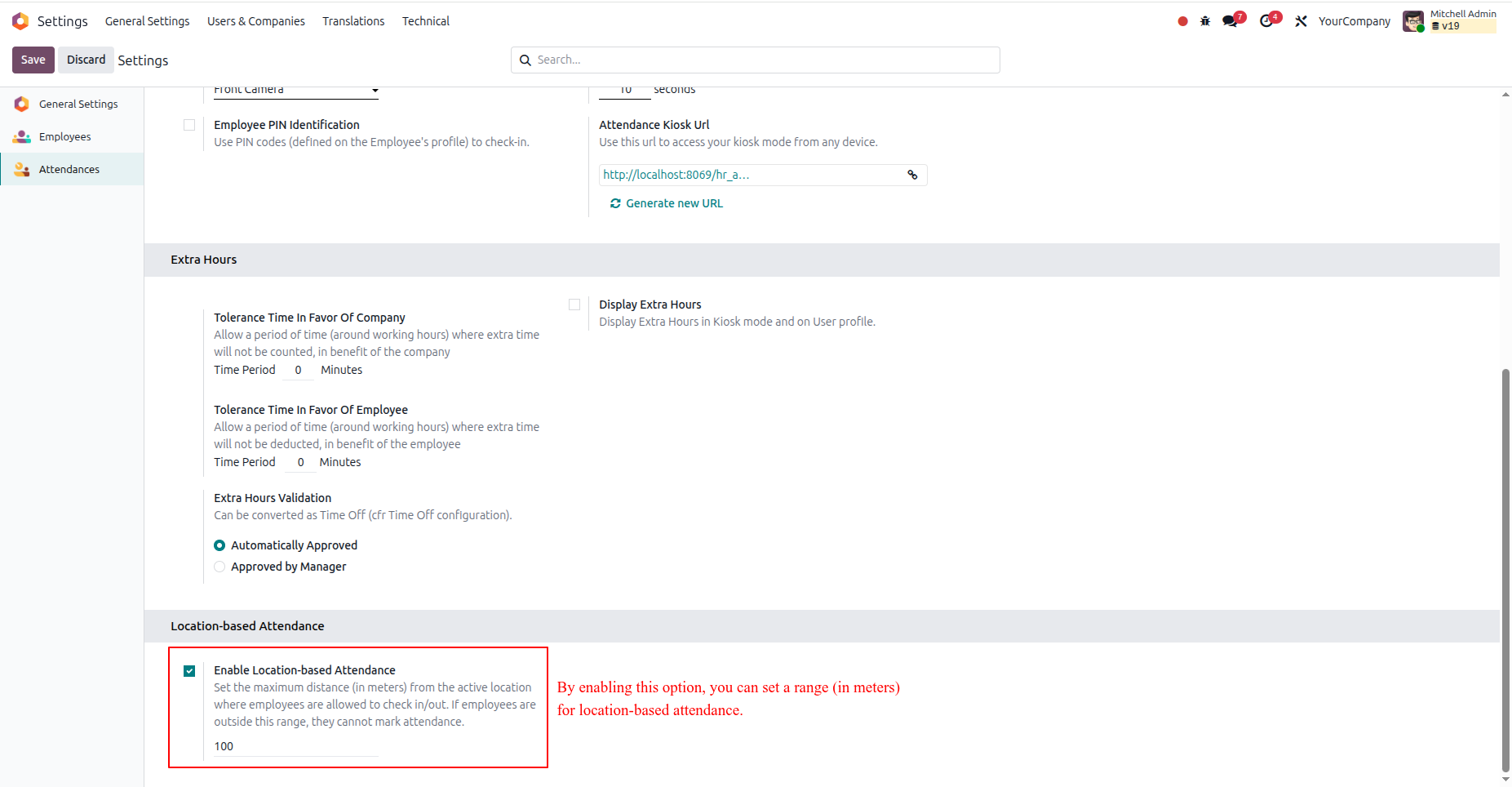
To configure location-based attendance in Odoo, follow the steps below:
- Go to Attendance > Configuration > Settings.
- Scroll down to the Location-based Attendance section.
- Enable the option and set the attendance range (in meters) as required.
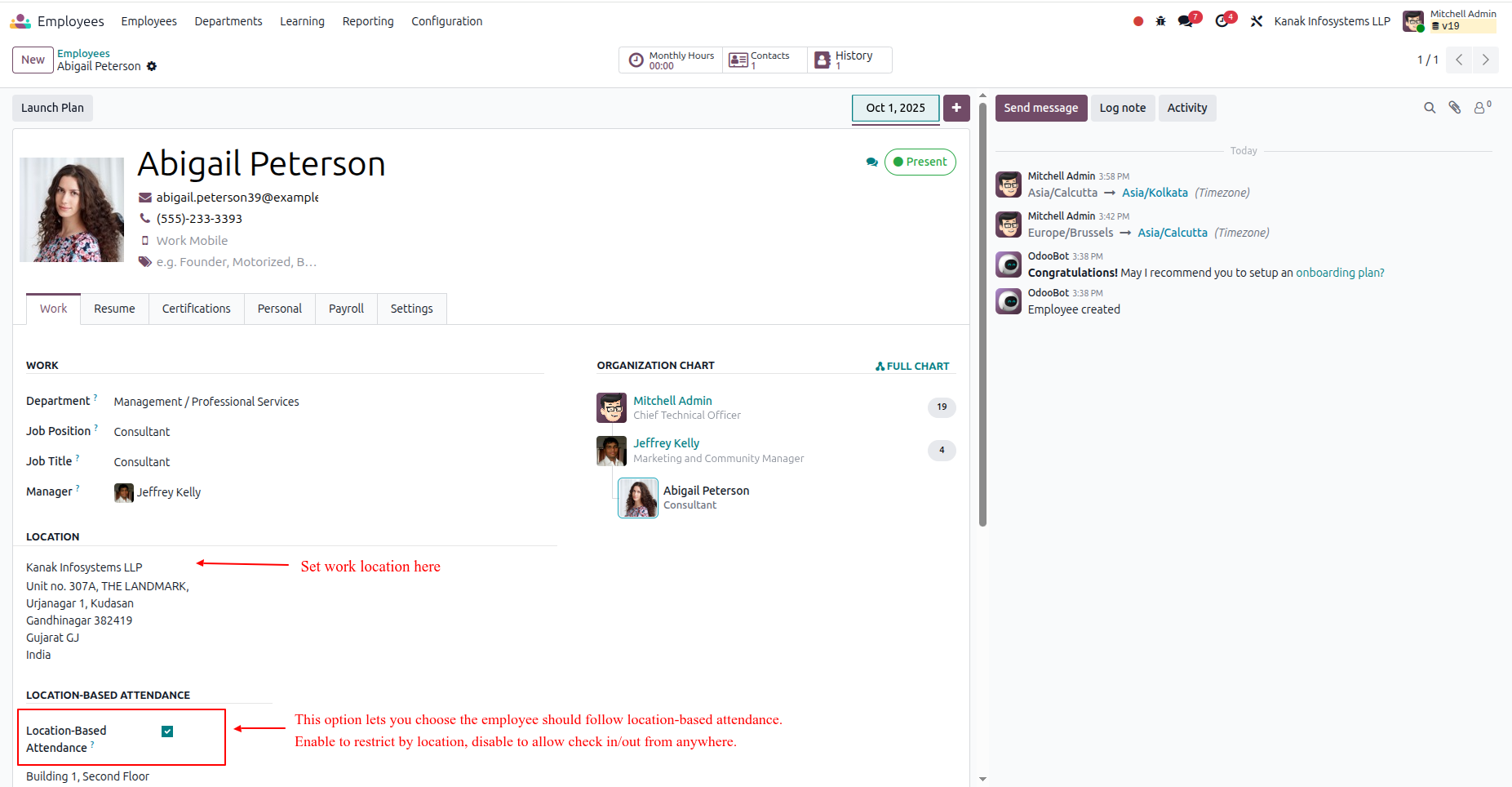
To assign a work location for an employee, follow the steps below:
- Go to Employees > Open any Employee.
- Navigate to the Work Information tab and set the Work Location.
- Enable the Location-based Attendance option for this employee.
When enabled, the employee's attendance will be tracked based on the configured location range. If disabled, the employee can check in and out from any location.
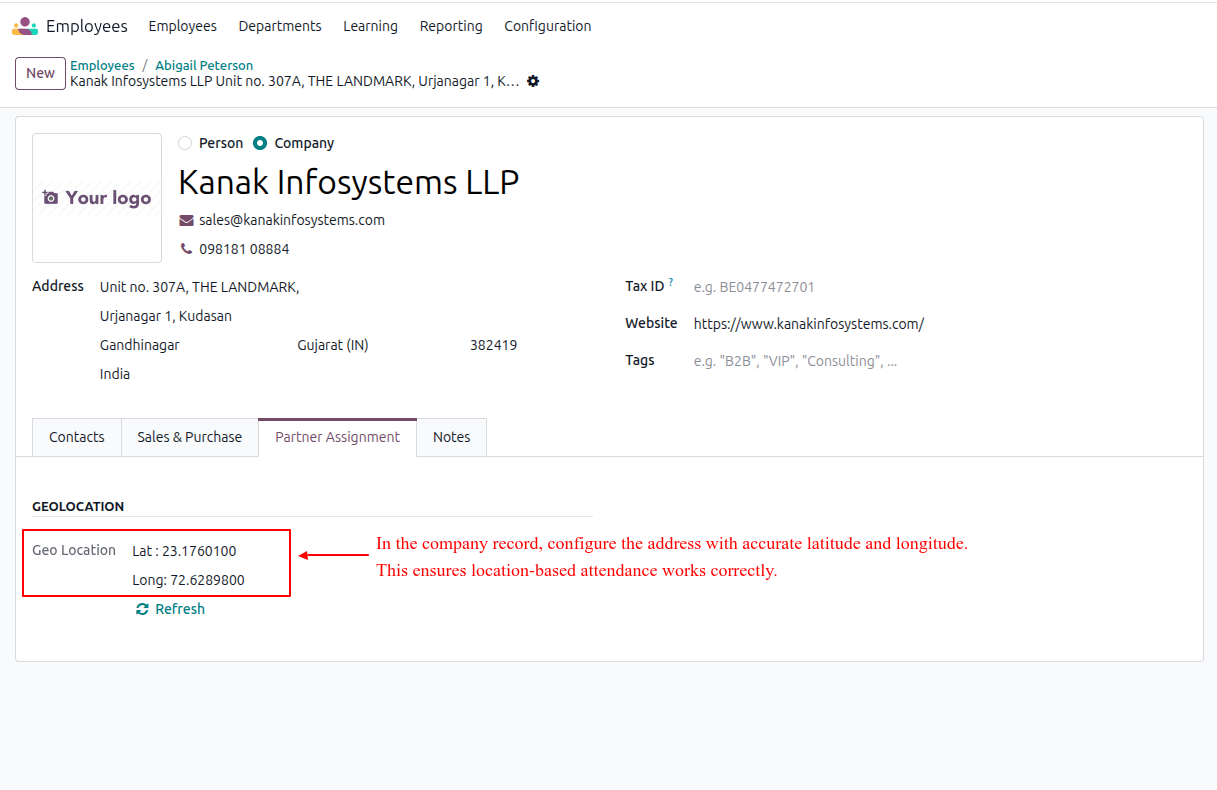
To set accurate coordinates for the work location, follow the steps below:
- Open the Work Location.
- In the Partner Assignment tab, add the accurate Latitude and Longitude of your company location.
- Click Save to update the record.
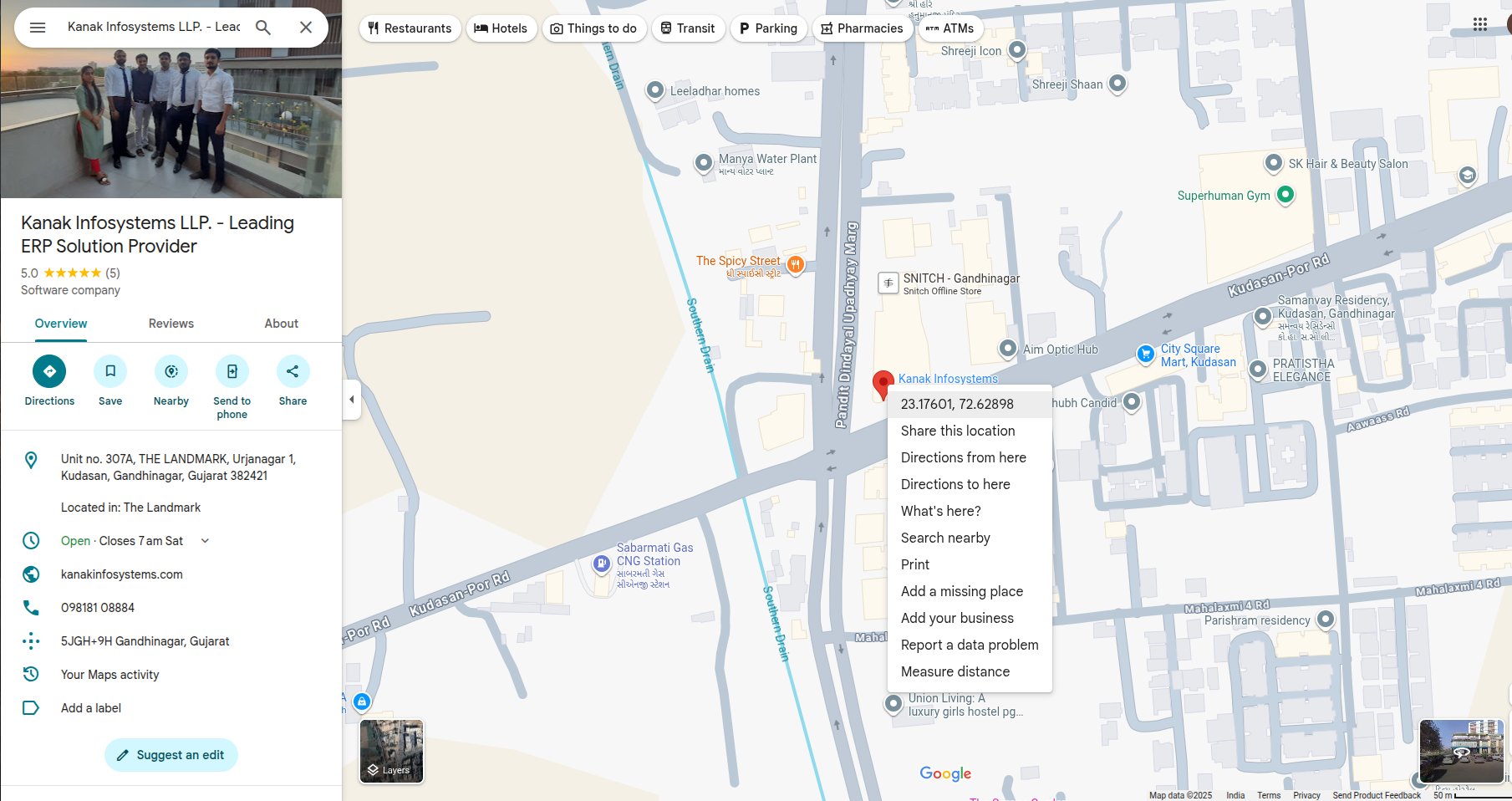
You can easily find your company's exact latitude and longitude using Google Maps:
- Open Google Maps and search for your company location.
- Right-click on the exact location point on the map.
- Copy the coordinates and update them in the Work Location record in Odoo.
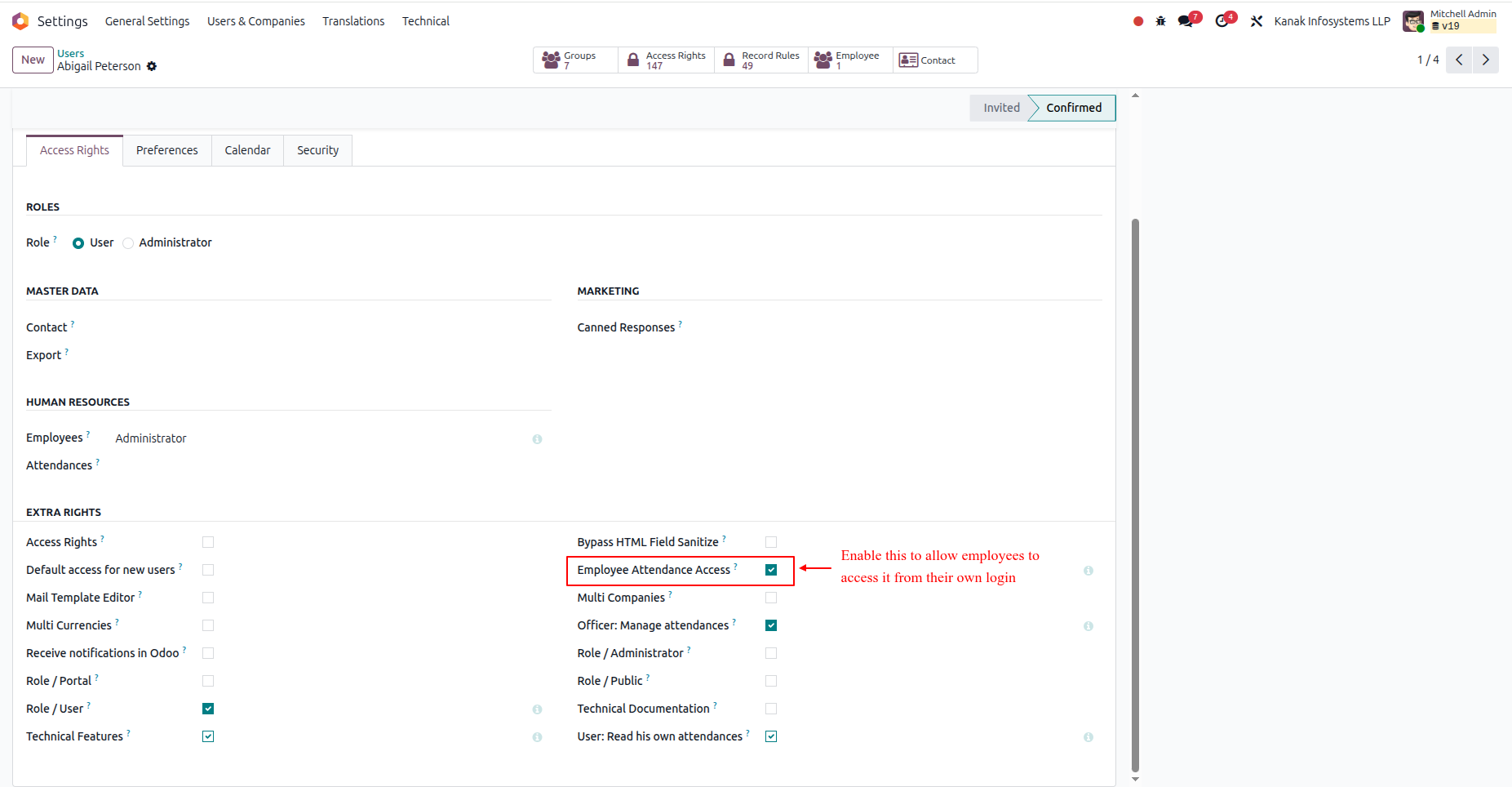
To grant employees access to manage their own attendance, follow the steps below:
- Go to Settings > Users & Companies > Users.
- Open the respective User record.
- Under the Access Rights tab, enable the Employee Attendance Access option.
This allows employees to check in and check out directly from their own logins.
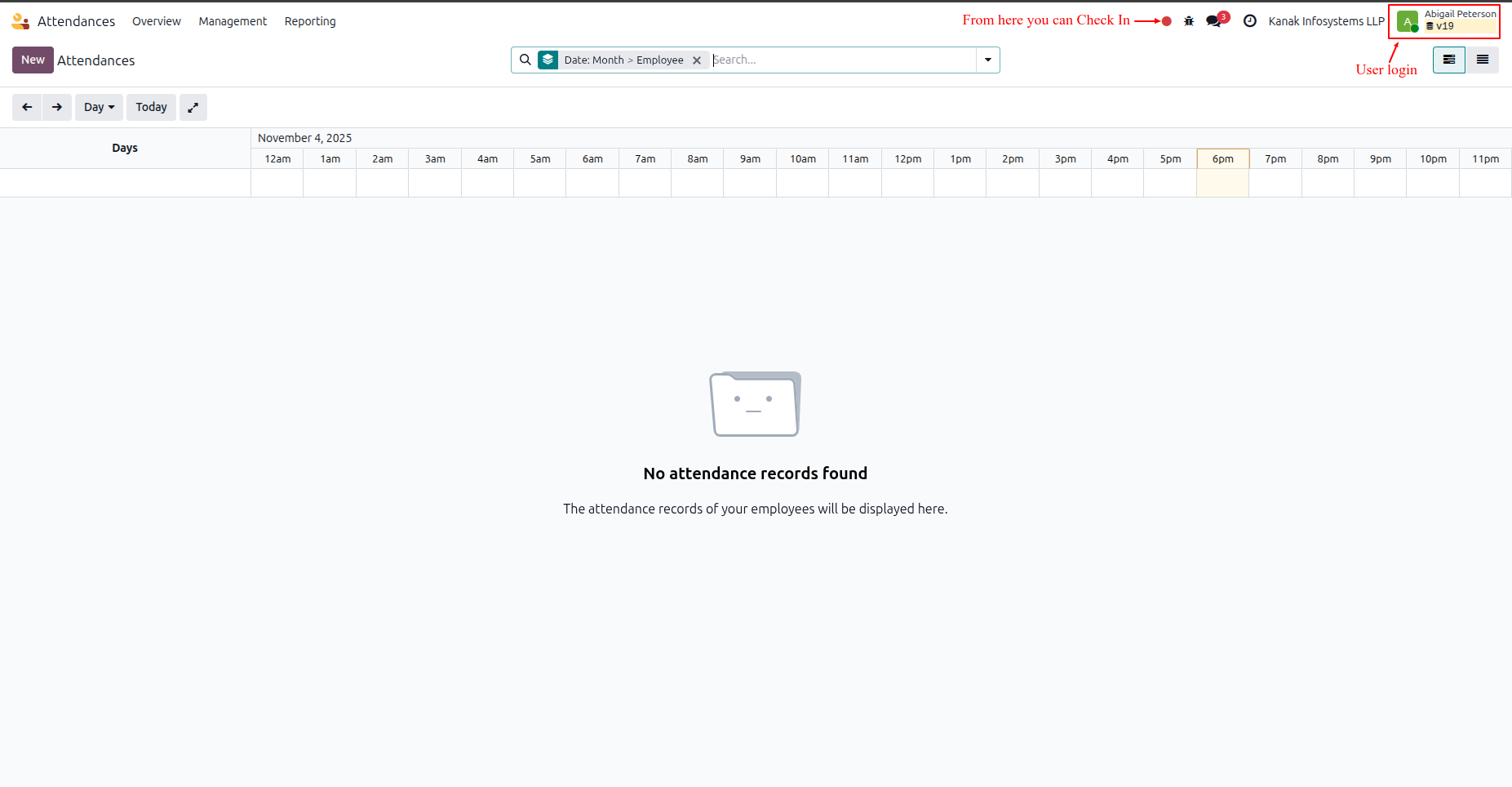
Once logged in as an employee, follow the steps below to check in:
- Log in with the employee's user account.
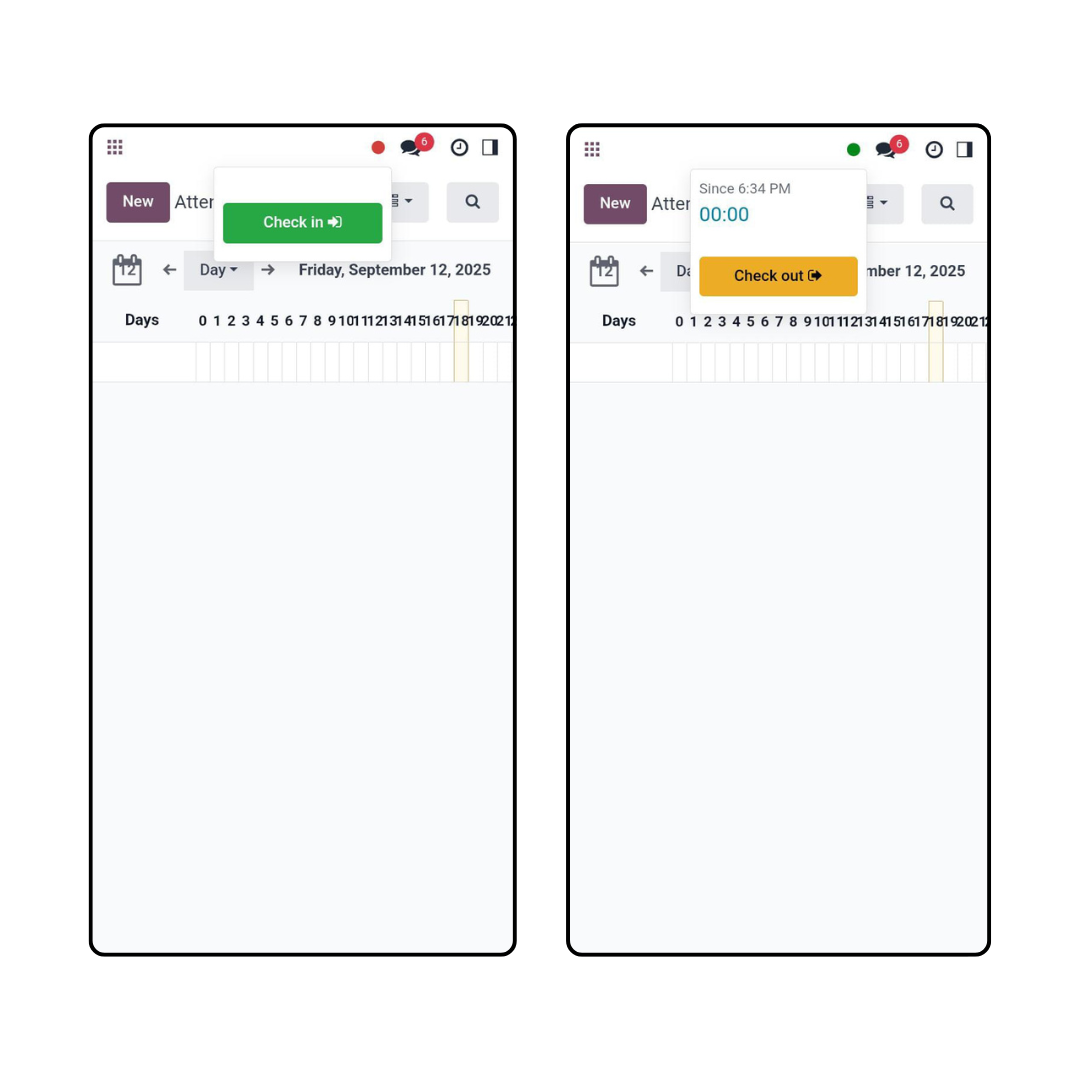
- Locate the red dot icon on the top-left corner of the screen.
- Click on it and select Check In.
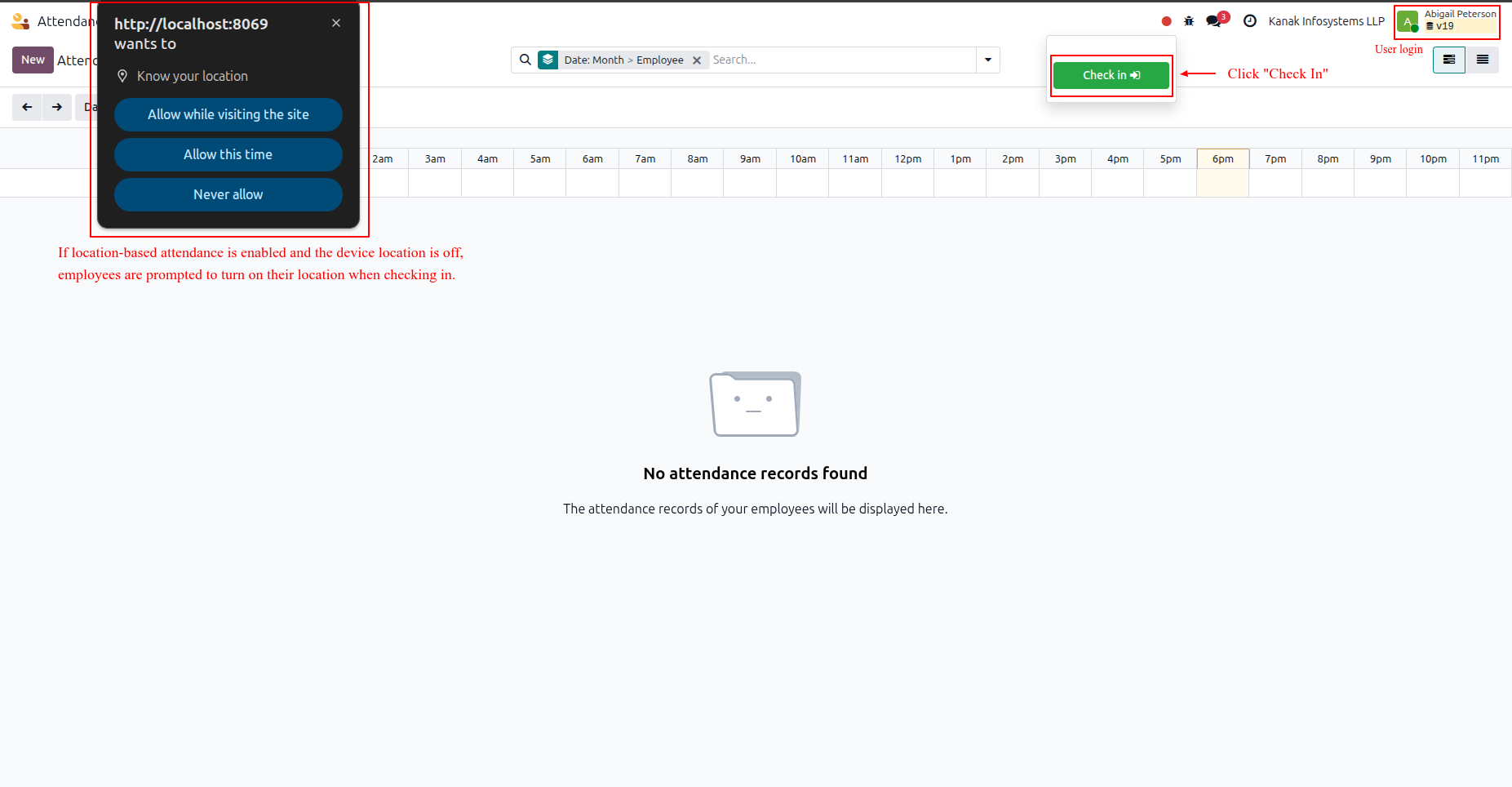
If the employee has location-based attendance enabled, follow these steps during check-in:
- When prompted, allow the browser's location permission to proceed with check-in.
- Once check-in is successful, the red dot will turn into a green dot, indicating the employee is now checked in and at work.
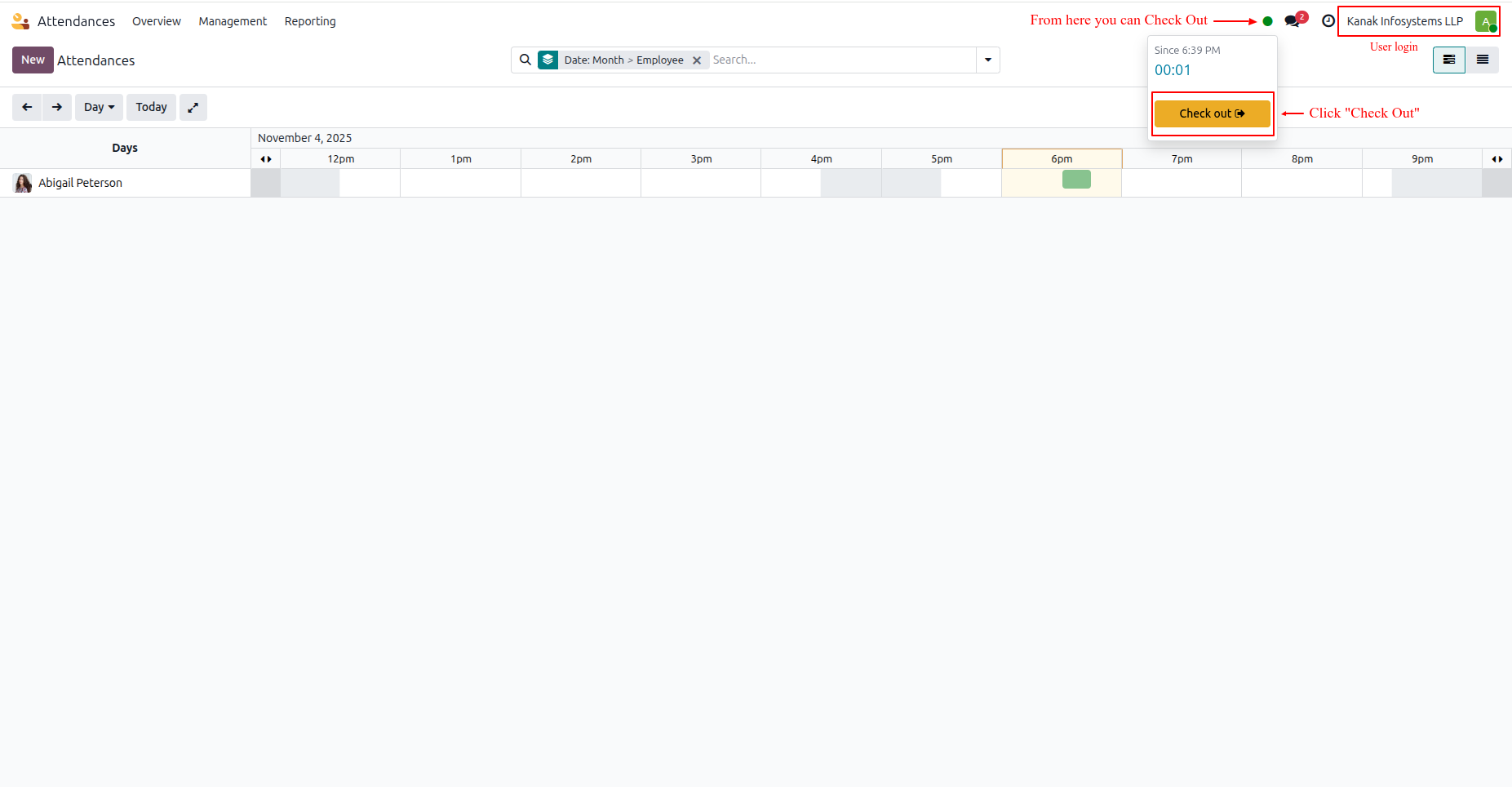
To check out after completing work, follow the steps below:
- Click on the green dot icon at the top-left corner of the screen.
- Select Check Out to mark the end of your work session.
- Once checked out successfully, the green dot will change back to a red dot, indicating you are off work.
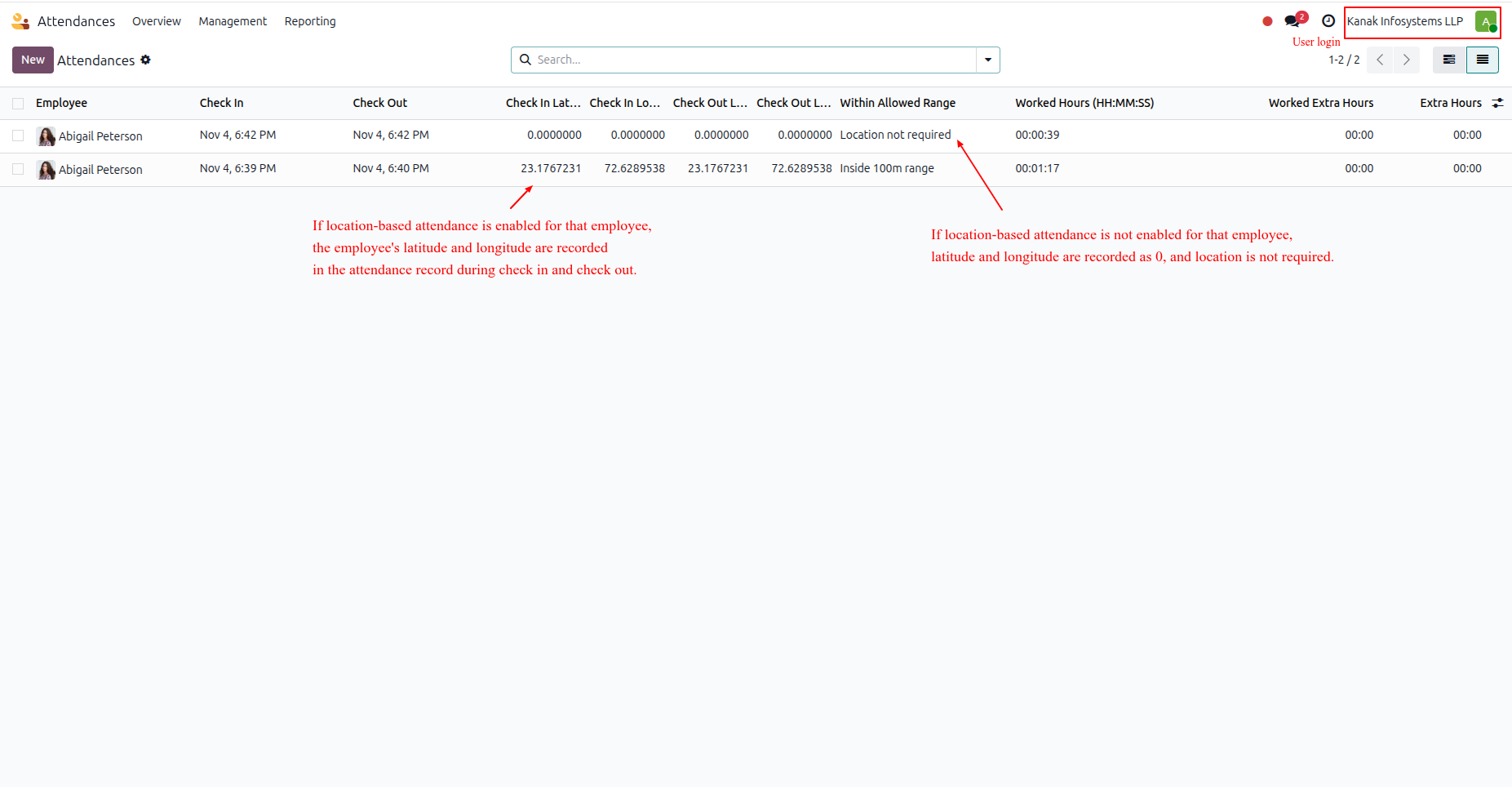
To review attendance details from the employee login, follow the steps below:
- Open the Attendance app from the employee's dashboard.
- From the top-left corner, switch the display to List View.
- You can now see all Check-In and Check-Out records, along with the corresponding latitude, longitude, or location details for each entry.
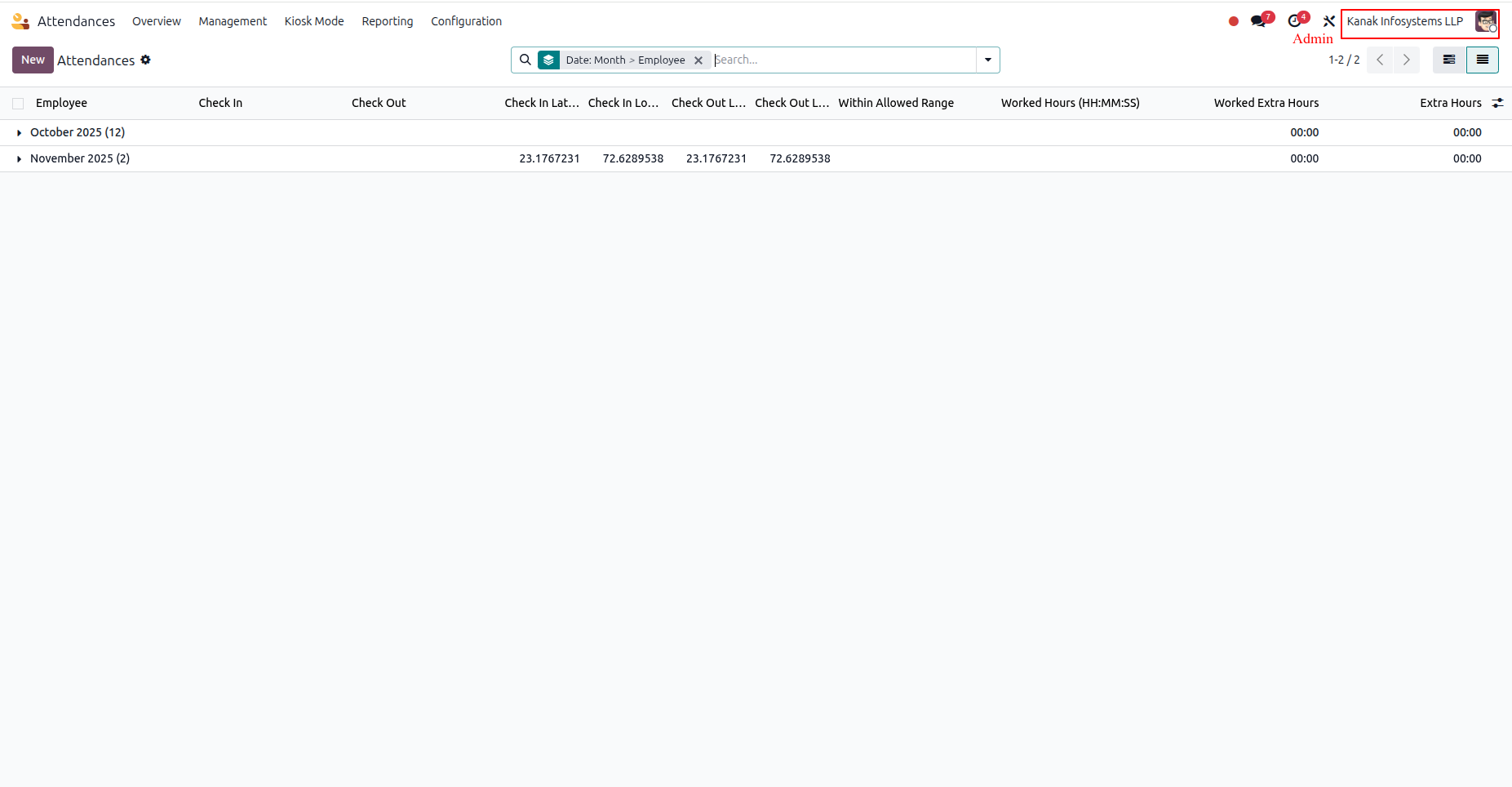
As an admin, you can view attendance details for all employees by following the steps below:
- Go to the Attendance app from the main dashboard.
- The Attendance Dashboard will open automatically.
- Click the List View icon at the top-left corner to switch the view.
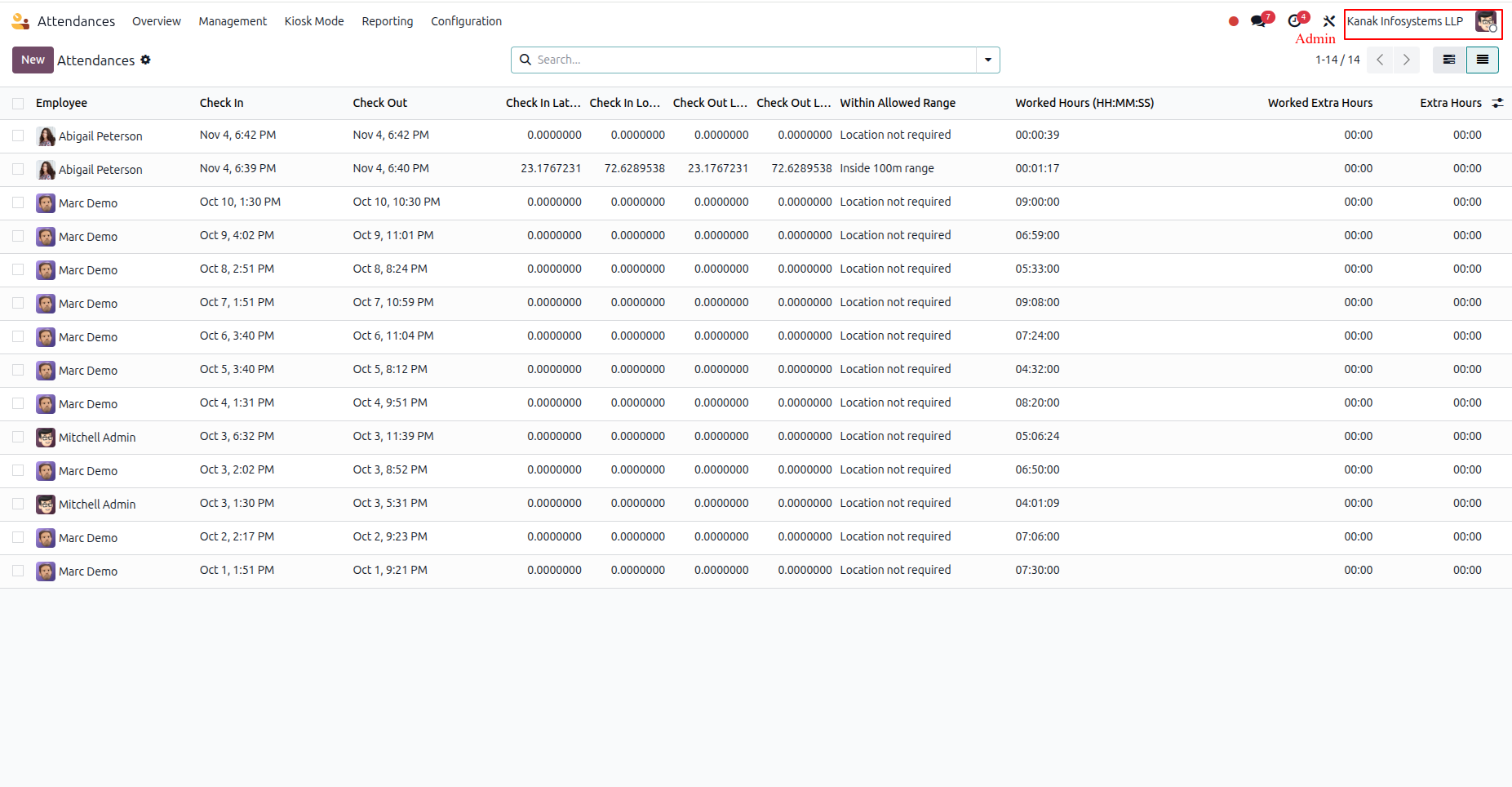
- Here, you can see all employees' Check-In and Check-Out records, grouped by month, along with their time and location details.
By removing filters from the search bar, you can view the complete attendance list of all employees.
Employees can also manage their attendance directly from the Odoo mobile app:
- Log in to the Odoo Mobile App using your employee credentials.
- Tap the red dot on the top-left corner to Check In.
- If Location-based Attendance is enabled, allow location permission when prompted.
- Once checked in successfully, the dot turns green, indicating you are at work.
- Tap the green dot again to Check Out - it will turn back to red, showing you are off work.
Please note that slight variations in location accuracy may occur based on the network being used:
- When using a mobile network (GPS), location tracking is typically more precise.
- If connected to Wi-Fi, location accuracy may slightly vary depending on the network's coverage and strength.
- It is recommended to ensure a stable internet connection for accurate attendance tracking.
Free 3 Months Support
Need help or any technical support ?
Kanak Infosystems LLP. will provide free 3 months support for bug fixes, any doubts or queries, installation, configuration support or any types of issues related to this module.
At our company, we take pride in providing exceptional help and technical support to our valued customers.
Our team of dedicated experts is well-versed in the intricacies of the Odoo platform.



Our Services

Hire Odoo Developer

Odoo Customization

Odoo Development

Odoo Installation

Odoo Integration

Odoo Resource

Odoo Themes

Odoo Training

Important Notice
All applications are developed within the default, up-to-date Odoo environment, and as such, we cannot guarantee flawless compatibility with third-party apps. While we strive to ensure smooth integration, any conflicts or issues that arise due to third-party applications will require additional support services, which can be provided at an extra cost. Kindly contact our support team for more information or to arrange paid support.
Reach out to us at our offices for any inquiries or collaboration.
Delhi Office
Unit no. 1017 & 1026, 11th Floor, Westend Mall,
Janak Puri, New Delhi,
Delhi, India - 110058
Gujarat Office
Unit no. 307, The Landmark, Urjanagar 1, Kudasan,
Gandhinagar, Gujarat, India - 382421
Odoo Proprietary License v1.0

This software and associated files (the "Software") may only be used (executed,
modified, executed after modifications) if you have purchased a valid license
from the authors, typically via Odoo Apps, or if you have received a written
agreement from the authors of the Software (see the COPYRIGHT file).

You may develop Odoo modules that use the Software as a library (typically
by depending on it, importing it and using its resources), but without copying
any source code or material from the Software. You may distribute those
modules under the license of your choice, provided that this license is
compatible with the terms of the Odoo Proprietary License (For example:
LGPL, MIT, or proprietary licenses similar to this one).

It is forbidden to publish, distribute, sublicense, or sell copies of the Software
or modified copies of the Software.

The above copyright notice and this permission notice must be included in all
copies or substantial portions of the Software.

THE SOFTWARE IS PROVIDED "AS IS", WITHOUT WARRANTY OF ANY KIND, EXPRESS OR
IMPLIED, INCLUDING BUT NOT LIMITED TO THE WARRANTIES OF MERCHANTABILITY,
FITNESS FOR A PARTICULAR PURPOSE AND NONINFRINGEMENT.
IN NO EVENT SHALL THE AUTHORS OR COPYRIGHT HOLDERS BE LIABLE FOR ANY CLAIM,
DAMAGES OR OTHER LIABILITY, WHETHER IN AN ACTION OF CONTRACT, TORT OR OTHERWISE,
ARISING FROM, OUT OF OR IN CONNECTION WITH THE SOFTWARE OR THE USE OR OTHER
DEALINGS IN THE SOFTWARE.

Comment on this module. Please Login