 +91 981-810-8884, 0114-214-3250


Community
Enterprise
Odoo.sh

POS Sale Limit
POS Sale Limit module allows setting product-wise and category-wise sale limits for customers, restricting purchases to the defined quantities.

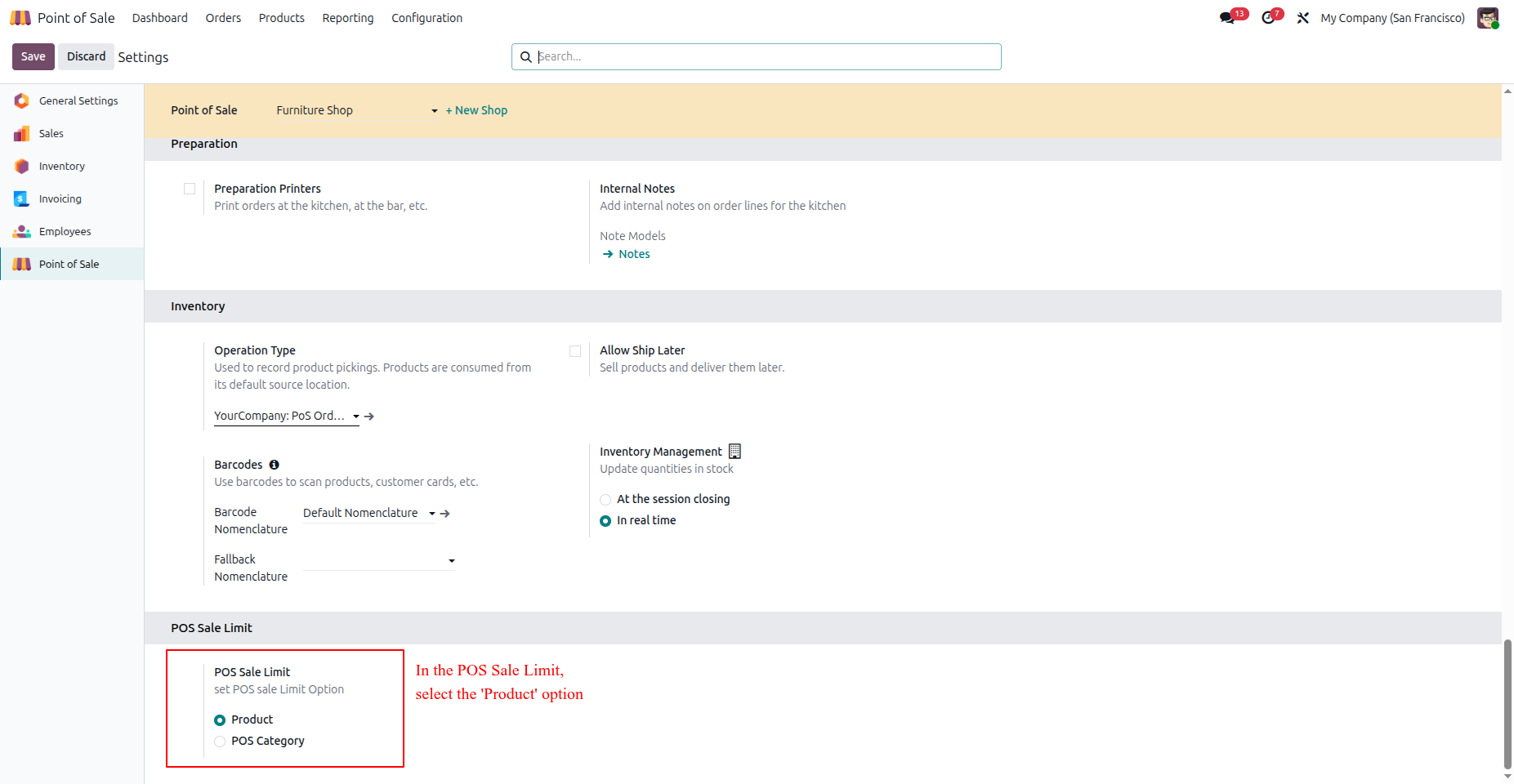
To enable product-wise sale limit, follow these steps:
- Go to Point of Sale > Configuration > Settings.
- Under POS Sale Limit, select the "Product" radio button.
- Click Save to apply the settings.
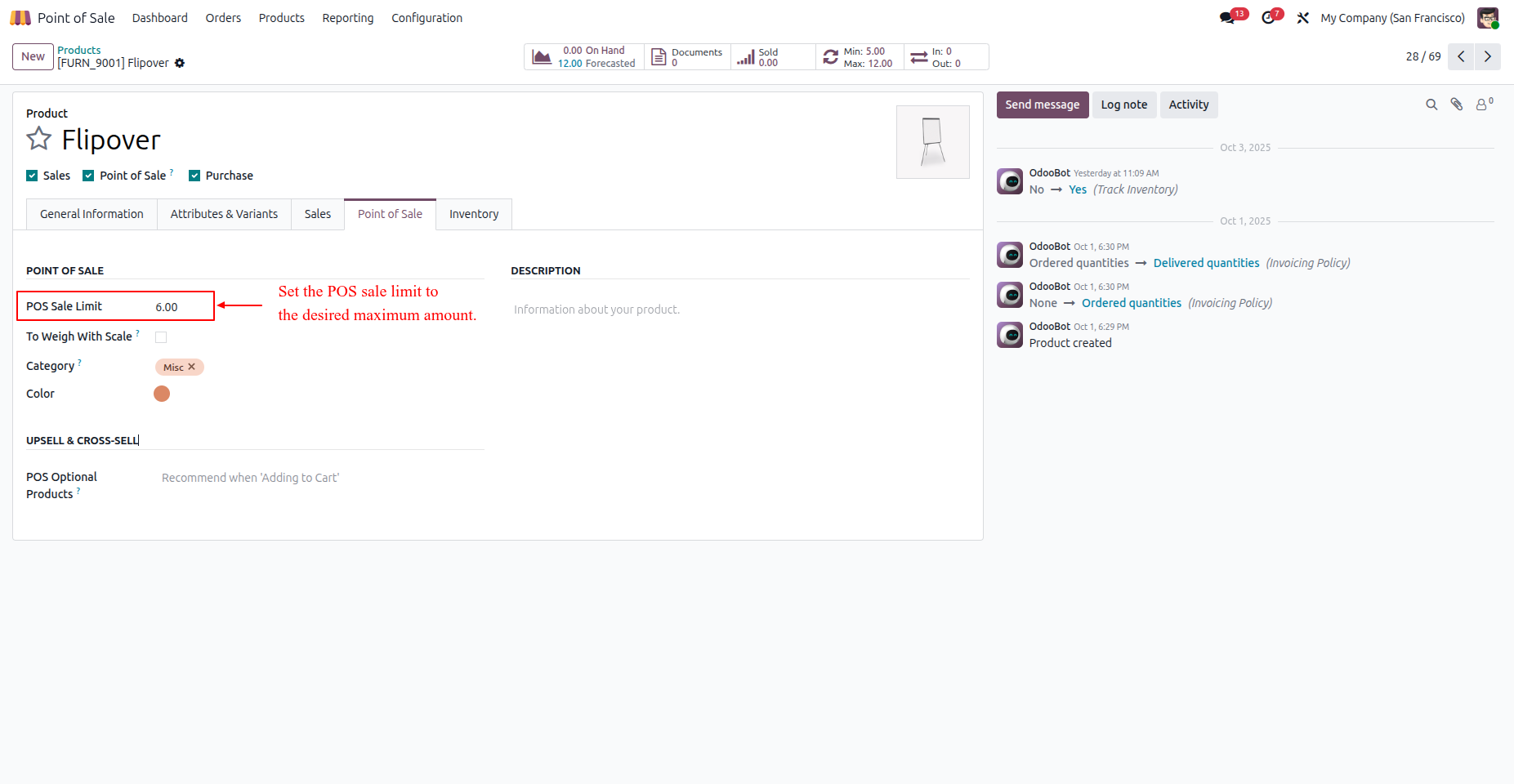
To set a sale limit for a product:
- Go to Point of Sale > Products > Products.
- Select a product.
- Under the Point of Sale tab, enter the desired POS Sale Limit and save.
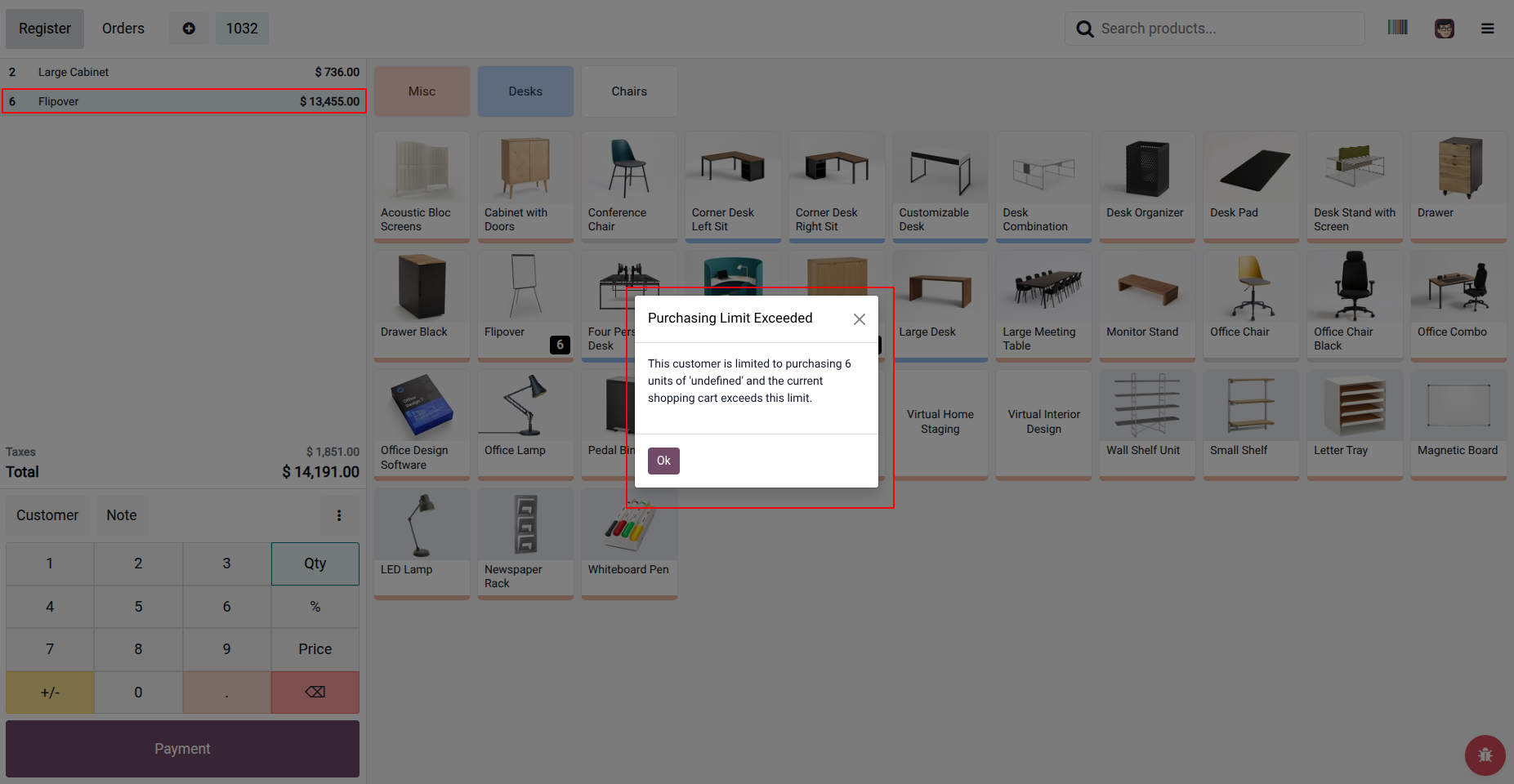
To verify product sale limit in POS:
- Go to Point of Sale > Dashboard and open the desired register.
- Start adding products to the order.
- If any product has a purchase limit set and the selected quantity exceeds that limit, a "Purchasing Limit Exceeded" popup will appear, preventing further addition of that product beyond the defined limit.
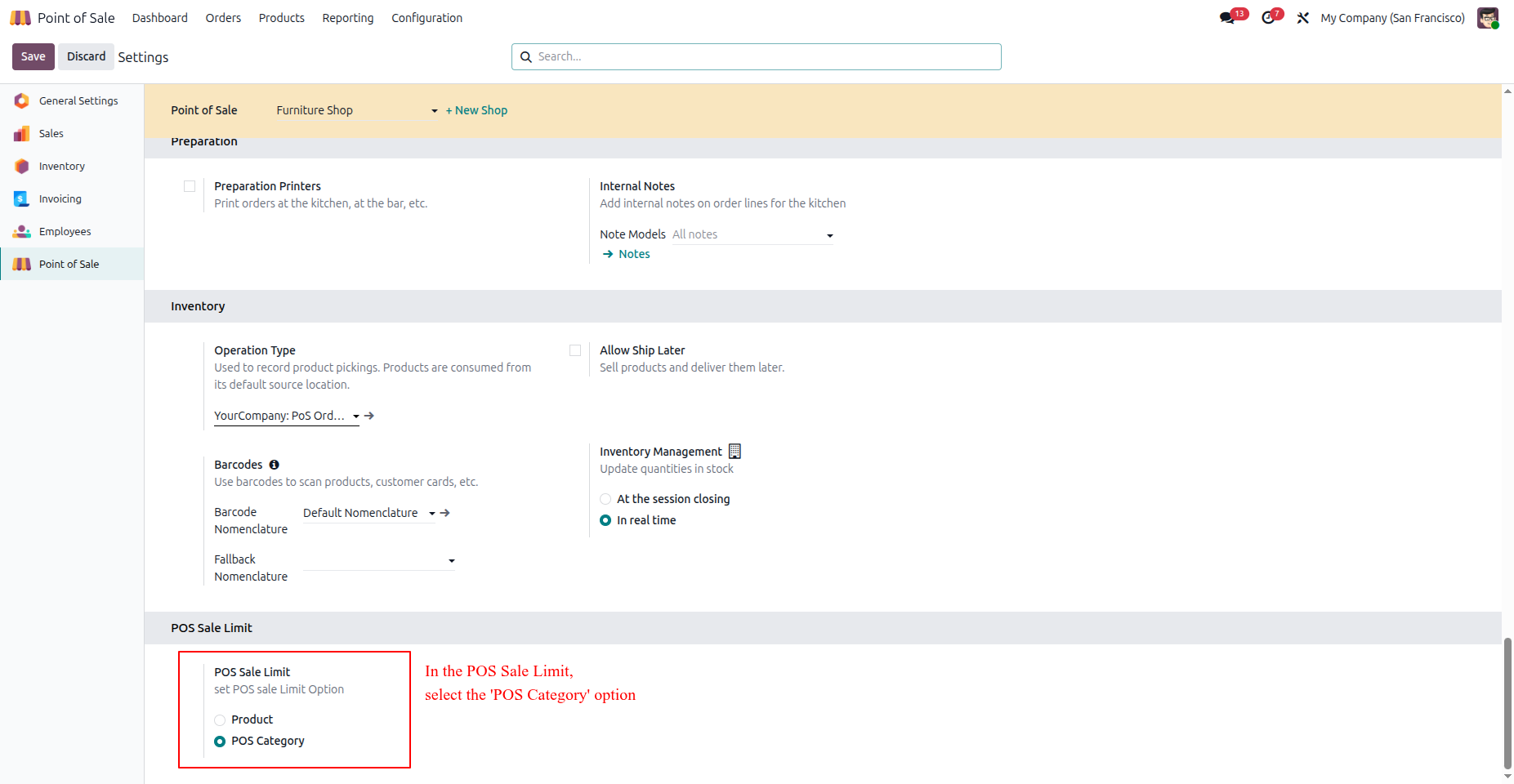
To enable category-wise sale limit:
- Go to Point of Sale > Configuration > Settings.
- Select the "POS Category" radio button under POS Sale Limit.
- Click Save.
To configure category-wise limits:
- Navigate to Point of Sale > Configuration > POS Product Categories.
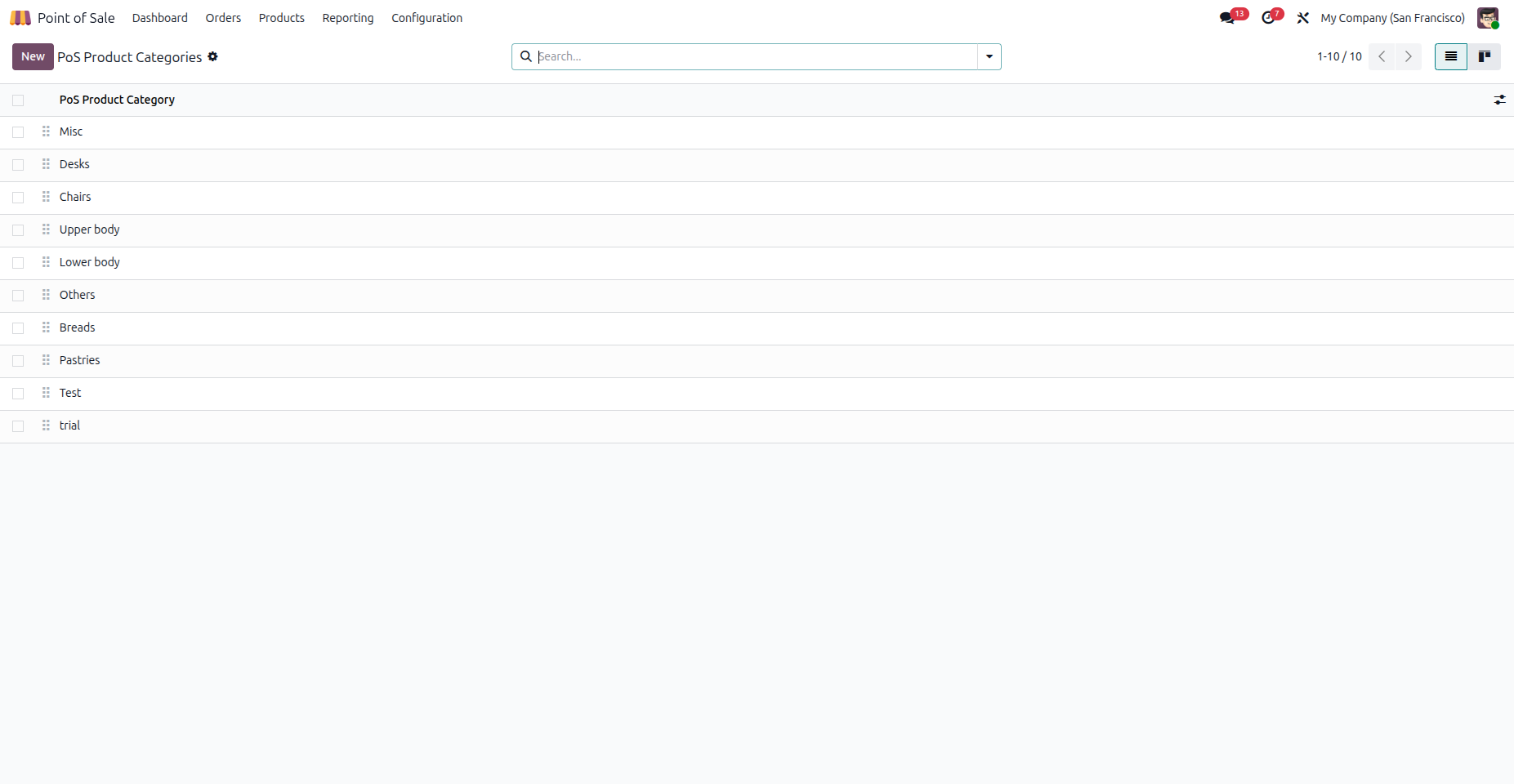
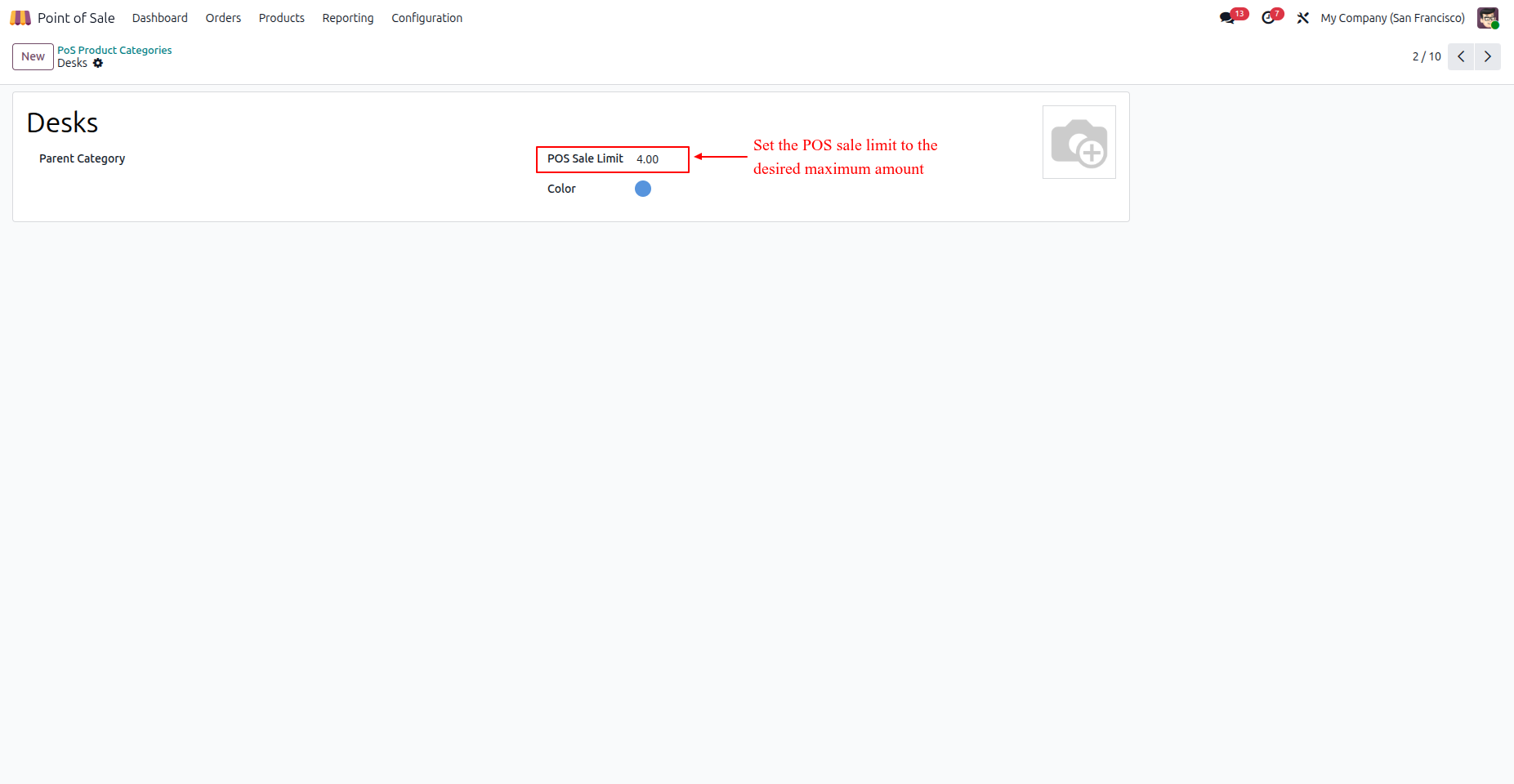
To define a sale limit for a category:
- Open any category from the list.
- Enter the desired POS Sale Limit.
- Click Save.
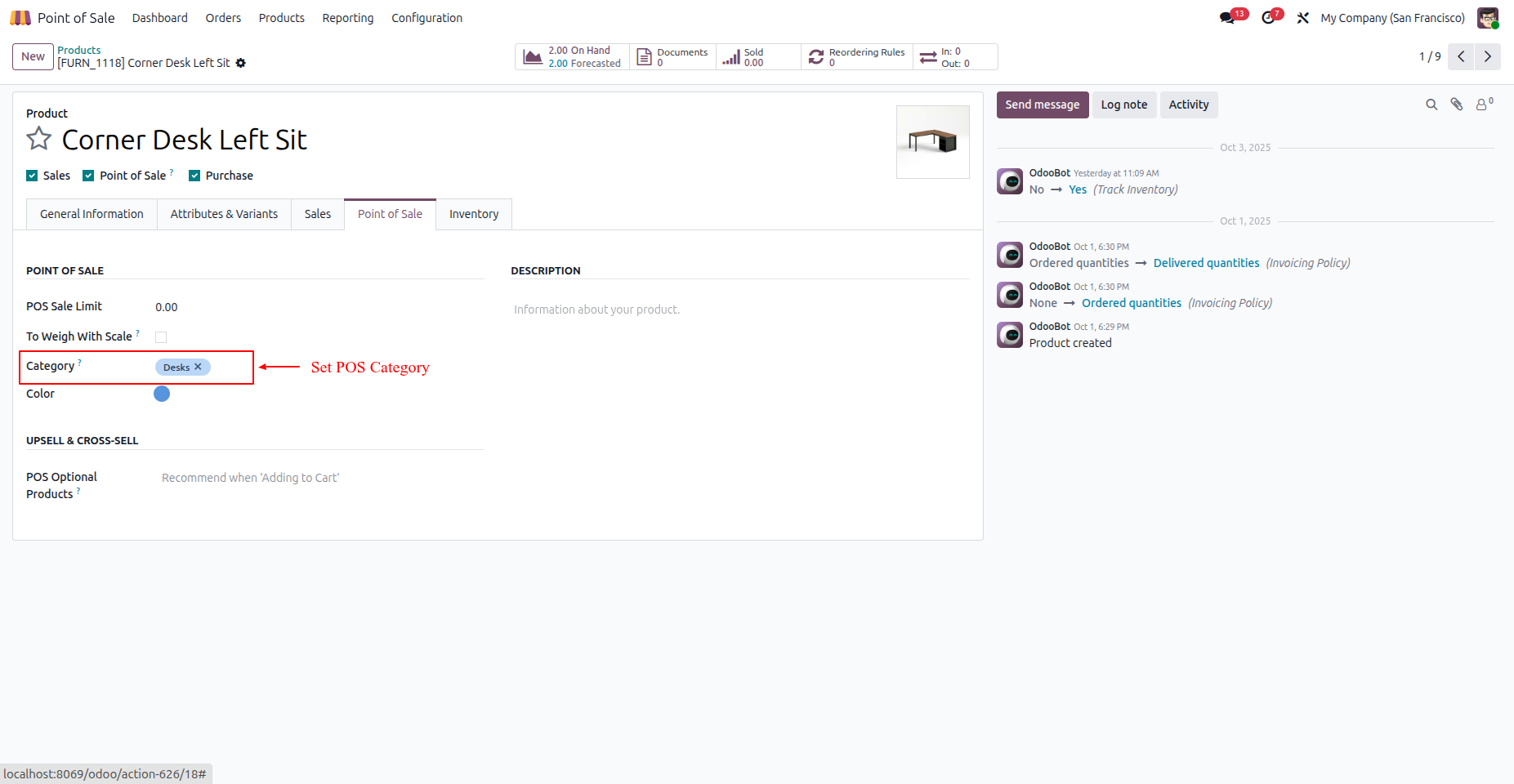
After setting category limits, assign them to products:
- Go to Point of Sale > Products > Products.
- Select a product and navigate to the Point of Sale tab.
- Choose the appropriate POS Category and click Save.
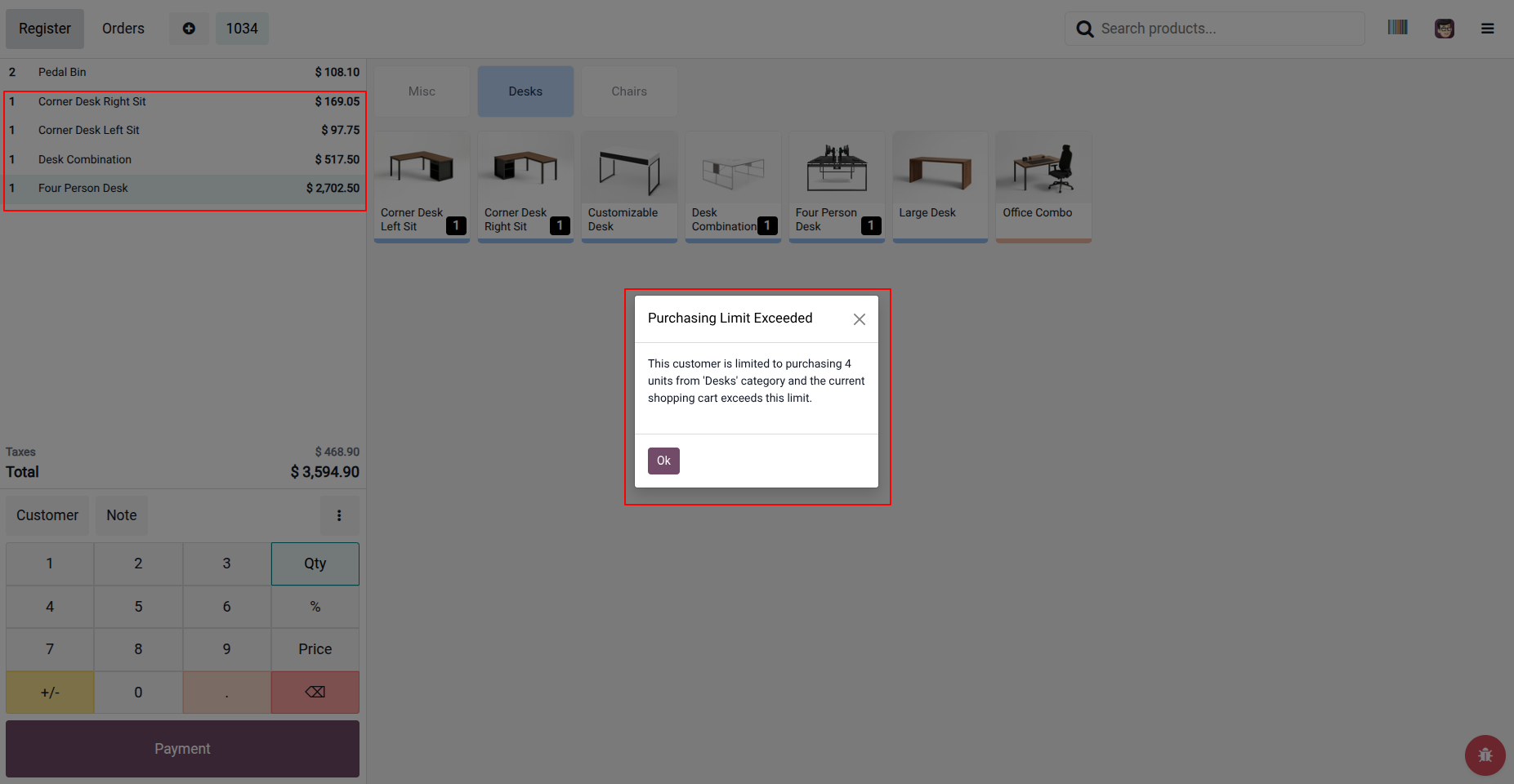
To verify category sale limits in the POS interface:
- Go to Point of Sale > Dashboard and open a register.
- Start selecting products from the category with a defined limit.
- If more than the allowed quantity is added, a "Purchasing Limit Exceeded" popup will appear.
Free 3 Months Support
Need help or any technical support ?
Kanak Infosystems LLP. will provide free 3 months support for bug fixes, any doubts or queries, installation, configuration support or any types of issues related to this module.
At our company, we take pride in providing exceptional help and technical support to our valued customers.
Our team of dedicated experts is well-versed in the intricacies of the Odoo platform.


Our Services

Hire Odoo Developer

Odoo Customization

Odoo Development

Odoo Installation

Odoo Integration

Odoo Resource

Odoo Themes

Odoo Training

Important Notice
All applications are developed within the default, up-to-date Odoo environment, and as such, we cannot guarantee flawless compatibility with third-party apps. While we strive to ensure smooth integration, any conflicts or issues that arise due to third-party applications will require additional support services, which can be provided at an extra cost. Kindly contact our support team for more information or to arrange paid support.
Reach out to us at our offices for any inquiries or collaboration.
Delhi Office
Unit no. 1017 & 1026, 11th Floor, Westend Mall,
Janak Puri, New Delhi,
Delhi, India - 110058
Gujarat Office
Unit no. 307, The Landmark, Urjanagar 1, Kudasan,
Gandhinagar, Gujarat, India - 382421
OPL-1

Comment on this module. Please Login