 +91 981-810-8884, 0114-214-3250


Community
Enterprise
Odoo.sh

Custom Calendar Hours
The Custom Calendar Hours Display module allows users to define and visualize personalized working hours directly in the calendar view. It restricts the calendar view according to the configured settings.
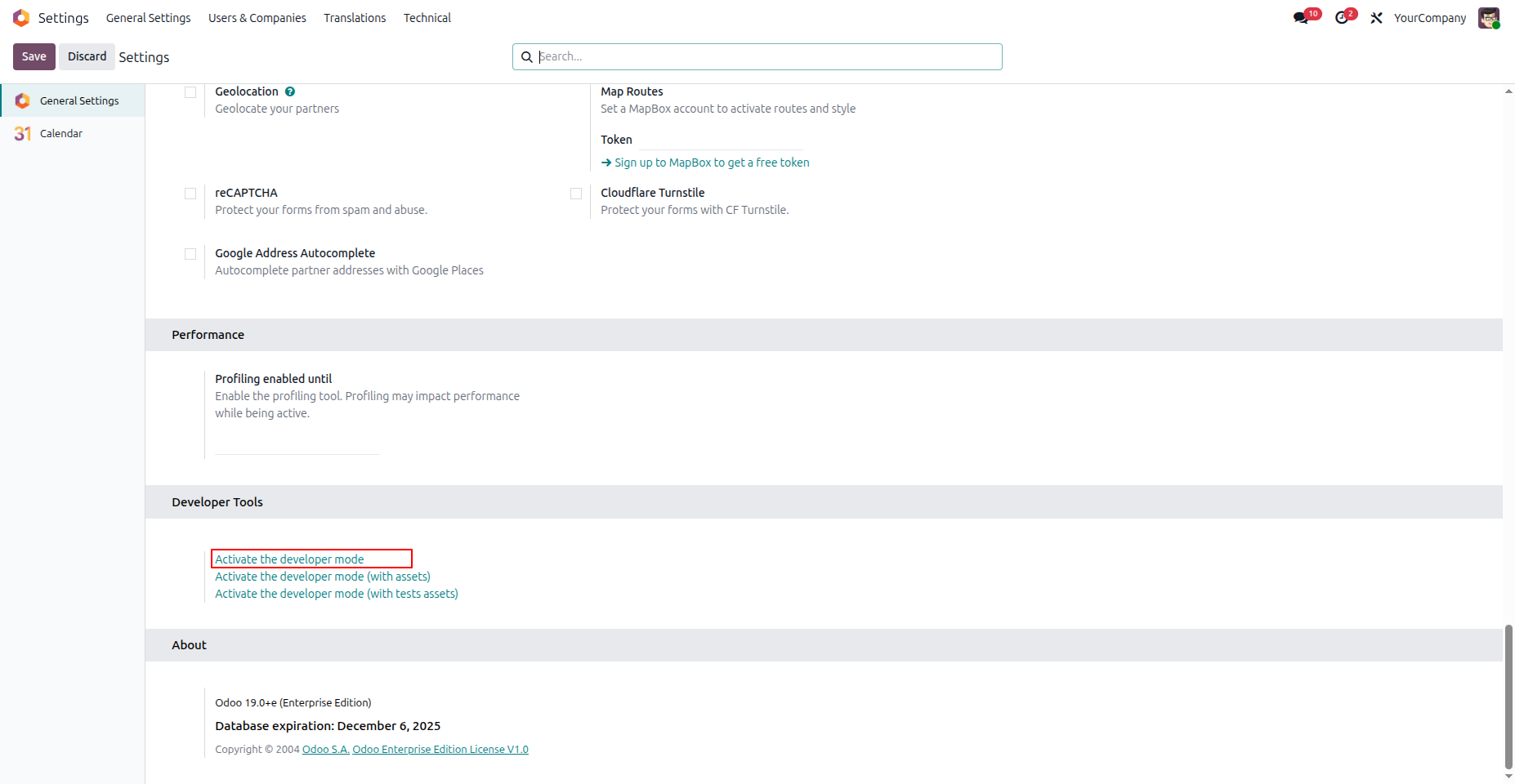
To enable the Developer Mode in Odoo, follow these simple steps:
- Go to the General Settings menu in Odoo.
- Scroll down to the Developer Tools section.
- Click on the Activate the Developer Mode button.
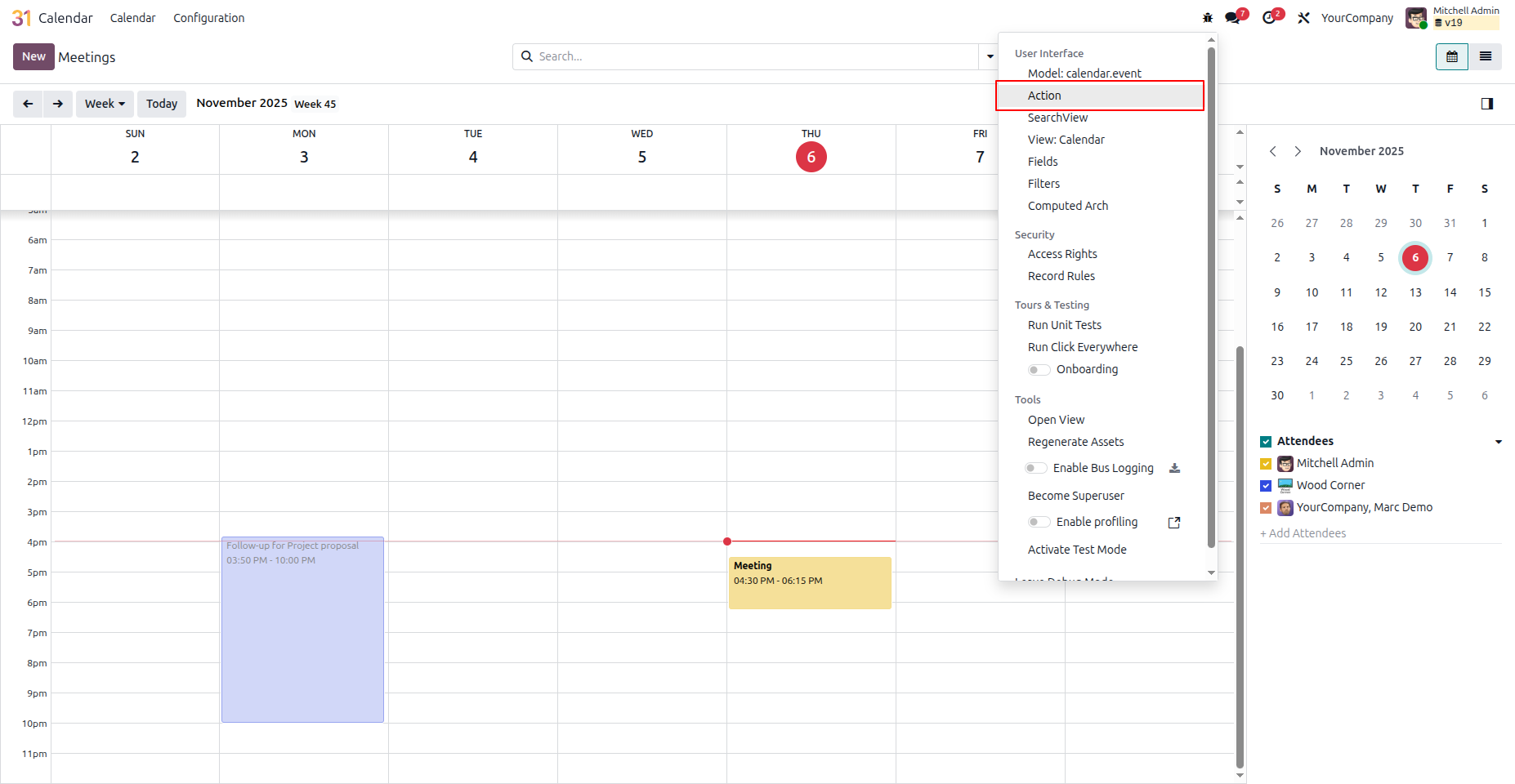
Once the Developer Mode is activated, follow these steps to access available actions:
- Click on the Debug (bug) icon in the top-right corner of the Odoo interface.
- From the dropdown menu, select Action.
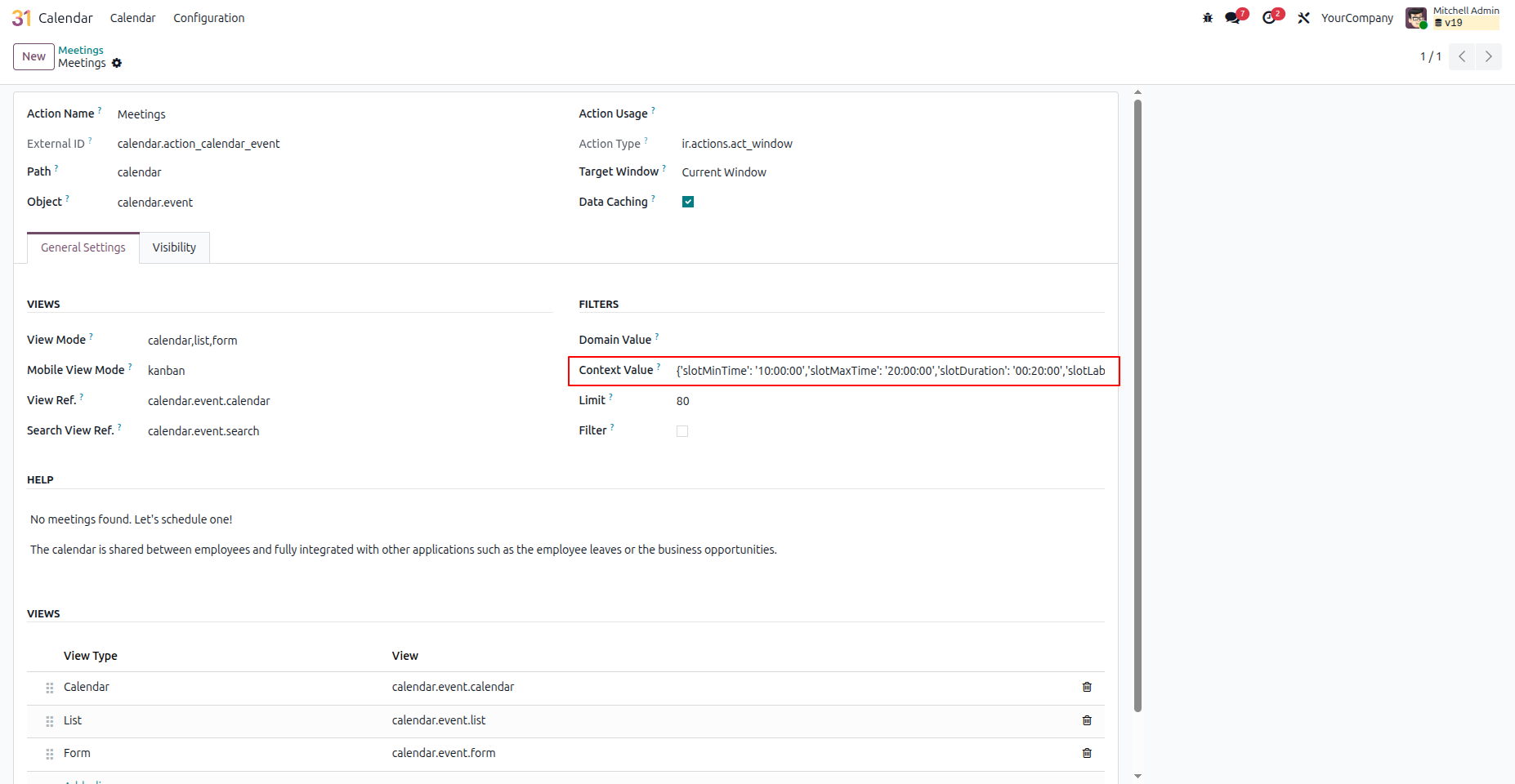
In the General Settings tab, navigate to the Context Value field to define your customized calendar hours. Use the following format to specify the start and end times:
- To set the start time:
'slotMinTime': '00:00:00' - To set the end time:
'slotMaxTime': '00:00:00'
These values control the visible time range in the calendar, allowing for precise customization according to your business hours.
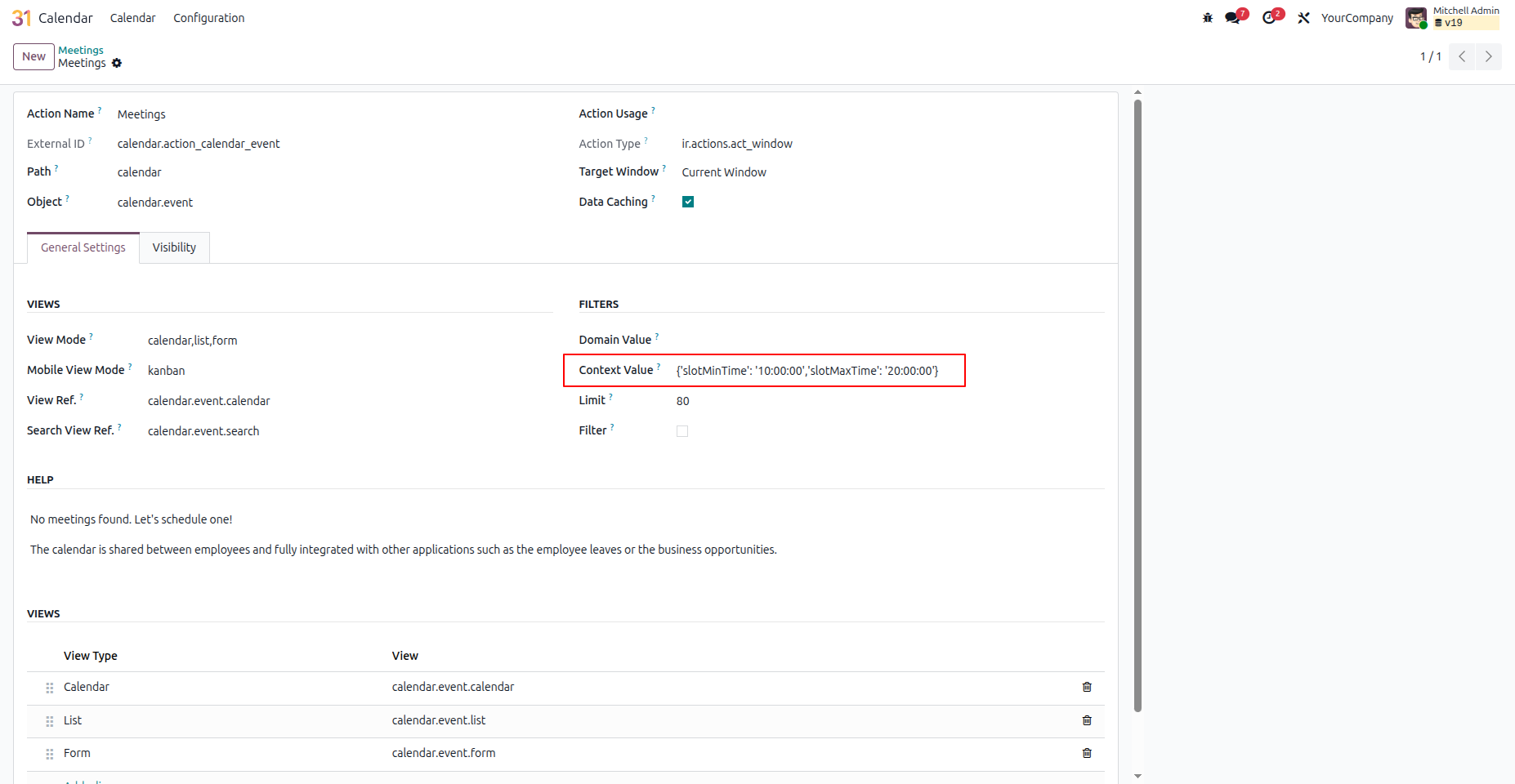
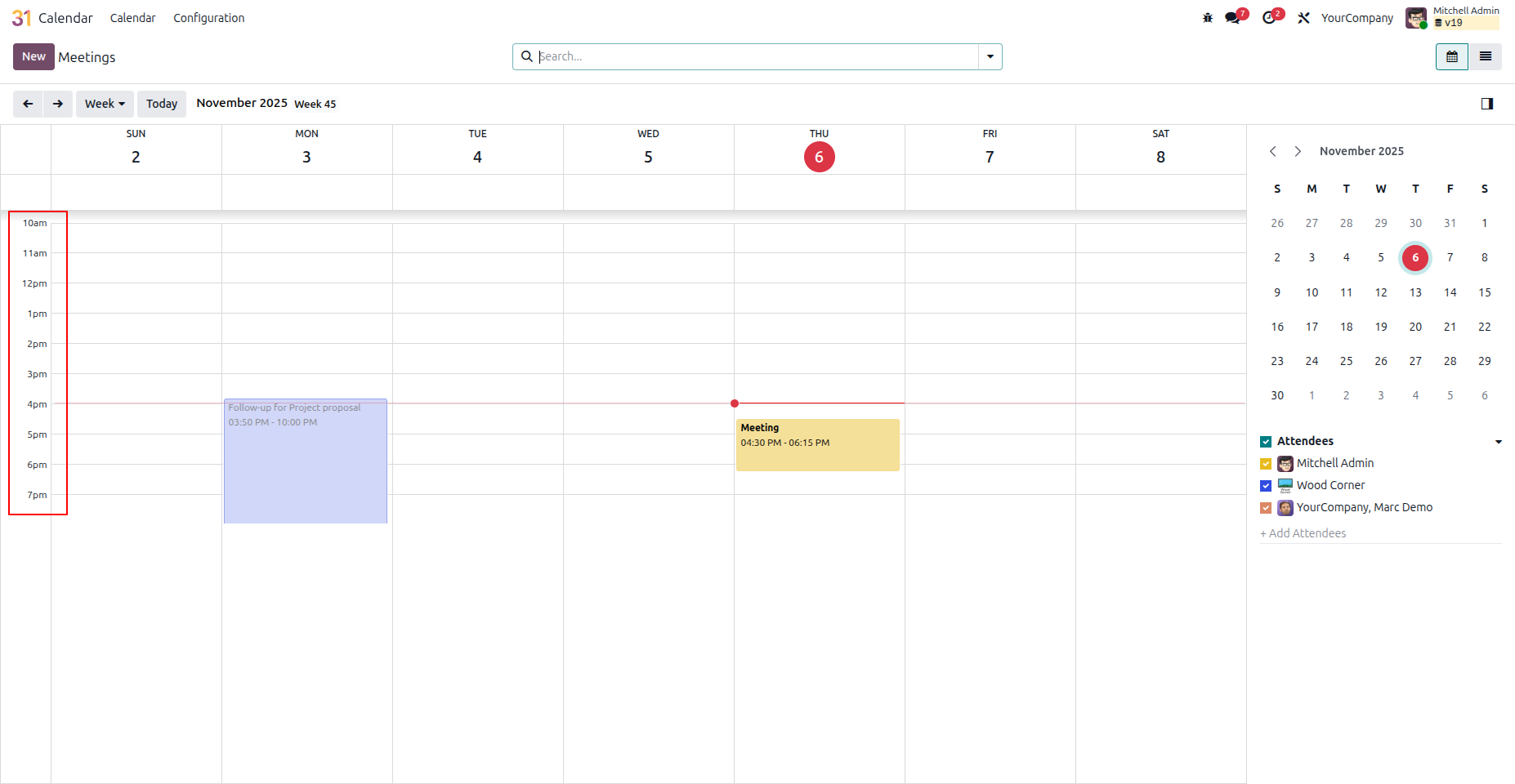
After configuring the Context Value with your preferred start and end times, open the Calendar app.
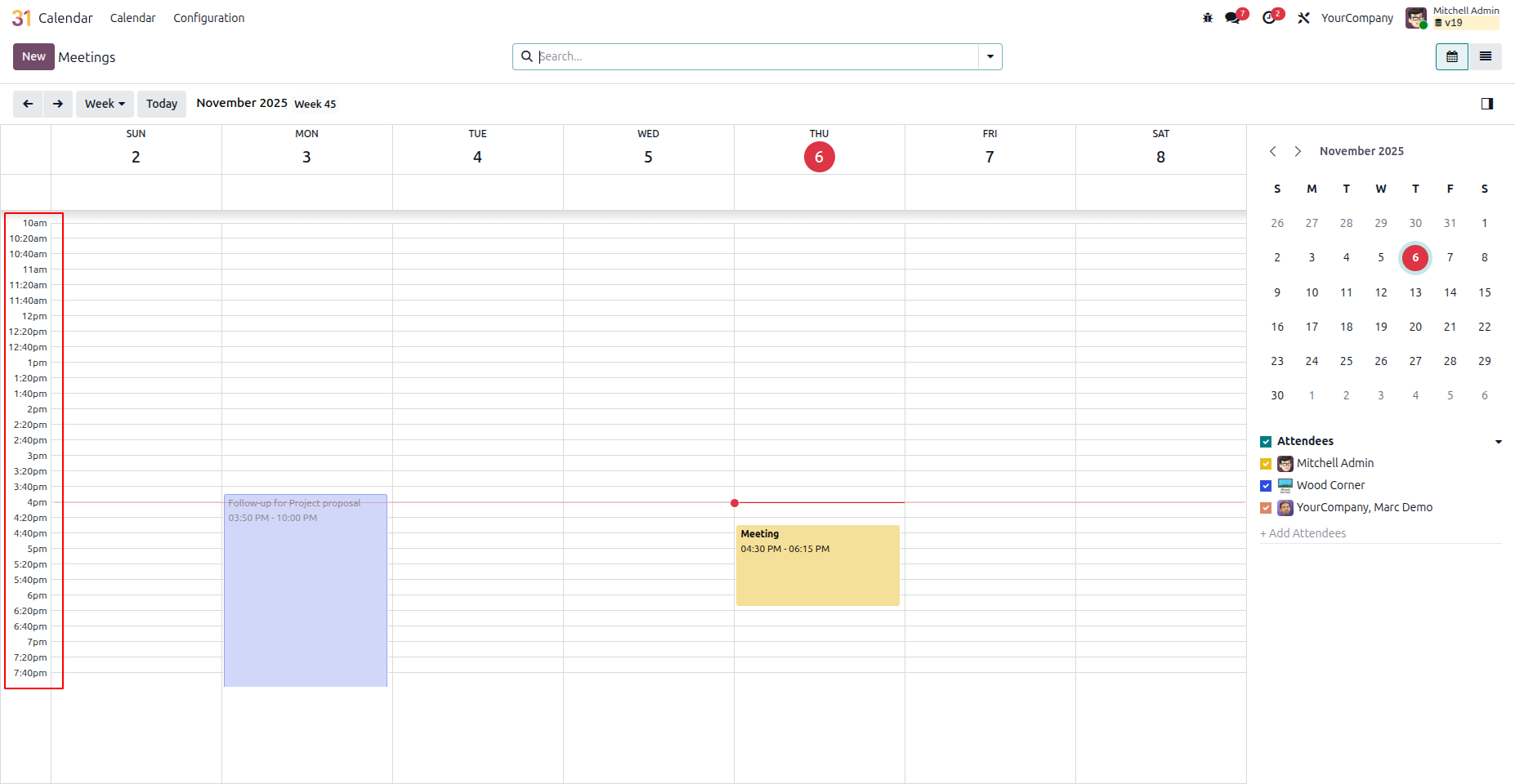
On the left vertical side of the calendar, you will see the time slots displayed - only between the configured start and end times.
This helps maintain a clear and focused view of your defined working hours within the calendar interface.
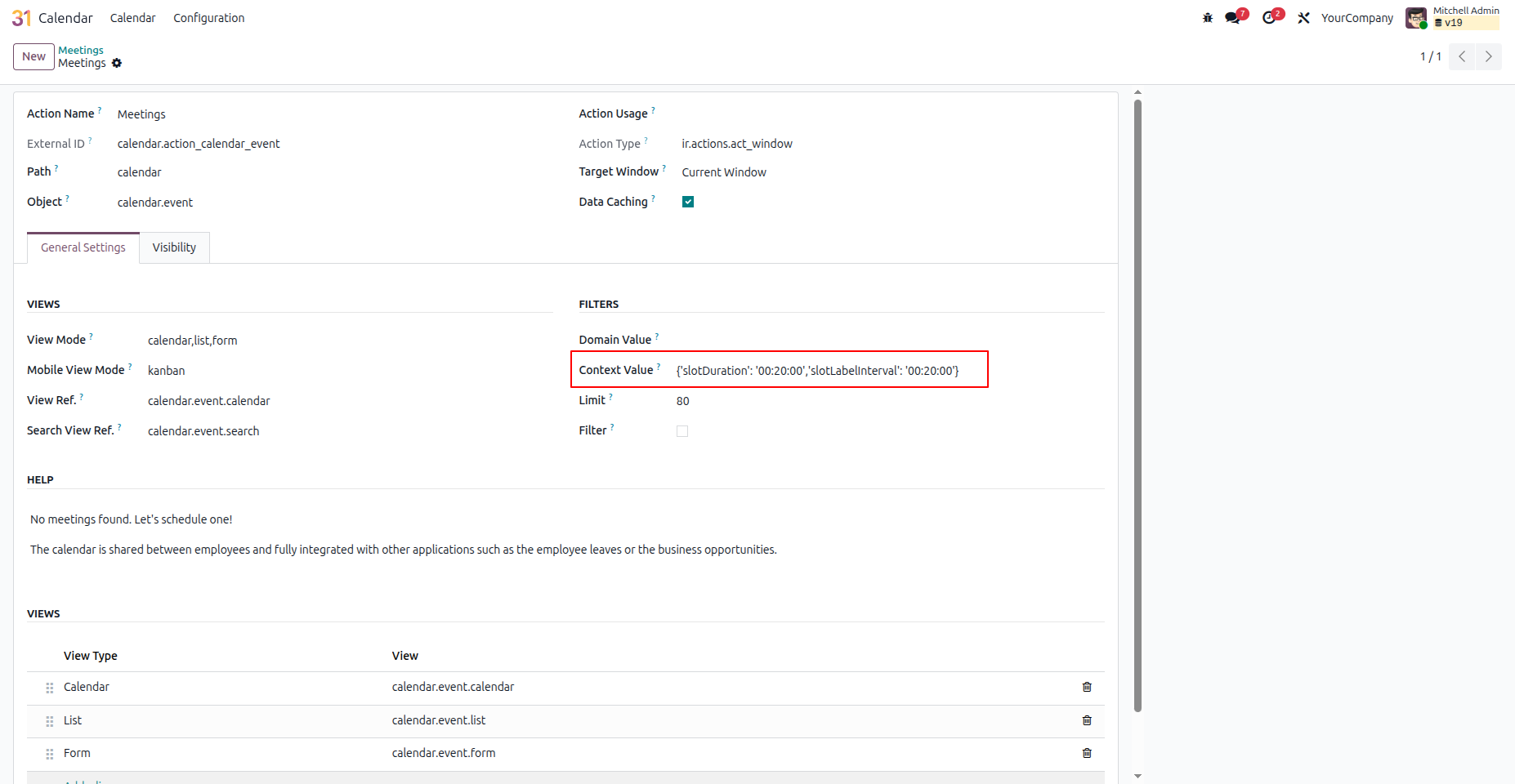
To modify the calendar view in Odoo and display time slots in minutes instead of the default hourly format, update the Context Value accordingly.
For example, to set 20-minute intervals, use the following configuration:
'slotDuration': '00:20:00''slotLabelInterval': '00:20:00'
Both parameters should have the same value in minutes to ensure consistent time slot spacing across the calendar.
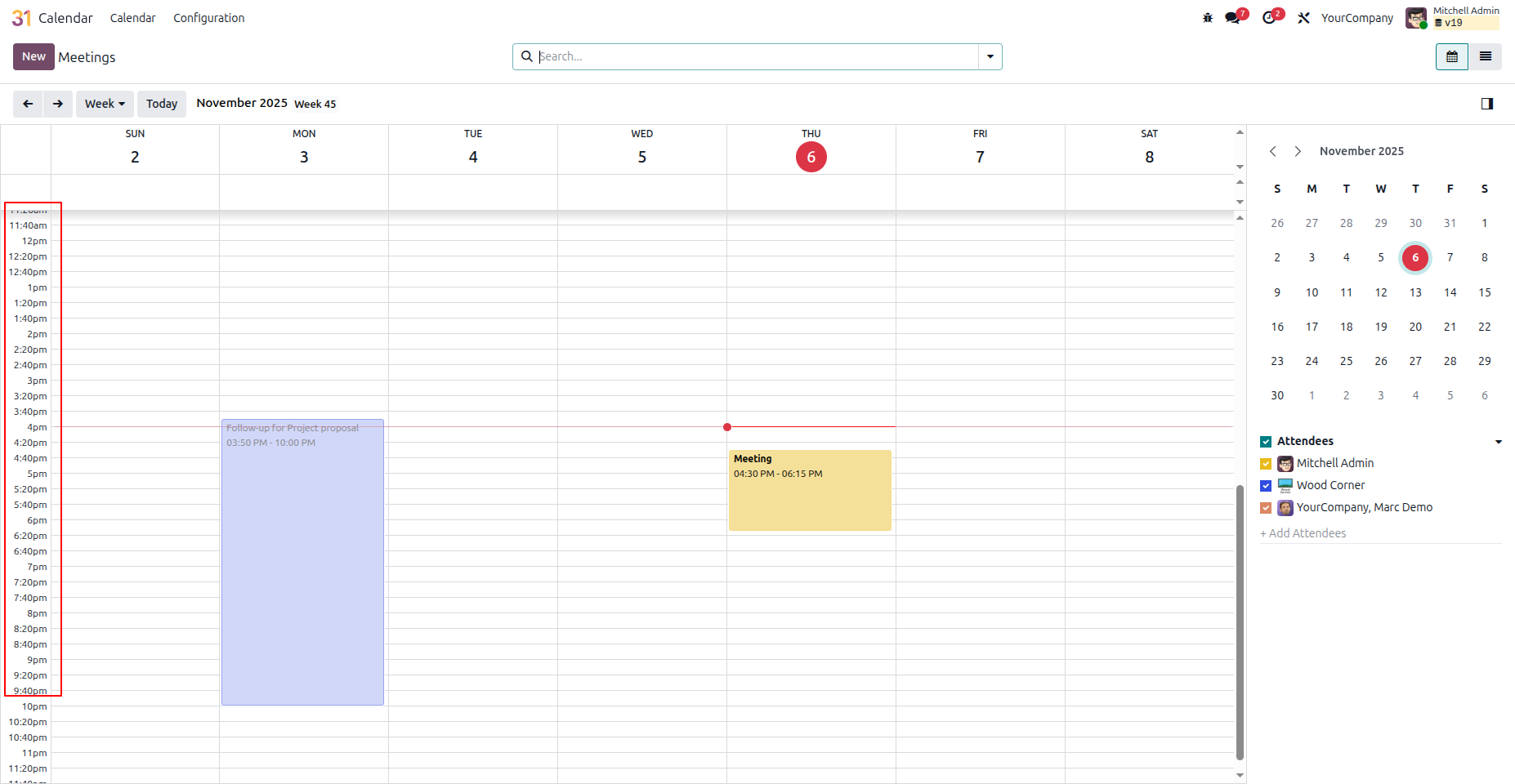
After setting the slotDuration and slotLabelInterval values, open the Calendar app to view the changes.
On the left sidebar of the calendar, you will now see time slots displayed according to your configured duration intervals - for example, every 20 minutes.
This provides a more detailed and flexible view of your schedule, allowing for precise time management and better event planning.
To adjust the calendar view and display time slots in minutes while defining custom working hours, you need to set the following parameters in the Context Value field:
-
'slotDuration'– defines the duration of each time slot. -
'slotLabelInterval'– defines how time labels appear on the calendar. -
'slotMinTime'– sets the start time for the visible calendar hours. -
'slotMaxTime'– sets the end time for the visible calendar hours.
Example: To set 20-minute intervals with custom hours from 10:00 AM to 8:00 PM, use:
{'slotMinTime': '10:00:00', 'slotMaxTime': '20:00:00', 'slotDuration': '00:20:00', 'slotLabelInterval': '00:20:00'}
This setup ensures your calendar displays 20-minute time slots only within your defined working hours.
After configuring slotDuration, slotLabelInterval, slotMinTime, and slotMaxTime in the Context Value, open the Calendar app to see the applied settings.
In the calendar view, the left vertical sidebar now displays time slots according to your defined minute intervals and within the specified custom working hours.
For example, with 15-minute intervals from 10:00 AM to 8:00 PM, only those time slots are visible - providing a clean and focused view of your working period.
Free 3 Months Support
Need help or any technical support ?
Kanak Infosystems LLP. will provide free 3 months support for bug fixes, any doubts or queries, installation, configuration support or any types of issues related to this module.
At our company, we take pride in providing exceptional help and technical support to our valued customers.
Our team of dedicated experts is well-versed in the intricacies of the Odoo platform.






Our Services

Hire Odoo Developer

Odoo Customization

Odoo Development

Odoo Installation

Odoo Integration

Odoo Resource

Odoo Themes

Odoo Training

Important Notice
All applications are developed within the default, up-to-date Odoo environment, and as such, we cannot guarantee flawless compatibility with third-party apps. While we strive to ensure smooth integration, any conflicts or issues that arise due to third-party applications will require additional support services, which can be provided at an extra cost. Kindly contact our support team for more information or to arrange paid support.
Reach out to us at our offices for any inquiries or collaboration.
Delhi Office
Unit no. 1017 & 1026, 11th Floor, Westend Mall,
Janak Puri, New Delhi,
Delhi, India - 110058
Gujarat Office
Unit no. 307, The Landmark, Urjanagar 1, Kudasan,
Gandhinagar, Gujarat, India - 382421
Kanak Infosystems LLP. Proprietary License v1.0

This software and associated files (the "Software") may only be used (executed,
modified, executed after modifications) if you have purchased a valid license
from the authors, typically via Odoo Apps, or if you have received a written
agreement from the authors of the Software (see the COPYRIGHT file).

You may develop Odoo modules that use the Software as a library (typically
by depending on it, importing it and using its resources), but without copying
any source code or material from the Software. You may distribute those
modules under the license of your choice, provided that this license is
compatible with the terms of the Kanak Infosystems LLP. Proprietary License (For example:
LGPL, MIT, or proprietary licenses similar to this one).

It is forbidden to publish, distribute, sublicense, or sell copies of the Software
or modified copies of the Software.

The above copyright notice and this permission notice must be included in all
copies or substantial portions of the Software.

THE SOFTWARE IS PROVIDED "AS IS", WITHOUT WARRANTY OF ANY KIND, EXPRESS OR
IMPLIED, INCLUDING BUT NOT LIMITED TO THE WARRANTIES OF MERCHANTABILITY,
FITNESS FOR A PARTICULAR PURPOSE AND NONINFRINGEMENT.
IN NO EVENT SHALL THE AUTHORS OR COPYRIGHT HOLDERS BE LIABLE FOR ANY CLAIM,
DAMAGES OR OTHER LIABILITY, WHETHER IN AN ACTION OF CONTRACT, TORT OR OTHERWISE,
ARISING FROM, OUT OF OR IN CONNECTION WITH THE SOFTWARE OR THE USE OR OTHER
DEALINGS IN THE SOFTWARE.

Comment on this module. Please Login