


Kanak infosystems LLP.
Unit no.307, The landmark, Urjanagar 1, Kudasan, Gandhinagar, Gujarat - 382421, India
 +91 981-810-8884, 0114-214-3250


Slack OAuth Single Sign-On (SSO) enables Slack OAuth2-based Single Sign-On (SSO) integration with Odoo, allowing users to log in conveniently through their Slack accounts. It eliminates the need for traditional username and password setups, enhancing user accessibility and security. Perfect for organizations utilizing Slack for team collaboration, this module streamlines the authentication process while maintaining compatibility with Odoo's multi-database environment and existing user management functionalities.
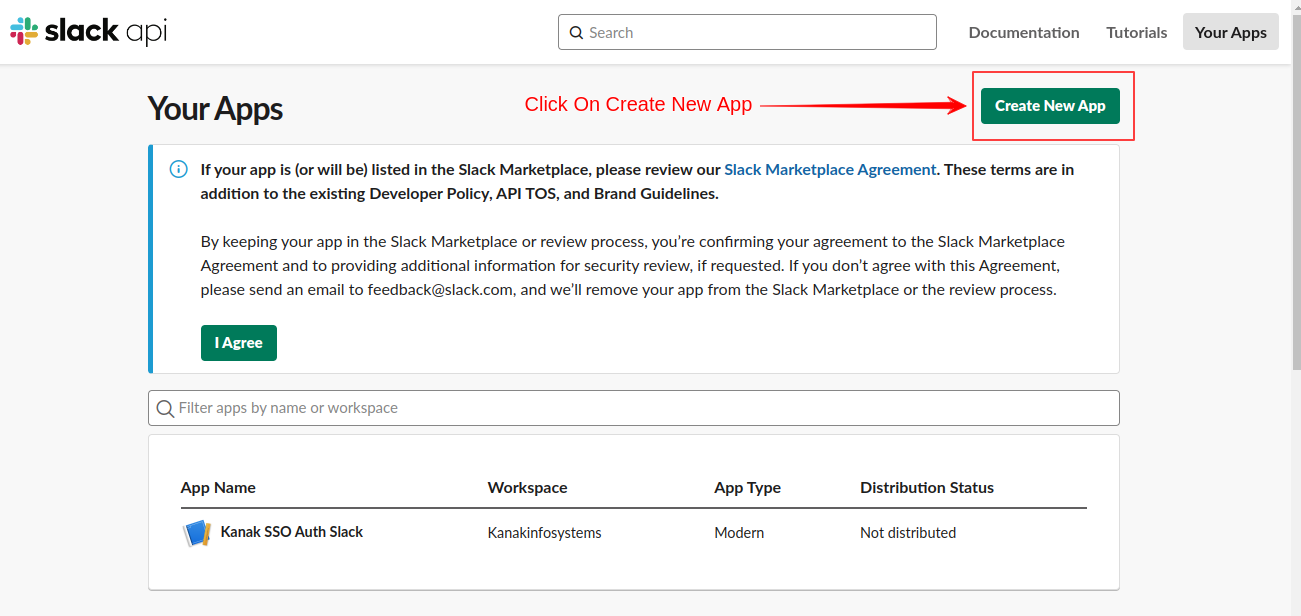
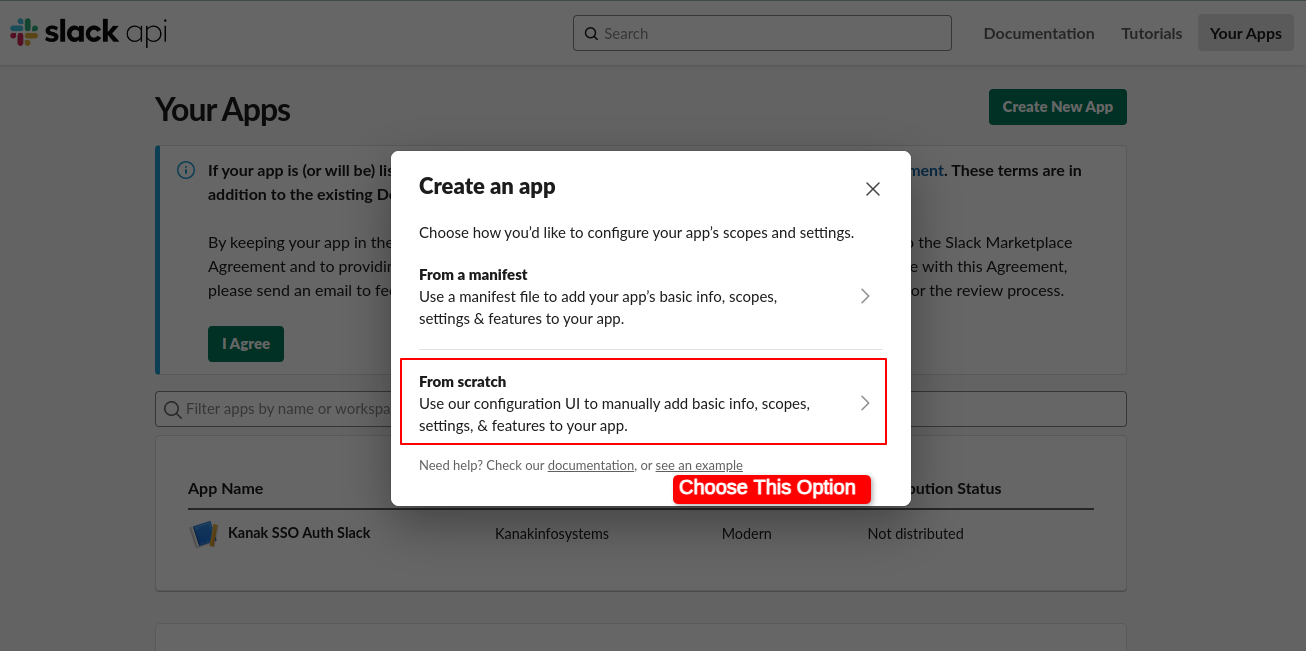
Log in to the Slack API and create a new app.
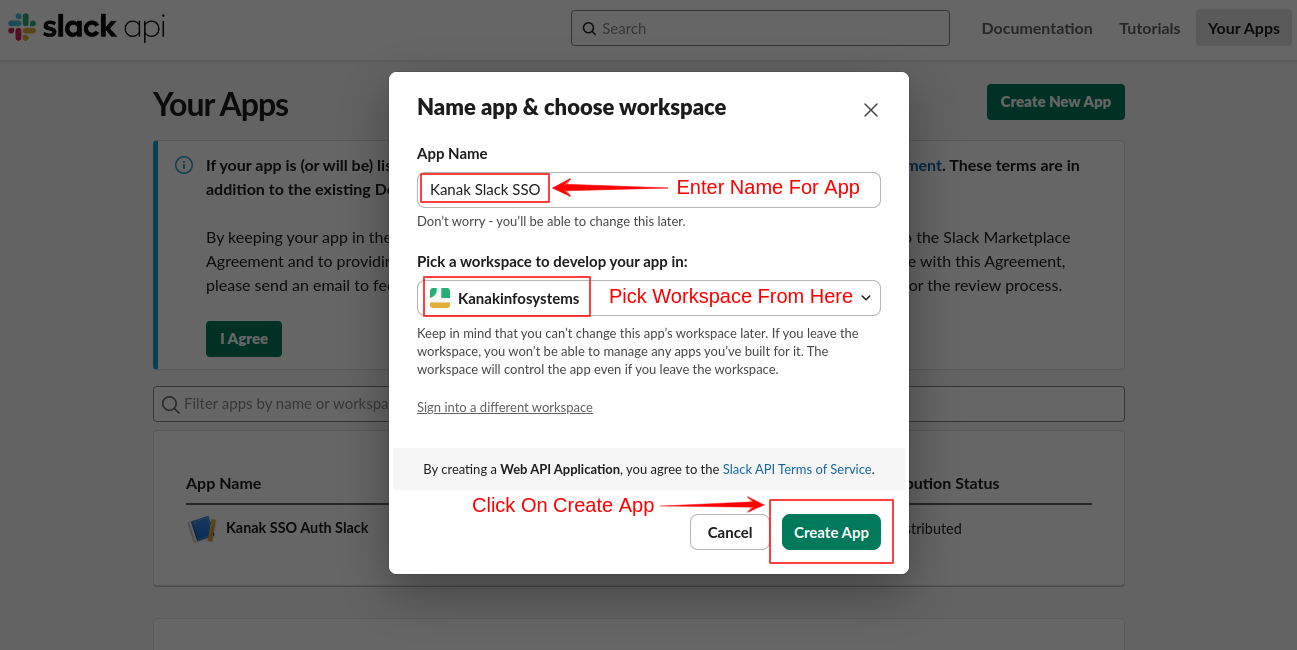
Choose From Scratch, give your app a name, and select the workspace where you want to use the app.
Enter App Name and Choose it's workspace
After clicking the Create App button, your app will be created, and you'll be redirected to the Slack App Dashboard.
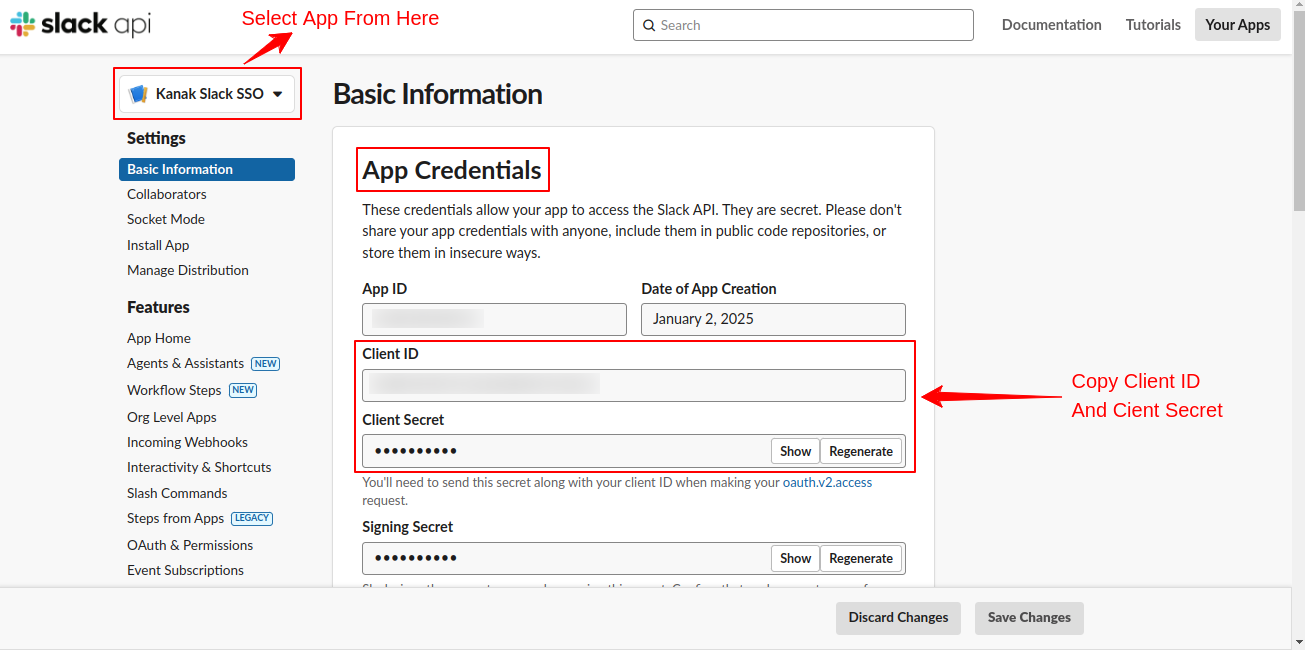
In the Slack App Dashboard, you will find the Basic Information page where the app credentials are located.
In the App Credentials section, Client ID and Client Secret will be provided. You need to copy both the Client ID and Client Secret for integration with Odoo.
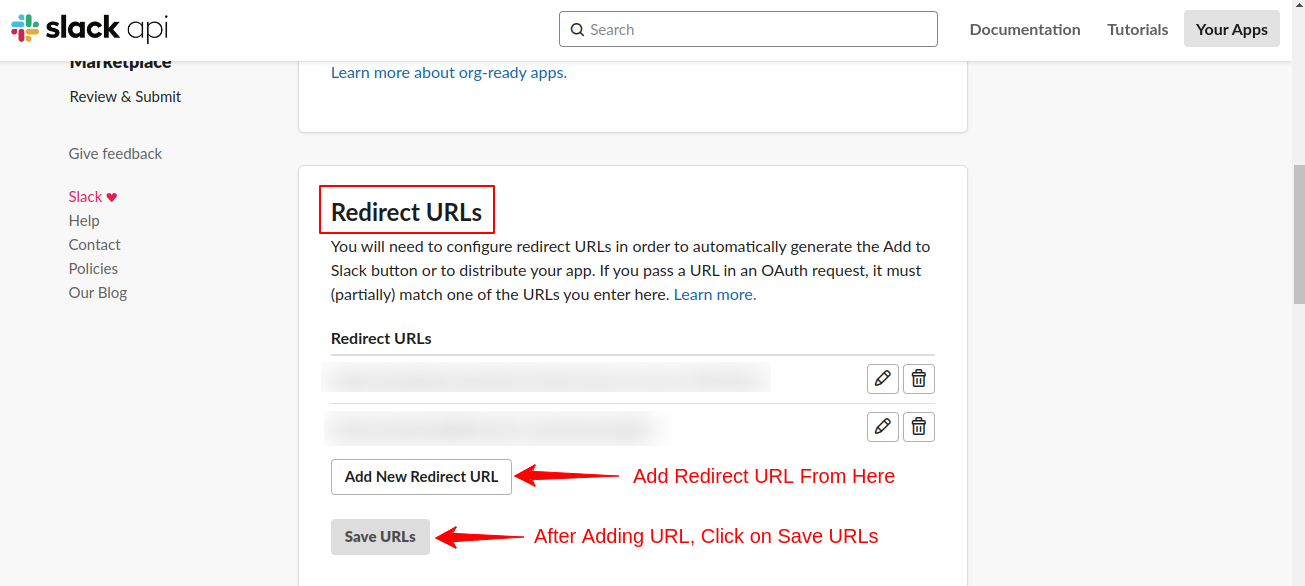
In the left sidebar of the Slack App Dashboard, navigate to the OAuth & Permissions page. In the Redirect URLs section, you need to configure the OAuth Redirect URL. This is the URL to which Slack will redirect after successful authentication.
For example: https://your-odoo-instance.com/auth_oauth/slack/signin
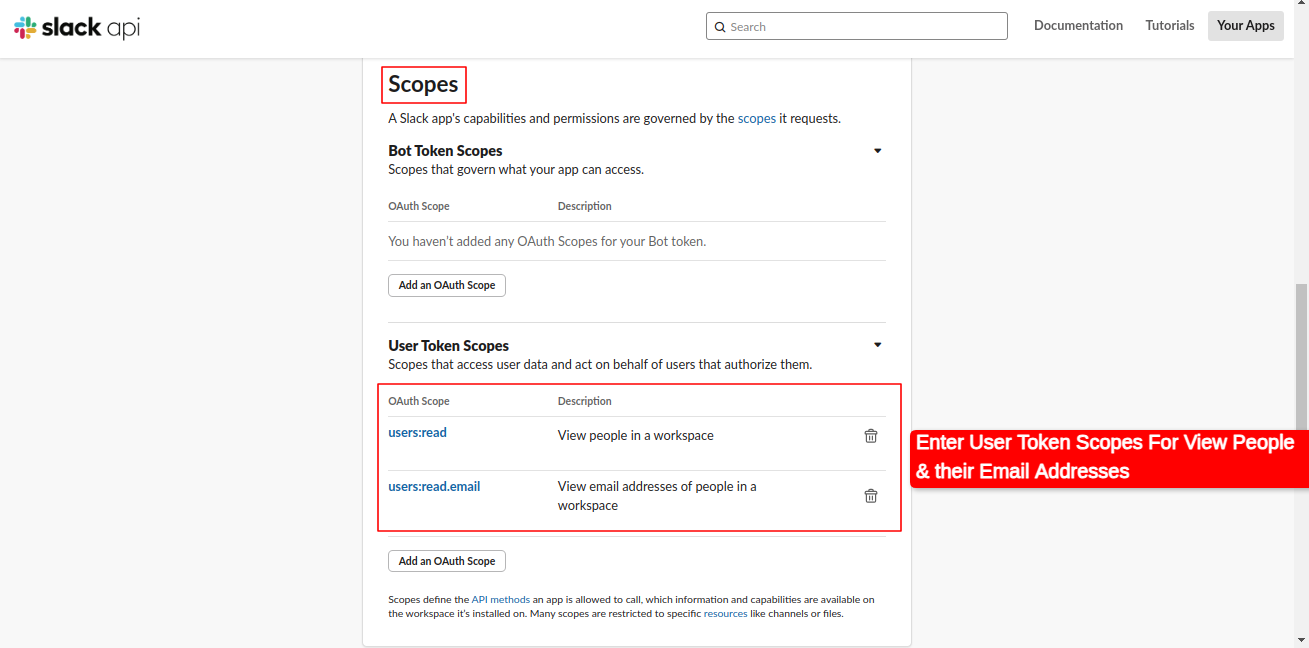
In the Scopes section, you need to define the user token scopes required for your app.
Include the following permissions in the User Token Scopes: users:read and users:read.email.l
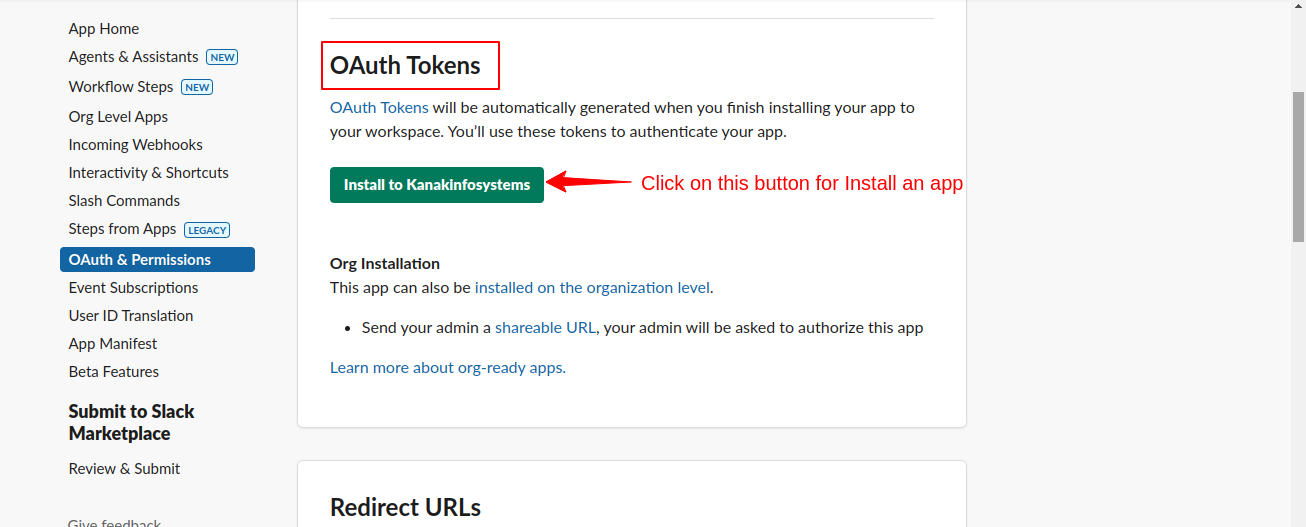
After configuring the Redirect URL and setting the user token scopes, navigate to the OAuth Tokens section and click on the Install button.
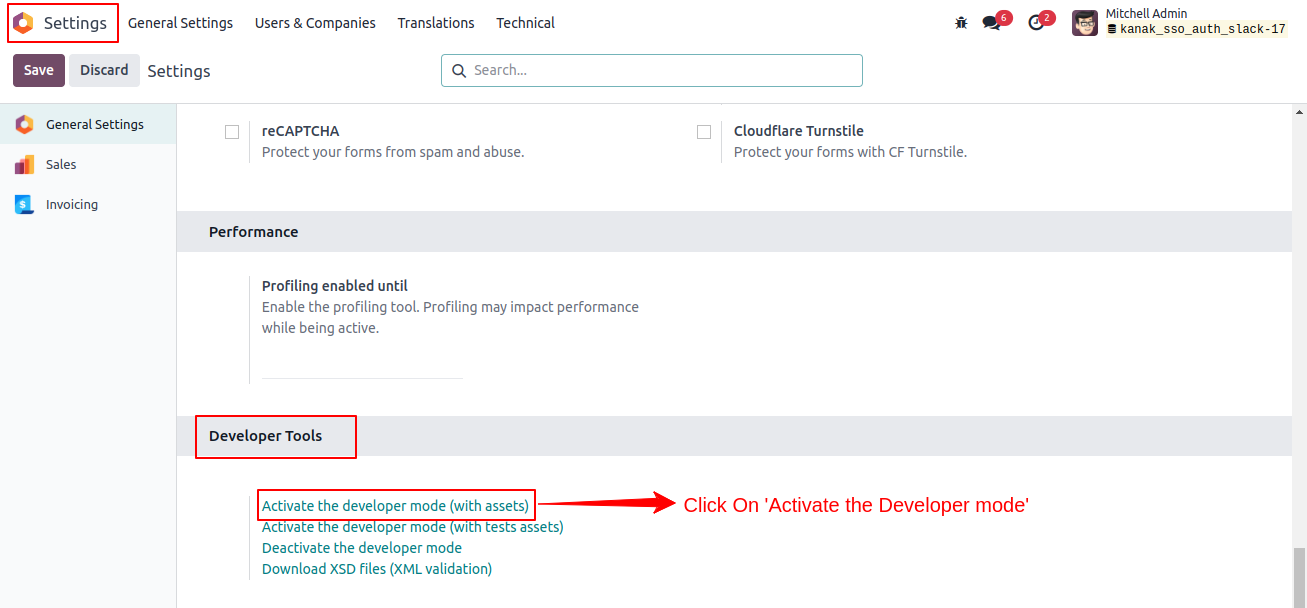
Navigate to settings and under the Developer Tools, Click on Activate the developer mode.
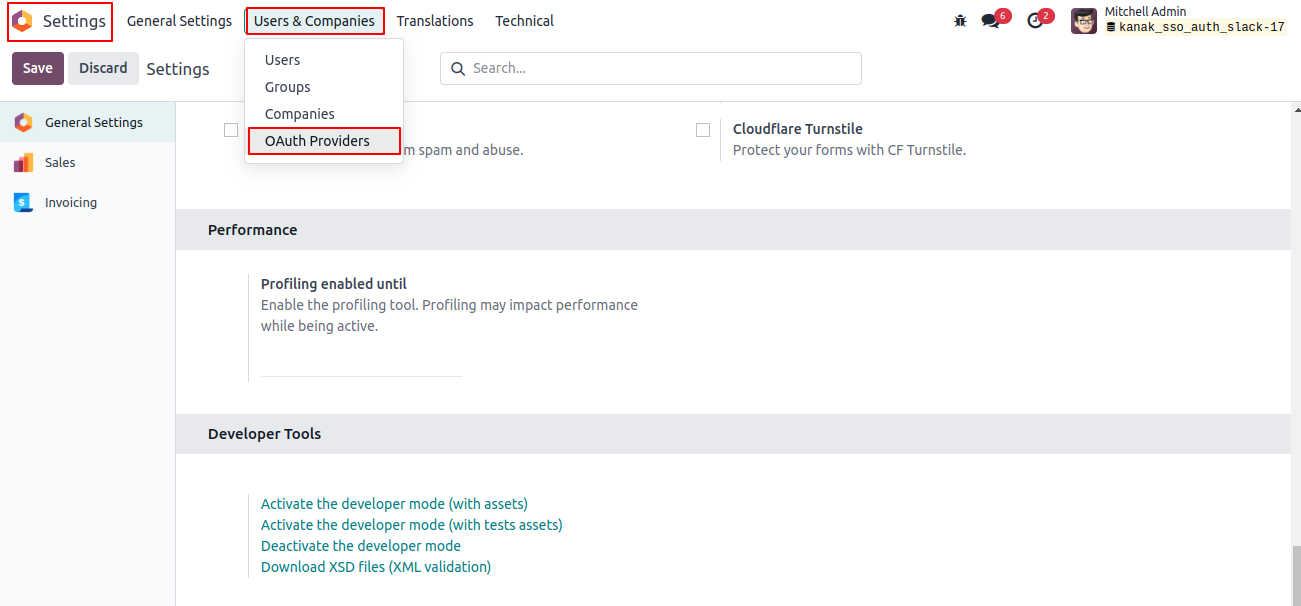
Navigate to settings > Users & Companies > Click on OAuth Providers
Click on the Slack SSO OAuth2
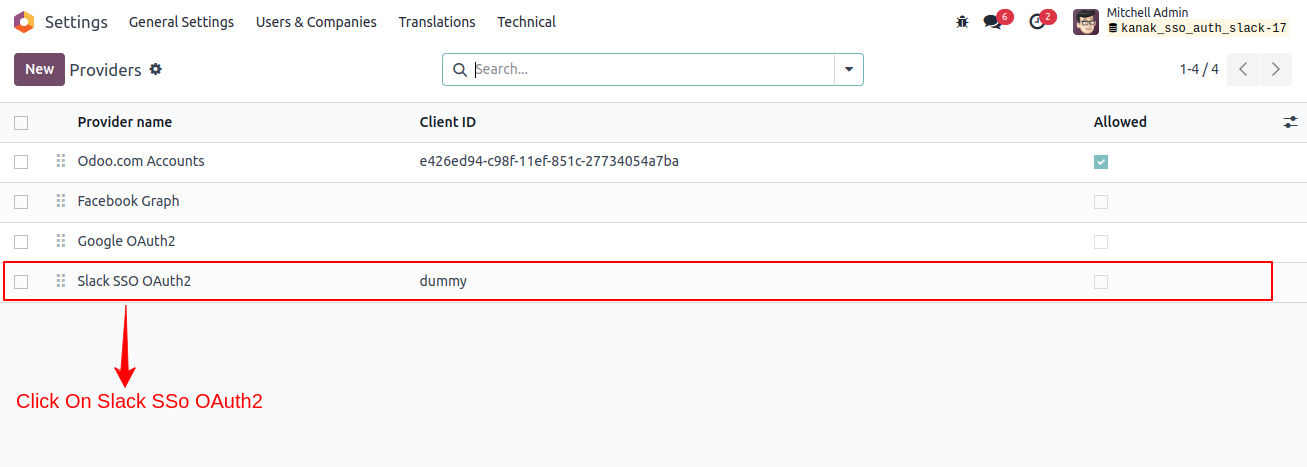
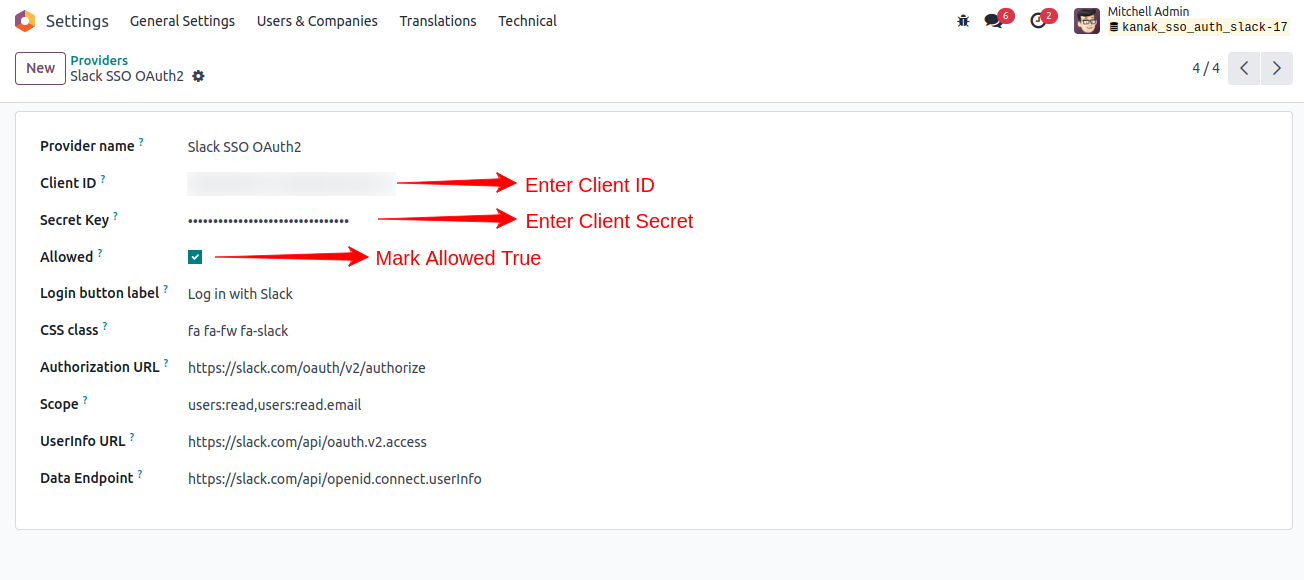
Enter your Slack credentials (Client ID, Secret Key) and mark allowed true, Save the changes in Record.
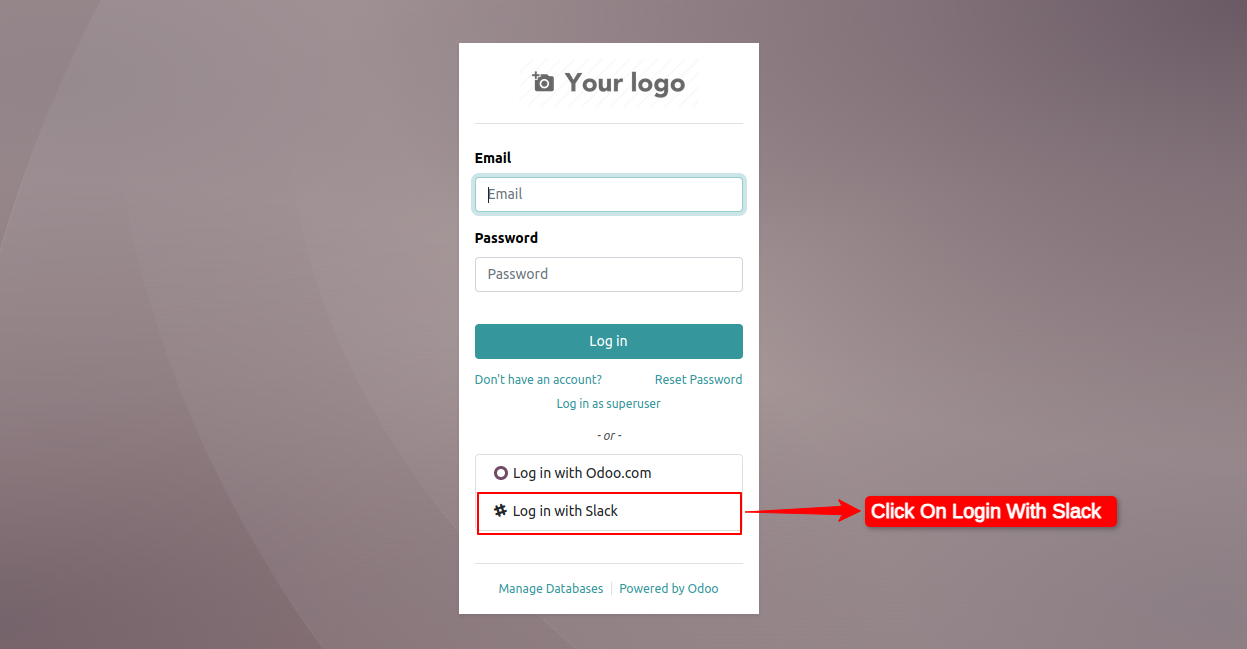
Click on Login with Slack
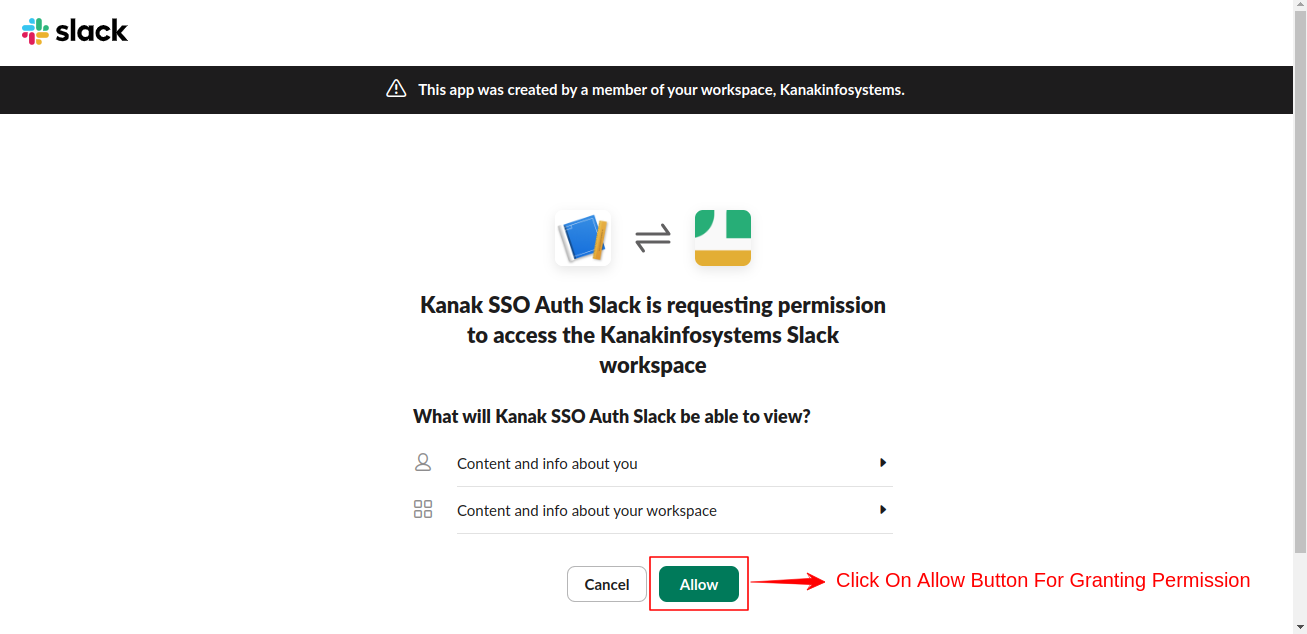
After clicking Login with Slack, you will be redirected to a permission request page. Click on the Allow button to grant access.
Upon successful authentication, New User will be created for the first time login and later users can login with Slack.
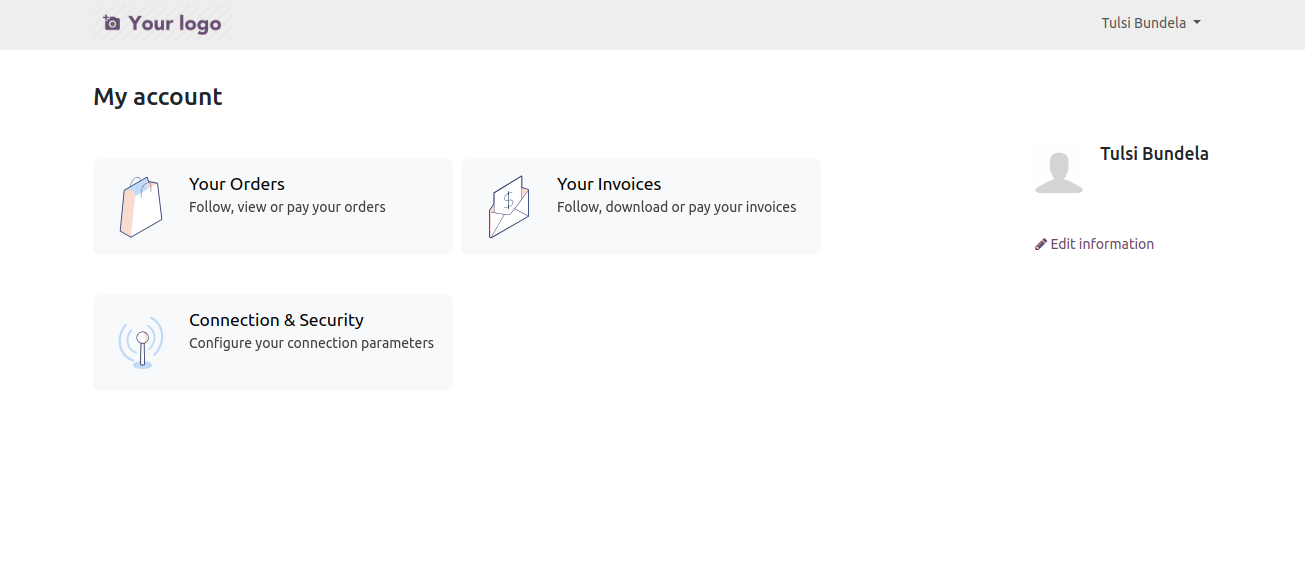
Upon successful authentication, New User will be created for the first time login and later users can login with Slack.

Secure login with Slack single sign-on (SSO).
No need to remember password after login.
Kanak Infosystem will provide free 3 months support for bug fixes, any doubts or queries, installation, configuration support or any types of issues related to this module.
At our company, we take pride in providing exceptional help and technical support to our valued customers.
Our team of dedicated experts is well-versed in the intricacies of the Odoo platform.



Hire Odoo Developer

Odoo Customization

Odoo Development

Odoo Installation

Odoo Integration

Odoo Resource

Odoo Themes

Odoo Training
OPL-1

Comment on this module. Please Login